

How it works

1
Open the add-content menu
In the Migma create/chat input, click the ”+” (plus) button to open the add-content dropdown.
2
Choose "HTML to Email"
Select the menu item labeled HTML to Email.
3
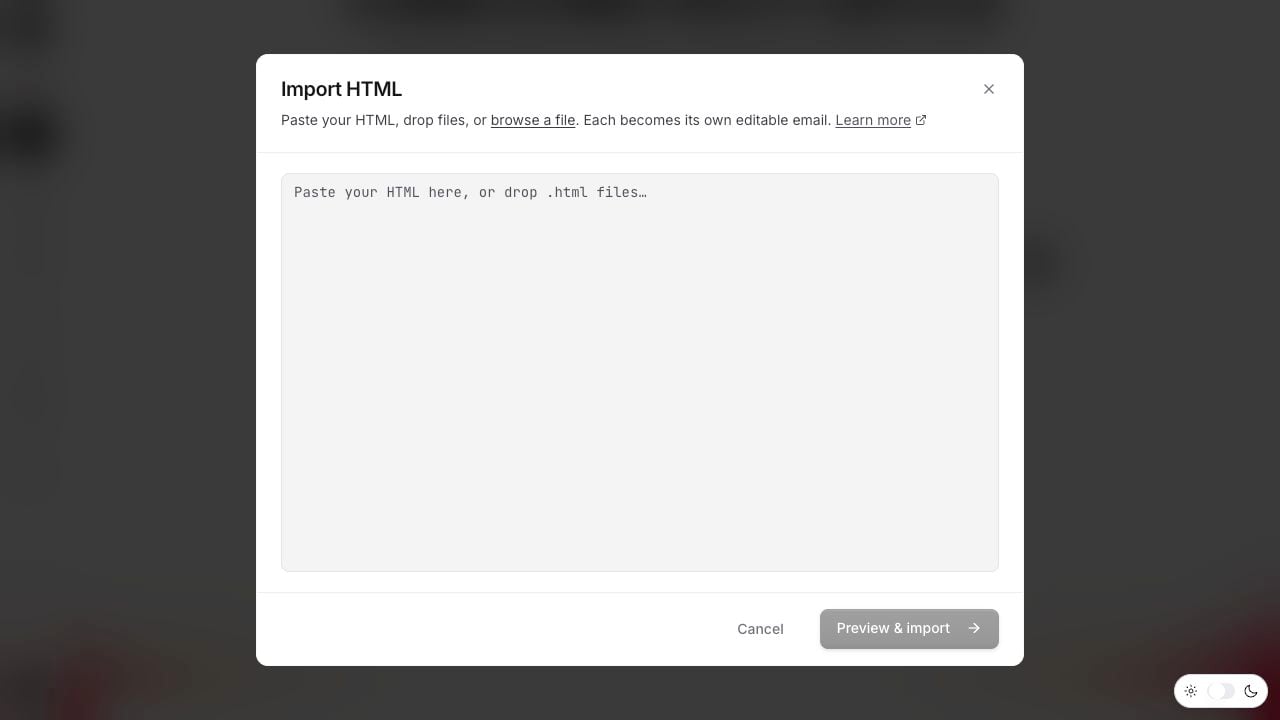
Add your HTML
Paste the HTML code directly, or drop / upload a
.html or .eml file.4
Preview and import
Click Preview & import. Migma converts the source into an editable email.
5
Review & refine
Tweak in chat or the visual editor, run Email Preflight, then export.
Agents and API
The same HTML to Email conversion is available from an agent, the API, the SDK, and the CLI. Paste HTML or pass one or more.html or .eml files. An optional instruction can keep the email as-is or apply the brand. One import can make a series (up to 12). Poll until it finishes, then show the canvas links.
Each converted email is one canvas slot. emailId is the handle for that slot. The canvas link opens that email. Edit, send, and export use emailId. Agent results omit HTML unless you ask for it.
Use Import / Convert HTML Email in MCP when the source already exists. Do not ask the design tool to recreate HTML from a prompt.
MCP Server · SDK · CLI
Two ways to import
Exact conversion keeps your email as-is and makes it Migma-editable and email-safe. Nothing about the design changes. Use this when the template is already the way you want it and you only need it inside Migma.What happens under the hood
This is not a model guessing at your markup. A deterministic converter parses your HTML and rebuilds it as an editable Migma email. That single detail is what makes the import dependable:Deterministic
A parser reads your HTML and maps it to an editable Migma email. The same input produces the same output every time, no model variance.
Email engine
Every import uses the same rendering engine that powers emails built from scratch in Migma.
Email-safe output
The engine emits email-safe HTML for Gmail, Outlook, Apple Mail, mobile clients, and dark mode review.
color-scheme metadata). So if your original template renders fine in some clients but falls apart in Outlook, re-importing it through Migma is the fix: it comes back out as clean, email-safe HTML.
Tangled, inline-everything legacy markup becomes an editable Migma email
Quirks that break specific clients are normalized by the engine
The result is fully editable, not a flattened snapshot
Fixing a broken legacy template
This is the most common reason teams reach for HTML import. The workflow:1
Import the broken template
Paste or upload the HTML that’s misbehaving in Outlook (or anywhere else).
2
Let the engine rebuild it
The deterministic converter rebuilds it as an editable Migma email.
3
Confirm with Preflight
Run Email Preflight to see it across major clients and devices before you send.
After import
Once your email is in Migma, it behaves exactly like one you built from scratch: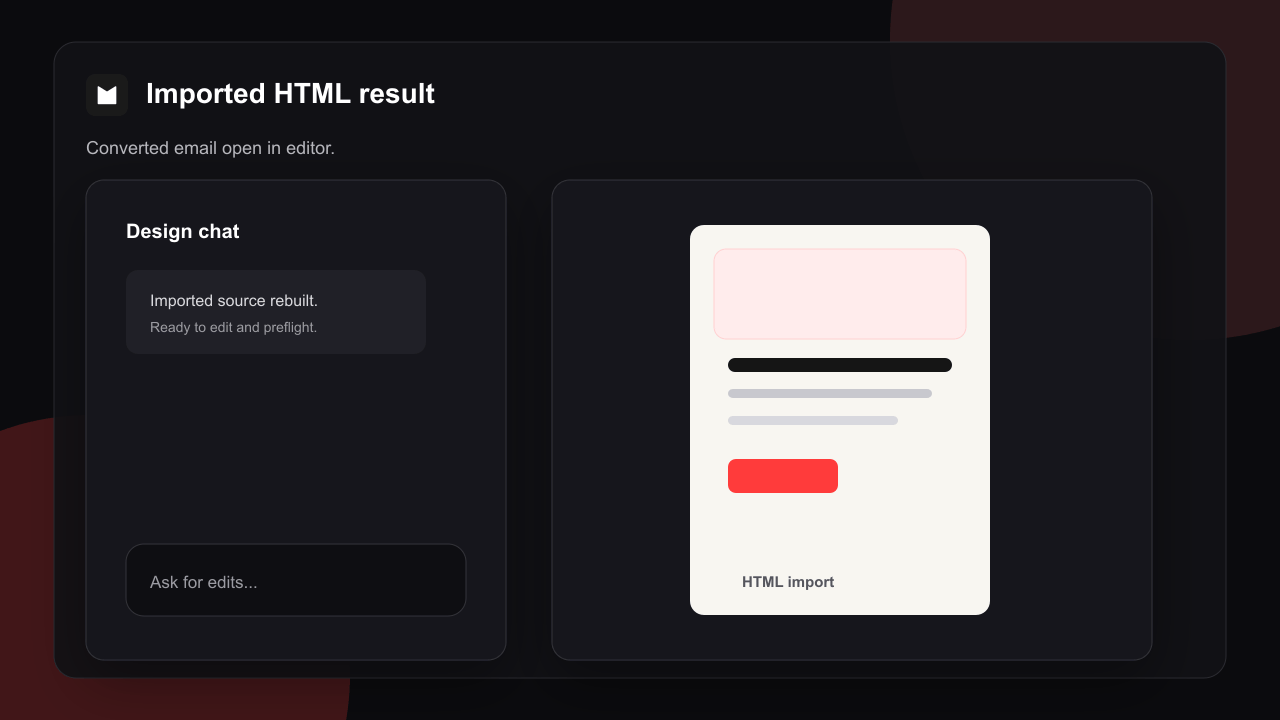
Refine in chat
Ask for changes in plain language: “make the headline larger”, “swap the hero image”, “tighten the footer spacing”.
Edit visually
Click into any block to adjust text, images, colors, and layout directly.
Run Preflight
Test the imported email across major clients and devices before it goes out.
Export anywhere
Export clean, email-safe HTML for any ESP. No vendor lock-in.
HTML import vs other methods
If you already have the HTML, this is the most faithful path. Your content and structure come across as-is, and you gain email-safe rendering on top. If you only have a picture of an email, use Clone a Screenshot; if you’re starting from a design file, use Figma to Email.
Troubleshooting
My paste didn't import
My paste didn't import
Cause: Partial markup, such as a copied fragment rather than a full document.Solution: Paste the complete HTML, or save the email as a
.html / .eml file and upload that instead.Fonts look different after import
Fonts look different after import
Cause: The original used a font that isn’t available across email clients.Solution: Migma maps to email-safe fallbacks automatically. To pin a specific one, ask in chat:
It looked fine before but rendered differently
It looked fine before but rendered differently
Cause: The original relied on CSS that some inboxes ignore. The engine rewrites those parts to email-safe equivalents.Solution: This is expected. The import is optimized to render reliably across clients. Confirm the result in Email Preflight, then refine anything you want to adjust.
Images are missing
Images are missing
Cause: The HTML referenced images by relative path or from a source that’s no longer reachable.Solution: Use absolute, publicly reachable image URLs in your source, or re-add the images in the visual editor after import.
Related
Figma to Email
Import directly from a Figma design file.
Clone a Screenshot
Recreate an email from a screenshot or mockup.
Client Compatibility
How Migma keeps emails rendering reliably across inboxes.
Email Preflight
Test your imported email across major clients and devices.
Export Options
Export clean, email-safe HTML for any ESP.
Claude Design to Email
Import a design built in Claude’s design tool via React / JSX.