

How it works
1
Design in Claude
Build your email in Claude’s design tool. Claude exports the design as React / JSX components.
2
Export as a .zip
Download the design as a
.zip of the React / JSX components.3
Open the add-content menu in Migma
In the Migma create / chat input, click the + (plus) button to open the add-content dropdown.
4
Choose "Import Claude design"
Select the menu item labeled Import Claude design. This is the Claude-design import.
5
Choose the output, then upload your .zip
The Import a Claude design dialog opens. Choose Create editable email or Create brand version, then click Choose .zip file and pick the export. Migma reads the zip and converts each email component into an editable email.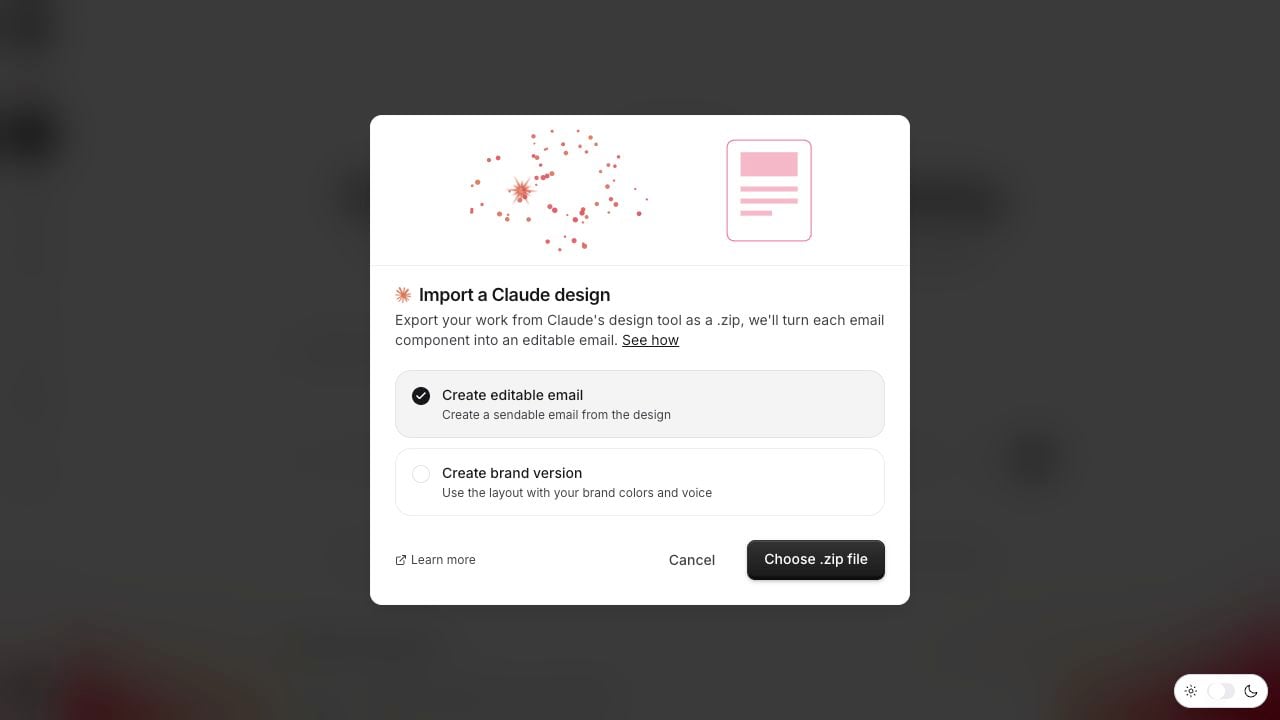
Editable or brand version
When you open the dialog, you pick how Migma should treat the design:Create editable email
Keep the colors, layout, and styling as designed. A faithful, 1:1 translation of the design you built in Claude. This is the default.
Create brand version
Re-theme with your brand colors, voice, and remembered preferences. Migma keeps the layout, structure, and content of the design but maps the palette to your brand.
Both options preserve the layout and structure of your design. The difference is purely the color palette and brand voice: Create editable email keeps the design’s own colors, Create brand version swaps in yours.
What happens during import
The import runs in two stages:1
Convert React / JSX to editable email
Migma reads each email component in your export and translates it into an editable email, applying your editable-or-brand-version choice. If your export contains more than one top-level email component, you get one editable email per component.
2
Render production HTML
Migma renders send-ready HTML. Claude design, Figma, HTML, and screenshot imports use the same email rendering path.
Native React / JSX
Claude exports React / JSX, and that’s exactly what this import takes. No screenshot or redraw step in between.
Email-safe HTML
Migma renders email-safe HTML, so the markup can be reviewed before send.
Renders reliably
Review Outlook, Gmail, Apple Mail, and mobile before send.
Faithful to the design you built in Claude, or re-themed to your brand if you choose Create brand version
Stays consistent in dark and light mode. Migma emits explicit color-scheme metadata
Lands as a normal Migma email you can keep editing
After import
Once you upload the zip, Migma takes you into the chat / canvas and the converted email (or emails) stream in. From there each one behaves like any other Migma email:1
Refine
Adjust copy, layout, colors, and images in the chat or the visual editor.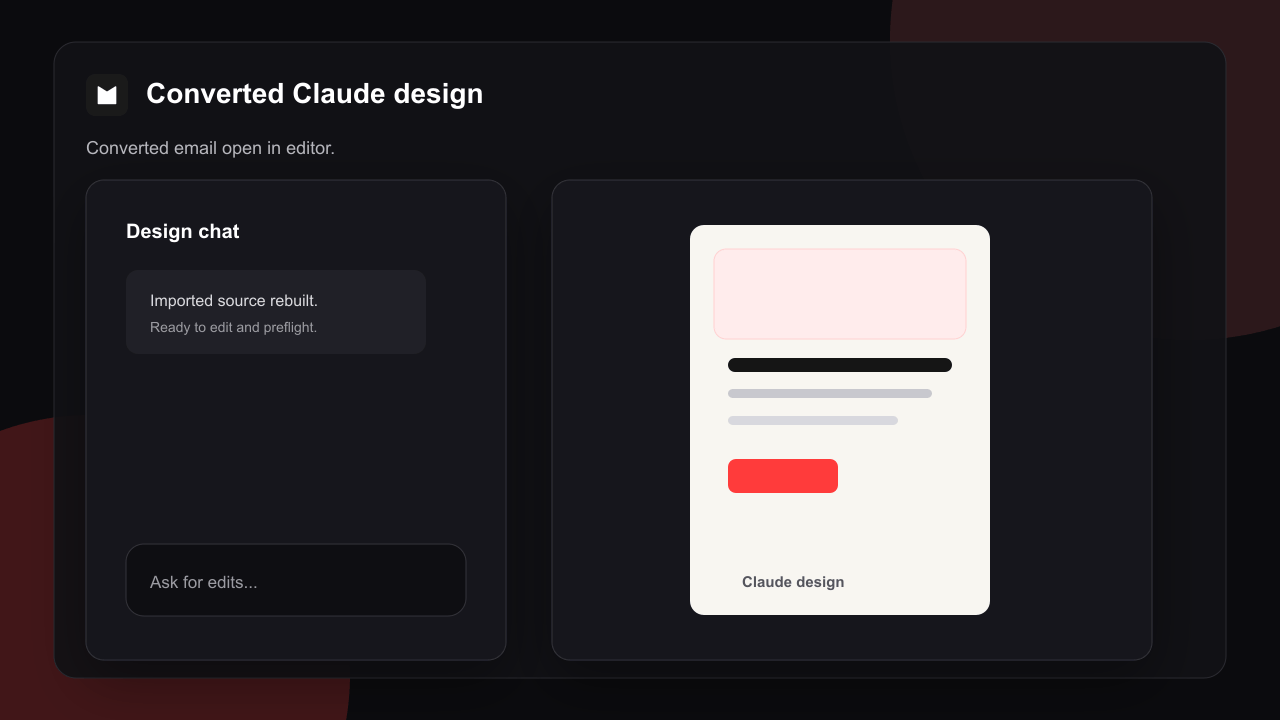
2
Preflight
Run Email Preflight to check how it renders across clients and devices before you send.
3
Export or send
Export the email or send it like any other Migma email.
Dark mode and client rendering
Migma emits explicit color-scheme metadata, so your email stays consistent and renders predictably in both dark and light mode. You get a controlled, intentional result across clients rather than colors flipping unpredictably when a reader has dark mode turned on. For a full picture of what’s supported where, see the client compatibility guide.Claude Design vs other import methods
If you designed the email in Claude, the Claude Design import is the most direct path. It takes the React / JSX export natively, and the editable-or-brand-version choice lets you decide up front whether to keep the original look or retheme it to your brand.
Troubleshooting
I can't find the Claude import option
I can't find the Claude import option
Cause: You’re looking in the wrong menu or on a page where the add-content menu is not available.Solution: Click the + button in the create / chat input and choose Import Claude design.
My upload was rejected
My upload was rejected
Cause: The import expects a
.zip of the React / JSX components. If the zip has no JSX modules inside, Migma can’t tell it’s a Claude design export.Solution: Export the design from Claude as a .zip and upload that file, not the individual files or a screenshot.The colors came in wrong
The colors came in wrong
Cause: The editable-or-brand-version choice controls the palette. Create editable email keeps the design’s own colors; Create brand version swaps in your brand colors.Solution: Re-run the import with the other option, or just refine the colors in chat after the import lands.
The result needs adjusting
The result needs adjusting
Cause: The converted email is a starting point, not a final draft.Solution: Refine it in chat or the visual editor, then run Email Preflight before you send.
What do you want to do next?
Edit your email
Click into any part of the imported email to tweak text, images, or colors.
Preflight before sending
Check how your email renders across clients and devices before it goes out.
Client compatibility
See how Migma keeps emails rendering reliably across major clients.
Figma import
Bring a design in straight from your Figma file.
Clone from image
Recreate any email from a screenshot or mockup.
HTML to Email
Convert an existing HTML email into a fully compatible Migma email.