Overview
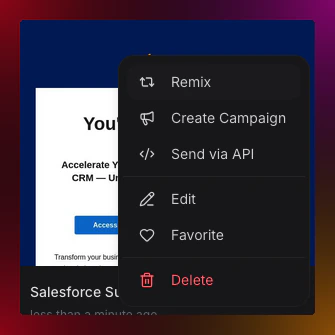
Remix lets you use any email—trending public emails or your own past campaigns—as a starting point for creating new emails. Browse successful emails at migma.ai/trending, find one you like, click “Remix,” and Migma will use it as a reference when generating your new email.Trending Gallery
Browse popular public emails at migma.ai/trending
Remix Any Email
Use trending emails or your own as templates
Smart Generation
AI adapts structure while applying your brand
Browse Trending Emails
Trending Page
Visit: migma.ai/trending The trending page showcases popular emails created by the Migma community.- Email Card
- Email Categories
- Popularity Metrics
Each email card shows:Preview Image:
- Screenshot of the email design
- Dynamic height (280-520px) for natural masonry effect
- Click to open full preview in new tab
- Email subject/title
- Preview text
- Tags (up to 2 visible)
- Statistics: 📊 Views, 🖼️ Images, 🔘 Buttons
- Remix - Use as reference for new email
- Preview - Open full email in new tab
How Remix Works
The Remix Process
1
Browse Trending Emails
Go to migma.ai/trendingScroll through the masonry grid and find an email you like
2
Hover Over Email
Hover to see details:
- Email subject and preview
- Tags and statistics
- Action buttons appear
- Click Preview to see full email
- Click Remix to use as reference
3
Click Remix
Click the “Remix” buttonWhat happens:
- Email reference is saved temporarily
- You’re redirected to
/createpage - Remix reference appears at top of create page
4
See Remix Reference
On the create page, you’ll see:This chip shows:
- The email you’re remixing from
- Link to view the original email
- Option to remove reference (× button)
5
Add Your Instructions
Write your prompt with modifications:Migma will:
- Use the remix email’s structure as reference
- Apply YOUR brand colors, fonts, and logo
- Generate content based on YOUR prompt
- Maintain the design approach from reference
6
Generate
Click “Generate”AI creates email that:
- Follows similar structure to remix reference
- Uses your brand identity throughout
- Contains your specific content
- Adapts the design to your needs
7
Edit & Finalize
Review the generated email
- Edit in visual editor if needed
- Adjust content, images, CTAs
- Export or send when ready
Remix Your Own Emails
Recents Page
Access your email history:- Navigate to migma.ai/recents (or click “Recents” in navigation)
- See all emails you’ve created
- Click “Remix” on any email to use it as a reference
- Iterate on successful campaigns
- Create A/B test variations
- Adapt for different audiences
- Update seasonal campaigns
- Maintain consistent style
Community Page
Browse other public emails: Visit migma.ai/community- Similar to trending page
- Different selection of public emails
- Community-submitted designs
- Remix any email you find
Where You Can Remix From
1. Trending Page
migma.ai/trending- Most popular public emails
- High-performing designs
- Community favorites
- Updated daily
2. Recents Page
Your own email history- All emails you’ve created
- Searchable and filterable
- Organize by favorites
- Sort by date created
3. Community Page
migma.ai/community- Browse community emails
- Discover new styles
- Find inspiration
- Learn from others
4. Currently Open Email
While viewing any email:- Click “Remix” in the email header
- Works on your emails and public emails
- Quick way to create variations
5. Homepage
Create page features:- Recent Emails Section - Your last few emails with remix buttons
- Trending Emails Section - Top 16 trending emails
- Click “Remix” on any to use as reference
Remix Use Cases
Learn from Successful Designs
Browse trending emails to learn:What makes them successful:
- Layout and structure
- Visual hierarchy
- Call-to-action placement
- Image usage
- Content organization
- Keep successful structure
- Add your content
- Apply your brand
- Create similar success for your business
Quick Campaign Variations
Create variations of your campaigns:Example: Product Launch
- Create original launch email
- Remix for different audience segments:
- Free users version (upgrade focused)
- Existing customers (new features focused)
- Enterprise (team benefits focused)
Seasonal Updates
Seasonal Updates
Adapt successful campaigns for new seasons:Example: Summer Sale → Holiday Sale
- Find your successful summer sale email
- Click “Remix”
- Prompt: “Update for holiday season with winter imagery and December dates”
- Generates similar structure with seasonal updates
A/B Testing Variations
Create test variations quickly:Test different approaches:
- Original email with standard CTA
- Remix with different CTA text
- Remix with different hero image
- Remix with different layout
Industry-Specific Inspiration
Find emails in your industry:On trending page:
- Look for emails tagged with your industry
- Find successful examples
- Remix with your product/service details
- Adapt proven designs to your business
Remix vs Start from Scratch
| Aspect | Remix | From Scratch |
|---|---|---|
| Starting Point | Existing email structure | Blank canvas |
| Speed | Faster (structure provided) | Slower (design from zero) |
| Consistency | Easier to maintain style | Requires more effort |
| Learning | Learn from successful emails | More creative freedom |
| Best For | Proven layouts, quick variations | Unique designs, experimentation |
| Brand Application | ✅ Auto-applied to remixed structure | ✅ Auto-applied to new design |
Advanced Remix Techniques
Combine Multiple References
Use multiple emails for inspiration: While you can only remix from one email at a time in the UI, you can describe multiple references in your prompt:Selective Remixing
Specify what to keep:Cross-Category Remixing
Adapt email types:Understanding the Technology
How Remix Data is Stored
When you click “Remix”:-
Reference data saved to localStorage:
- Redirect to create page automatically
- Create page detects the pending remix reference
- Shows remix chip at top with subject and link to original
-
When you generate, sends
remixReferenceIdto AI backend - AI uses original email as structural/design reference
What the AI Sees
When you remix, the AI receives:- Structure and layout of original email
- Design patterns and visual hierarchy
- Section organization
- Image placement approach
- CTA positioning
- Exact text (uses your prompt)
- Brand colors (uses yours)
- Logo (uses yours)
- Fonts (uses yours)
Tips for Better Remixes
Choose relevant references - Pick emails similar to what you want to create
Be specific in prompts - Tell AI what to change and what to keep
Review structure - Preview original before remixing to understand layout
Test variations - Remix the same email with different prompts to compare results
Save successful remixes - Mark favorites to remix again later
Learn from metrics - Remix high-performing emails on trending page
Removing Remix Reference
If you change your mind:- Click × button on remix chip at top of create page
- Reference is removed
- Start fresh or choose different remix source
- Just start typing your prompt without worrying about it
- Generate will still use reference if present
- Remove later if needed
Frequently Asked Questions
Does remix copy the email exactly?
No, remix is a reference, not a copy.What happens:
- AI uses structure and layout as inspiration
- Applies YOUR brand colors, fonts, and logo
- Generates content based on YOUR prompt
- Creates unique email tailored to your needs
- Proven structure + your brand + your content = new email
Can I remix any email?
You can remix:
- ✅ Any trending/public email
- ✅ Any community email
- ✅ Any of your own emails
- ✅ Any email you have access to view
Will my remixed email be public?
No, not automatically.Privacy:
- Your emails are private by default
- Only you can see them
- You choose if/when to make public
- Remixing doesn’t change visibility
- Opt-in choice
- Share to trending/community if you want
- Help others learn from your designs
Can I see who remixed my email?
If you share an email publicly:
- Others can view and remix it
- You cannot see who remixed it
- View counts show popularity
- Helping the community learn!
What if I don't like the remixed result?
No problem!Options:
- Edit in visual editor - Adjust the generated email
- Regenerate with different prompt - Try new instructions
- Remove remix reference and start fresh - Click × on remix chip
- Choose different remix source - Try remixing from different email
Next Steps
Browse Trending Emails
Visit migma.ai/trending
View Your Recents
Remix your own emails
Visual Editor
Edit remixed emails
Create from Scratch
Or start fresh