

Overview
Send emails to your audience using campaigns. Campaigns let you select a segment or list as recipients, configure sender settings, and track results.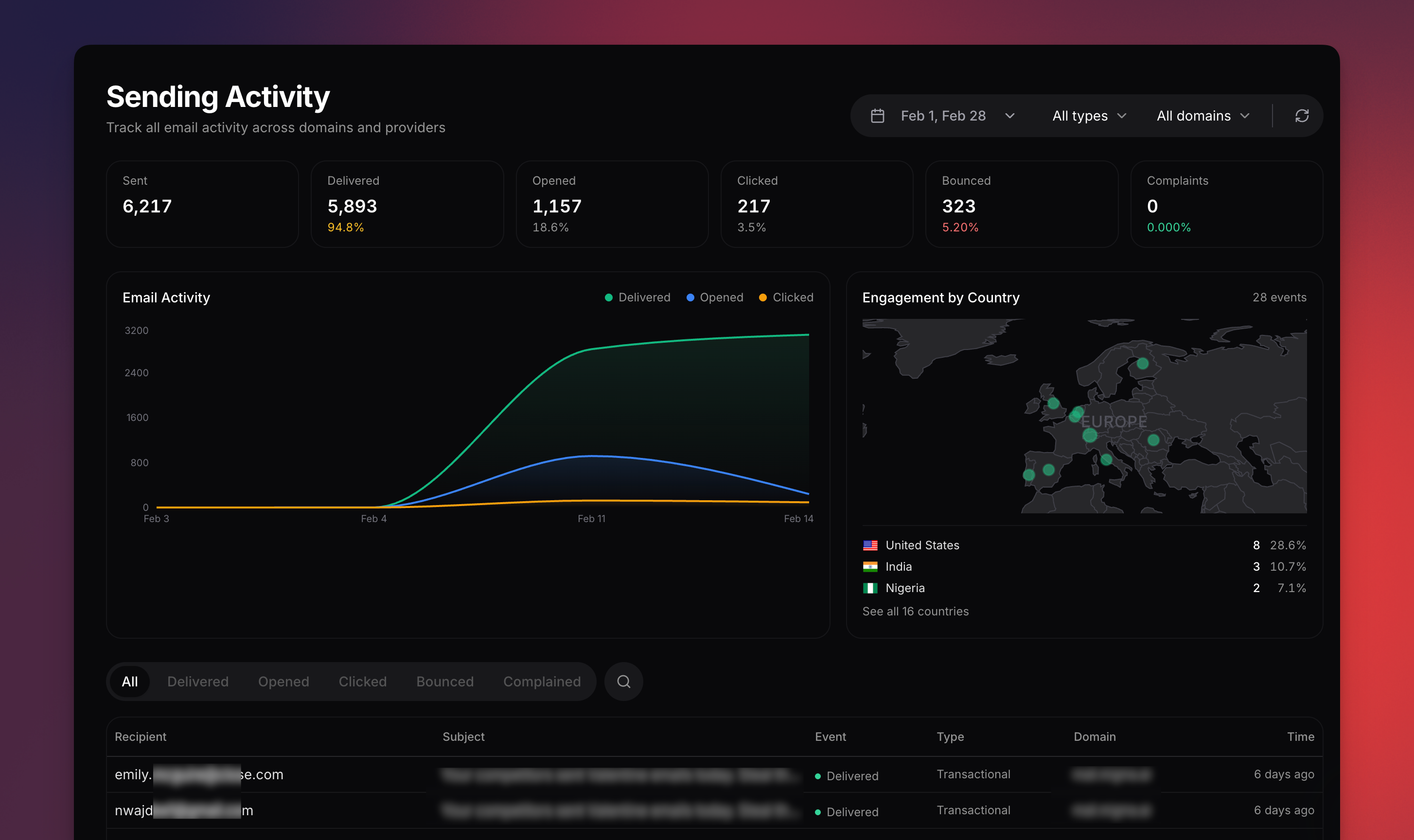
Real-time delivery logs with open, click, and bounce tracking
Email sending in Migma is done through the Campaigns section, not from the Contacts page directly.
Quick Start
1
Create your email
Use Migma’s AI tools to create an email in the chat editor.
3
Create a campaign
Go to Campaigns and create a campaign. Select your email, choose recipients (segment or list), configure sender settings, and send or schedule.
Prerequisites
- Connected email provider (Migma, Amazon SES, Resend, SendGrid, or Mailgun)
- Verified sending domain
- At least one contact with
subscribedstatus
Setup Email Provider
Connect and configure your email service provider
Unsubscribe & Compliance
Migma handles compliance automatically:- Unsubscribe links are added to every marketing email
- Clicking unsubscribe updates the contact’s status immediately
- Unsubscribed contacts cannot receive marketing emails
- Preference center lets subscribers manage their topic preferences
Send via API
Send emails programmatically via the SDK, CLI, or API. Thefrom address determines your sending domain — it must be a verified domain. The optional providerType field selects which email service provider delivers the message. It defaults to migma (built-in sending).
For generated emails, use the emailId returned by generation status or shown in Publish → Send via API. conversationId identifies the whole chat thread; it works for single-email conversations, but multi-slot emails and series need emailId so the API knows which email to send.
- Migma (default)
- Amazon SES
- Resend
- SendGrid
- Mailgun
No
providerType needed — Migma sends by default. Use a verified sending domain (managed or custom).Sending Domains
Set up and verify a sending domain
Email Service Providers
Connect an external ESP
Transactional vs Marketing
Migma automatically infers the email type from how you send:
Transactional emails bypass subscription status, skip topic filtering, and omit List-Unsubscribe headers. Bounced addresses are always excluded.
This means single sends just work — no extra flags needed:
transactional flag to override the default:
Next Steps
Send a Campaign
Step-by-step campaign guide
Track Results
Monitor campaign performance
Manage Contacts
Organize your subscriber list
Setup ESP
Connect email service provider