

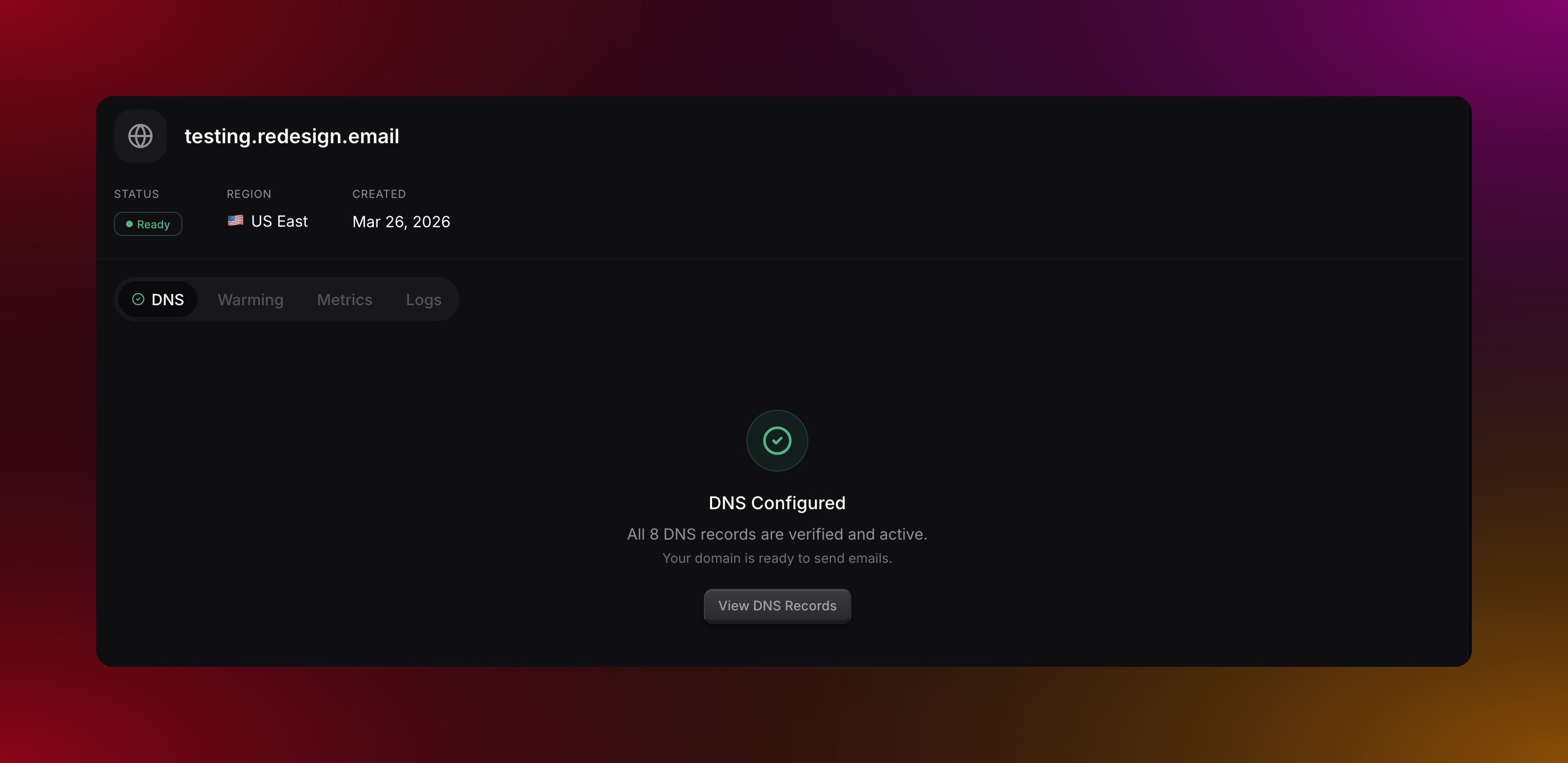
Health statuses
Health Metrics
Bounce Rate
Custom Domains
Managed Domains (stricter)
Bounce rate formula:
Complaint Rate
Custom Domains
Managed Domains (stricter)
Complaint rate
Thresholds apply after a minimum volume: 50+ emails for managed domains, 100+ emails for custom domains. Small volumes aren’t penalized for occasional bounces.
Health Dashboard
The health dashboard shows:What Causes Poor Health?
High Bounce Rate
Common causes:- Old email lists - Addresses go stale over time
- Purchased lists - Often contain invalid addresses
- Typos - Users entering wrong email addresses
- Inactive domains - Company domains that no longer exist
High Complaint Rate
Common causes:- No permission - Sending to people who didn’t opt in
- Irrelevant content - Content doesn’t match expectations
- Too frequent - Sending too many emails
- Hard to unsubscribe - Users mark as spam instead
- Misleading subject lines - Content doesn’t match promise
How to keep your domain healthy
Clean your list regularly
Clean your list regularly
Remove hard bounces immediately. Remove soft bounces after three consecutive failures. Remove anyone who has not opened an email in six months or more. Migma suppresses bounces and complaints automatically but you should audit your full list periodically too.
Make it easy to unsubscribe
Make it easy to unsubscribe
Every email should have a clear one-click unsubscribe link that does not require a login. If people cannot get off your list easily they will mark you as spam instead, which is far worse for your domain health.
Set expectations upfront
Set expectations upfront
When someone subscribes, tell them what they will receive and how often. Matching expectations reduces complaints significantly. Surprises are the main reason people reach for the spam button.
Use double opt-in
Use double opt-in
Ask new subscribers to confirm their email address before adding them to your list. This filters out typos, fake addresses, and people who did not really want to sign up.
Domain Suspension
When It Happens
A domain is suspended when it exceeds its type’s thresholds: Custom Domains:- Bounce rate exceeds 10%
- Complaint rate exceeds 0.5%
- Bounce rate exceeds 4%
- Complaint rate exceeds 0.1%
What Happens
When suspended:- All email sending from this domain is blocked
- Existing scheduled emails are paused
- You receive a notification
- Dashboard shows “Suspended” status
Reinstating a Domain
1
Identify the Issue
Review your metrics to understand what caused the suspension:
- Check bounce logs for patterns
- Review complaint sources
- Identify problematic list segments
2
Clean Your List
Remove all problematic addresses:
- Export your suppression list
- Cross-reference with your contact list
- Remove unengaged subscribers
- Verify remaining addresses
3
Contact Support
Reach out to Migma support with:
- Your domain name
- Steps you’ve taken to fix the issue
- Your plan to prevent recurrence
4
Wait for Review
Support will review your account and:
- Verify the issue is resolved
- May reinstate with a warning
- May require additional steps
Monitoring Best Practices
Recovery tips
If your domain is in Warning or Critical status, stop sending campaigns temporarily. Identify which recent send caused the issue, remove anyone who has not engaged in the last three months, and resume sending only to your most active subscribers. Build back up gradually from there.What do you want to do next?
Domain metrics
See detailed delivery, open, and complaint data.
Suppression list
See which addresses are blocked from receiving your emails.
Domain warming
Build reputation gradually on a new domain.
Email logs
Check the status of individual emails.