

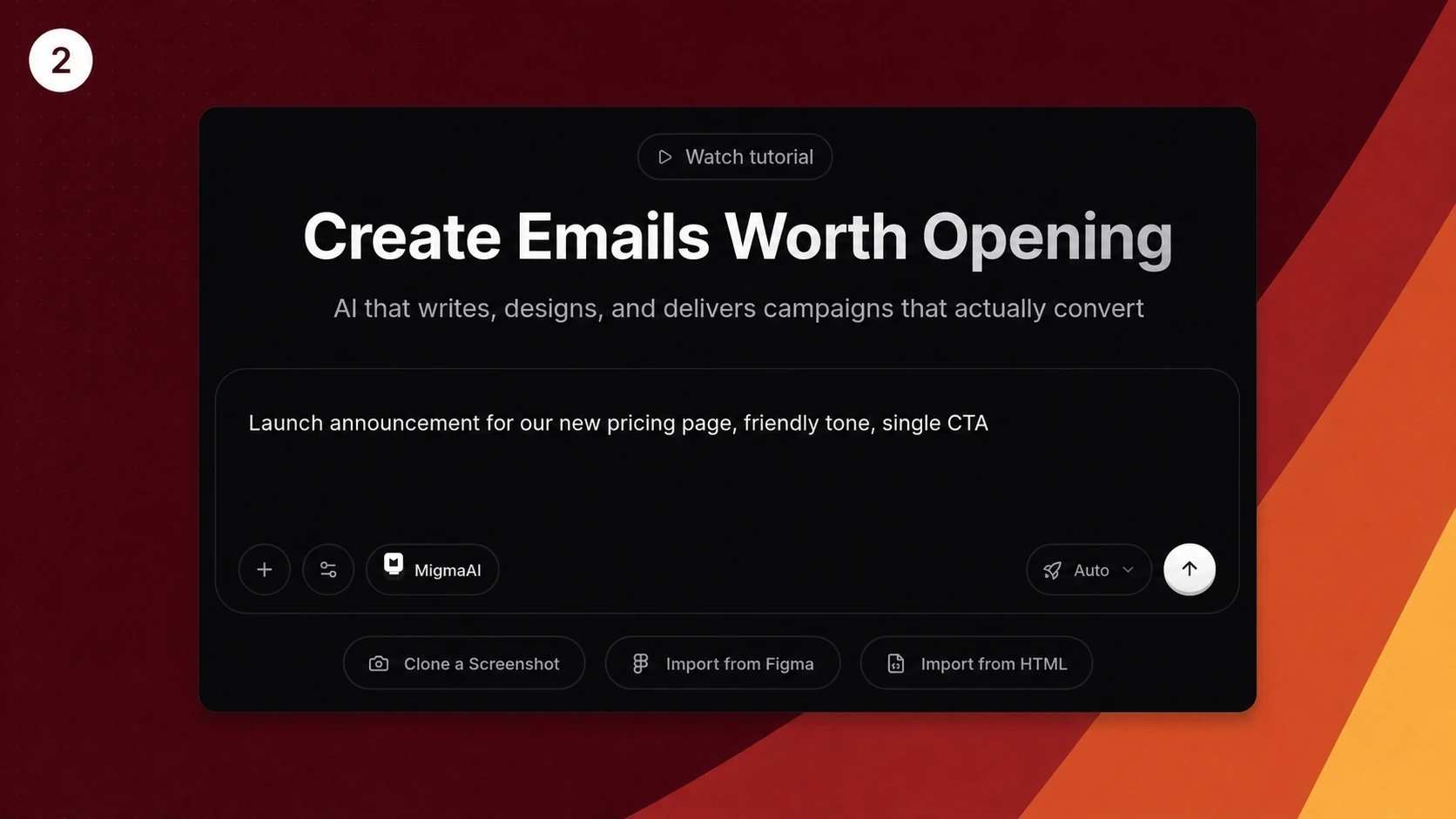
Start with one clear request
Make a draft
1
Open Create
Go to Create and choose the brand you want to use.
2
Ask for the email
Say what the email is for, who should receive it, and what action matters most.
3
Review the draft
Migma opens the email on the canvas. Check the message, layout, images, links, and brand details.
4
Ask for changes
Use chat for changes such as “Make the opening shorter” or “Use the product image from our brand library.” Use the Visual Editor when you want to change text or layout directly.
5
Check and test
Run Email Preflight, then choose Send Test Email. You choose when it goes to your audience.
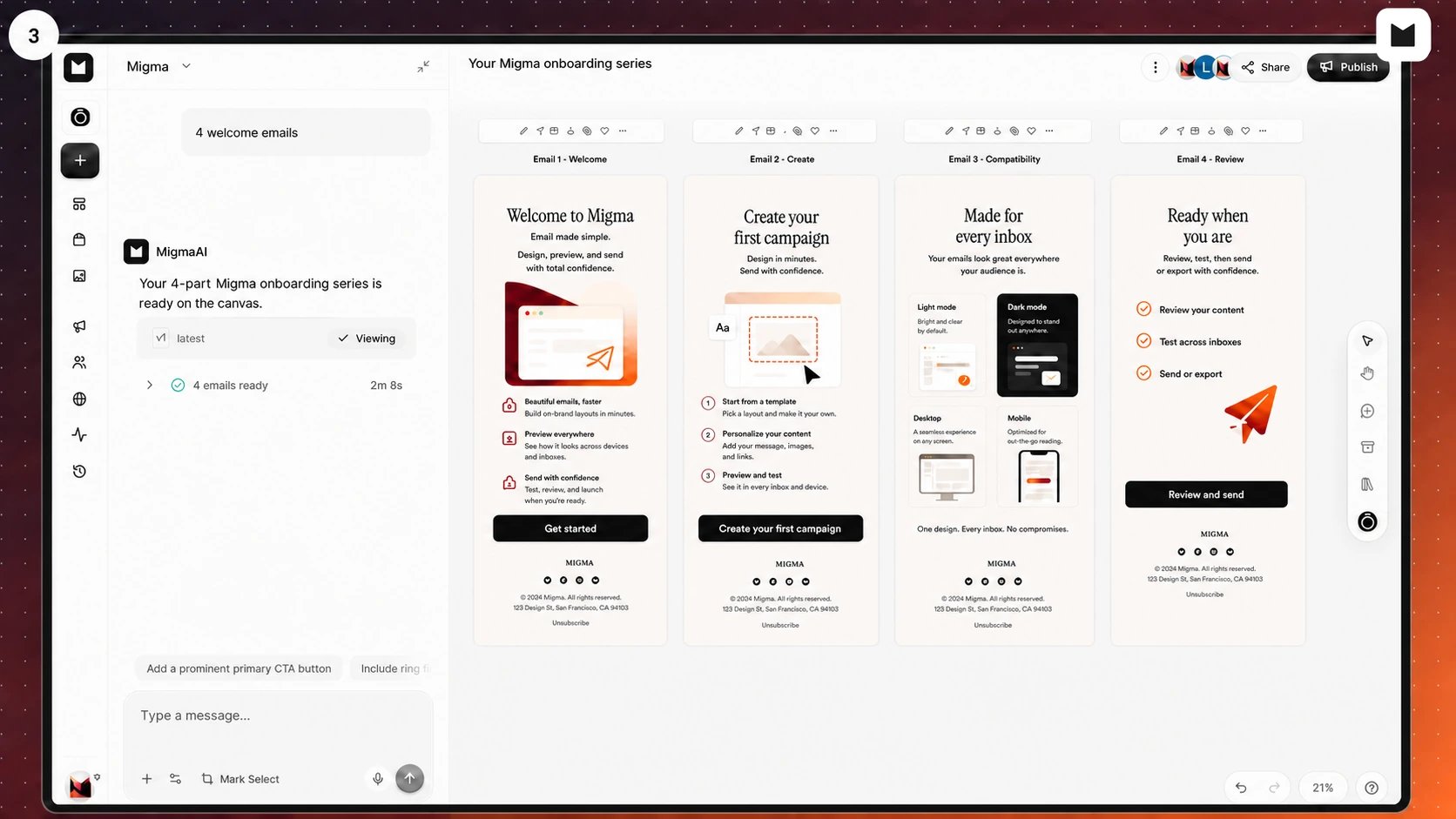
Review related emails together on the canvas
Better requests need little detail
Include what is known. Migma can help fill gaps.- Purpose: launch, newsletter, welcome, offer, update, receipt, or another clear job.
- Reader: new subscribers, customers, trial users, members, or another known audience.
- Main action: read, buy, book, reply, sign in, update details, or learn more.
Start from something you already have
Figma
Turn a Figma email design into an editable email.
Screenshot
Use an image as visual direction, then make the result yours.
HTML
Bring an existing email into Migma and keep editing it.
Claude design
Bring in an email design made with Claude.
Work with another AI tool
Connect Migma to Claude, ChatGPT, Codex, or another supported tool when you want to plan or create email there and keep Migma as the email workspace.
Connect Claude
Add Migma to Claude Code or Claude Desktop.

Connect ChatGPT
Ask ChatGPT for email work while Migma keeps the canvas and sending controls.
See all integrations
Connect design, AI, business, sending, and automation tools.
Next
Choose a guide to continue.Check your email
Preview real inboxes and catch issues before sending.
Send or export
Choose Migma, your email service, or HTML.