

Overview
After you add a custom sending domain, Migma gives you DNS records for ownership, DKIM, SPF, DMARC, and the custom MAIL FROM return path. Add those records wherever your domain’s nameservers are managed.Migma sending domains are for permission-based email. Only send to people who expect email from your brand, and review what you can send before sending campaigns.
Before you start
You need:- Access to your DNS provider, such as Cloudflare, Route 53, GoDaddy, Namecheap, Squarespace, Wix, or another host
- The Migma Sending Domains page open in another tab
- The exact domain you want to send from, often a sending subdomain such as
mail.yourcompany.comorupdates.yourcompany.com
Step 1: Add the domain in Migma
1
Open Sending Domains
In Migma, go to Sending Domains.
2
Choose Custom Domain
Click Add Domain, choose Custom, then enter the domain you want to send from.Examples:
yourcompany.commail.yourcompany.comupdates.yourcompany.com
3
Add the domain
Add the domain. Migma automatically assigns the sending region.
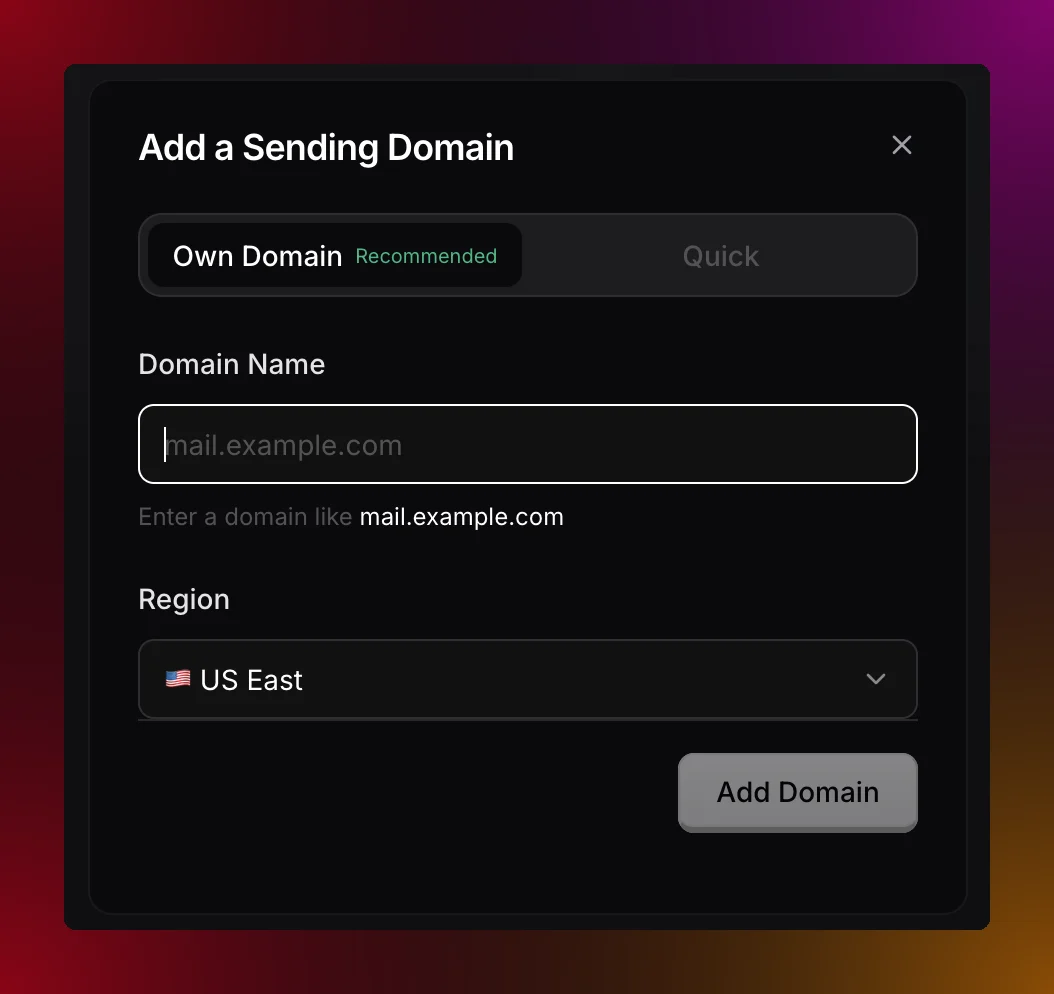
Add the sending domain that will appear in your From addresses
Step 2: Open the DNS records
Migma shows every record you need to create. Keep this table open and copy each value directly.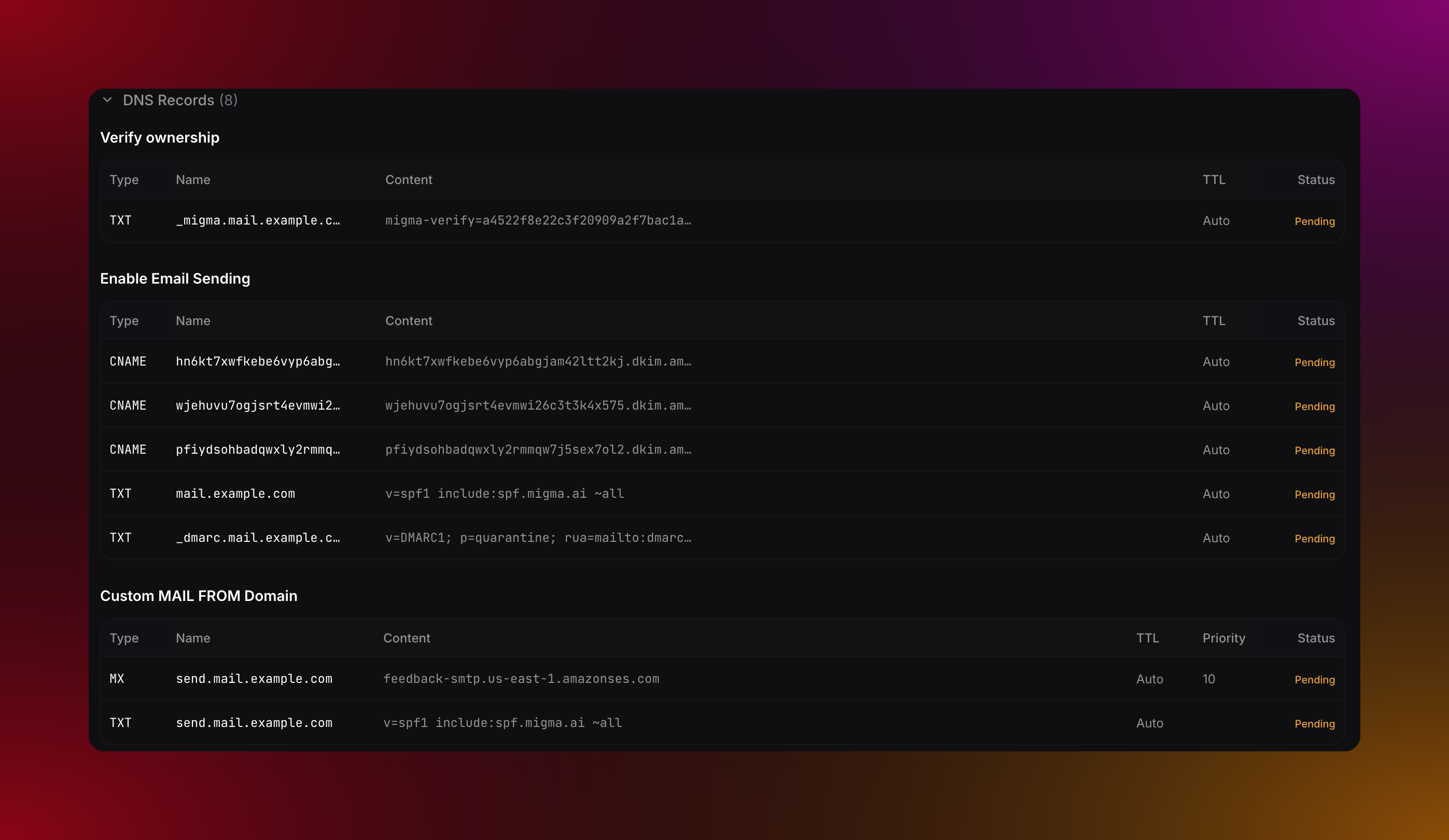
Copy the DNS records from the domain setup table
If Migma shows Custom MAIL FROM not configured, add both pending MAIL FROM records: the MX record and the TXT record. The MX record needs priority
10.Step 3: Translate the record name
DNS dashboards usually ask for a Name, Host, or Record name. This is the part most often entered incorrectly. Use the name Migma shows, but make it relative to the DNS zone you are editing if your provider auto-appends the zone.Step 4: Add each record at your DNS provider
Create one DNS record for each row shown in Migma.1
Add the ownership TXT record
Create a TXT record with the Migma verification value, such as
migma-verify=....2
Add the three DKIM CNAME records
Create all three CNAME records. The names contain
_domainkey, and the targets end in dkim.amazonses.com.In Cloudflare, set DKIM CNAME records to DNS only. Do not proxy them.3
Add the SPF TXT record
Create or edit the SPF TXT record for the sending domain.If there is no SPF record yet:If the domain already has SPF, keep one SPF TXT record and add Migma before the final mechanism:
4
Add the DMARC TXT record
Create the
_dmarc TXT record exactly as Migma shows it.5
Add the MAIL FROM MX record
Create the MX record for the MAIL FROM hostname, usually
send under your sending domain.- Priority:
10 - Mail server: copy the Migma value, such as
feedback-smtp.eu-west-1.amazonses.com
6
Add the MAIL FROM SPF TXT record
Create the TXT record on the same MAIL FROM hostname.
Provider field guide
- Cloudflare
- Route 53
- GoDaddy
- Namecheap
- Open Cloudflare and select your zone.
- Go to DNS -> Records.
- Click Add record.
- Copy the record type, name, and value from Migma.
- For DKIM CNAME records, set Proxy status to DNS only.
- Leave TTL as Auto.
Step 5: Verify in Migma
After saving the DNS records, return to Migma and check the domain.1
Wait a few minutes
Most DNS providers publish updates within 5-60 minutes. Some records can take longer.
2
Open the domain menu
In Sending Domains, open the action menu for the domain.
3
Click Check DNS
Migma checks each record and updates the status.
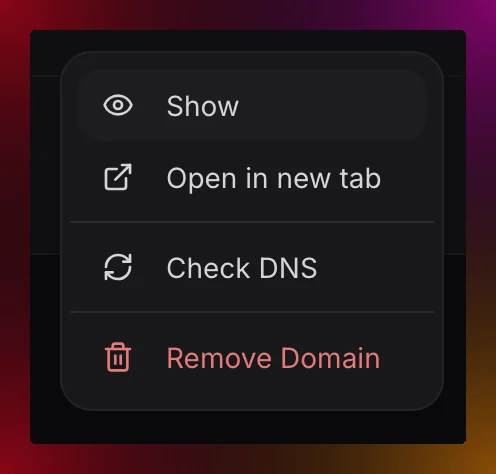
Use Check DNS to re-check the records after they are added
Common issues
The provider added the domain twice
The provider added the domain twice
This usually means the full record name was pasted into a field that expected only the host prefix.Example problem: entering
send.mail.example.com in the example.com zone creates send.mail.example.com.example.com.Fix it by changing the name to send.mail.SPF has duplicate TXT records
SPF has duplicate TXT records
A domain should have one TXT record that starts with
v=spf1. If one already exists, edit it and add include:spf.migma.ai before ~all or -all.DKIM CNAME records are proxied
DKIM CNAME records are proxied
In Cloudflare, DKIM CNAME records must be DNS only. Email authentication records cannot use the orange proxy cloud.
MAIL FROM is still pending
MAIL FROM is still pending
Check both MAIL FROM records. The MX record and TXT record must use the same hostname, usually
send under the sending domain.Amazon SES requires the custom MAIL FROM domain to have exactly one MX record for that hostname. If another service already owns that hostname, remove the old record or use a different sending domain.You are editing the wrong DNS provider
You are editing the wrong DNS provider
Your registrar is not always your DNS host. Check your nameservers, then add Migma records at the provider listed there.