

If you own or admin the account, you already have manager access to every brand — you don’t need to invite yourself. The owner is treated as a manager everywhere.
The four roles
When you invite someone, you pick one role for the brand. Each role is a fixed set of permissions.
In short:
- Manager on all brands — runs the account and collab: sending domains, People, invites, seats, and API keys. Paid or free collaborator does not matter. Plan and billing stay with the owner.
- Manager on one brand — runs that brand only, including members and sending from a ready domain. Cannot change account sending domains.
- Editor — generates, edits, and sends emails, but can’t manage members or brand settings.
- Commenter — can view and leave feedback, but can’t change or send anything.
- Viewer — read-only.
Inviting an Editor or Manager normally uses a paid seat. The workspace owner or a manager with access to all brands can instead check Free collaborator on the invite: they edit and collaborate without a seat, and their AI generation runs on their own plan’s credits. See Free collaborators.
Invite a teammate to a brand
The quickest way to add someone to a single brand is the Share panel, right where you’re working.1
Open Share
Inside the brand, open the Share panel from the collaboration controls.
2
Enter their email
Type the teammate’s email address.
3
Pick a role
Choose Manager, Editor, Commenter, or Viewer. Editor is the default.
4
Send the invite
Send it. They get an email invitation and appear under pending invites until they accept.
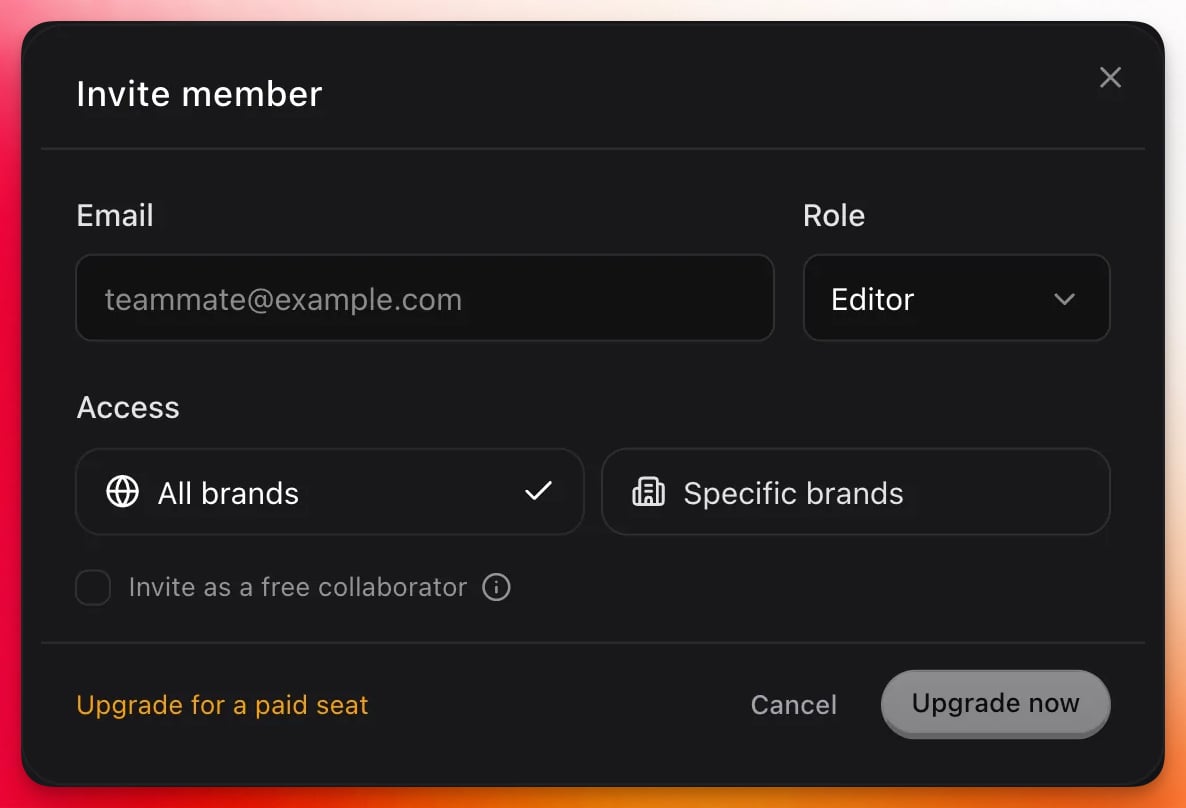
Only managers (and the account owner) can invite or remove members. If you don’t see the invite controls, you don’t have manager access on that brand.
Invite across all your brands at once
If a teammate should work across everything, you can invite them at the account level instead of brand by brand. Go to Settings → People, select Invite members, enter their email, pick a role, and leave the access set to All brands. When they accept, they get that role on every brand you own — current and future — so you don’t have to re-invite them each time you create a new brand. Switch the access to Specific brands to invite one person to several brands in a single step, and tick Invite as a free collaborator to bring them in without using a seat.The workspace owner or a manager on all brands can open Settings → People. A manager on one brand invites from that brand’s Share panel instead.
Manage members and pending invites
Settings → People has two views: People for everyone in the workspace, and Brand access for a brand-by-brand breakdown.Pending invitations
Invitations that haven’t been accepted yet sit in their own panel above the people list, so you don’t have to go looking for them. Each row shows the invited email, what they’ll get access to, their role, whether the invite reserves a seat, and when it was sent. Expired invites are flagged. The row menu lets you copy the invite link, resend the email, or revoke the invitation. The whole panel disappears once nothing is pending.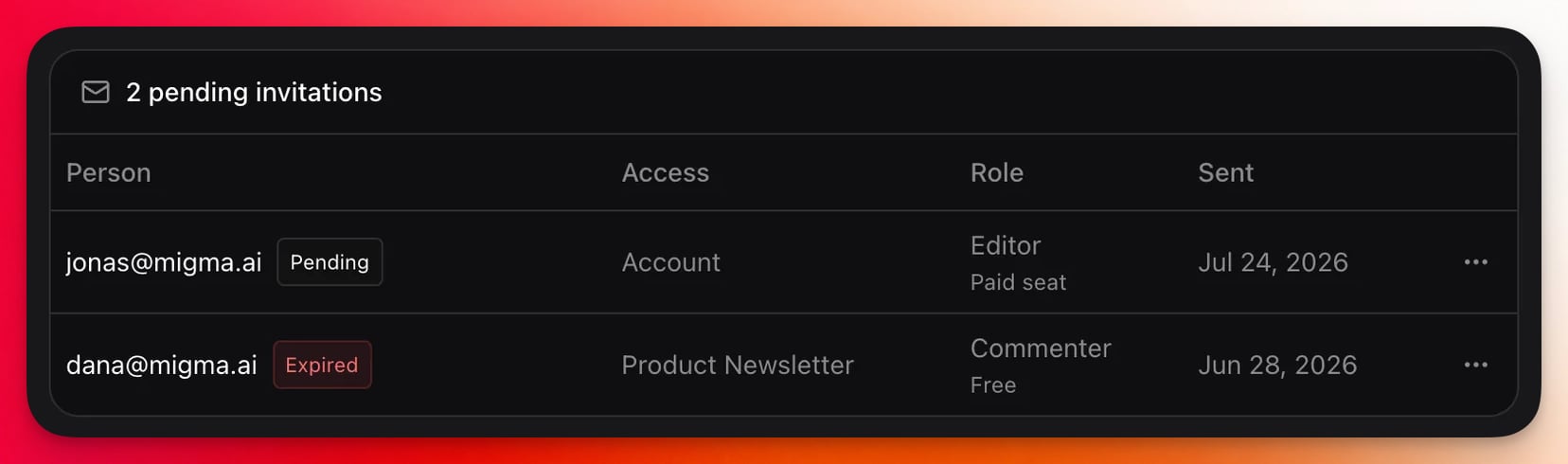
People
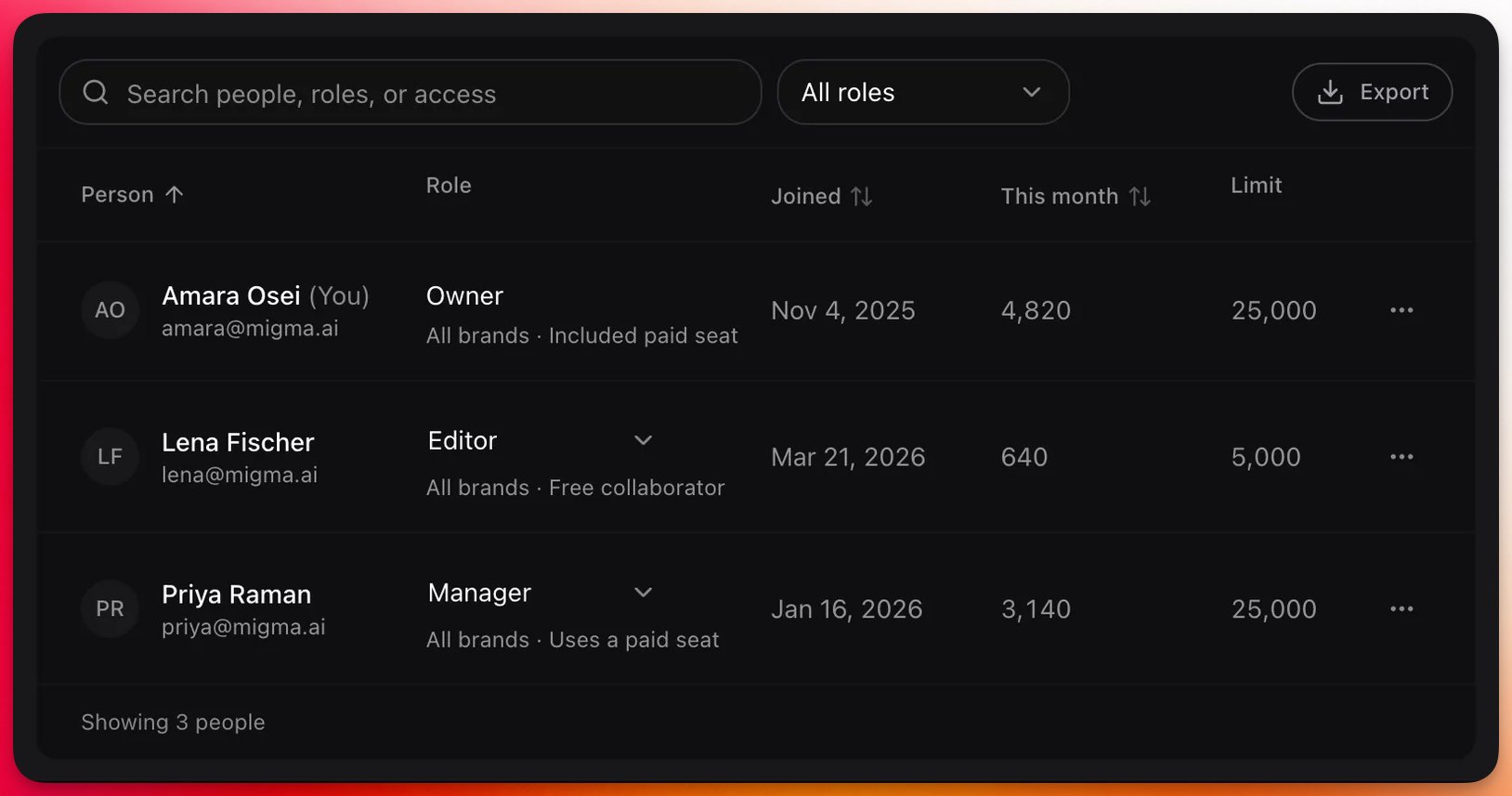
Everyone who has accepted, with their role, their reach (all brands, a count of specific brands, or owner), when they joined, and their credit usage this month against their limit.- Search matches name, email, role, reach, and seat status — so typing
freenarrows the list to your free collaborators. - Filter by role — Owner, Manager, Editor, Commenter, or Viewer.
- Change a role — for someone with all-brands access, switch them between Manager, Editor, Commenter, and Viewer inline.
- Row menu — copy their email address, move them between a paid seat and a free collaborator, or remove their workspace access.
Act on several people at once
Hover someone’s avatar and a checkbox appears in its place. As soon as anything is selected, a bar appears at the bottom of the screen — and the toolbar’s Export button switches to exporting just your selection:- Export — download the selected people as a CSV.
- Remove access — remove everyone selected, after a confirmation.
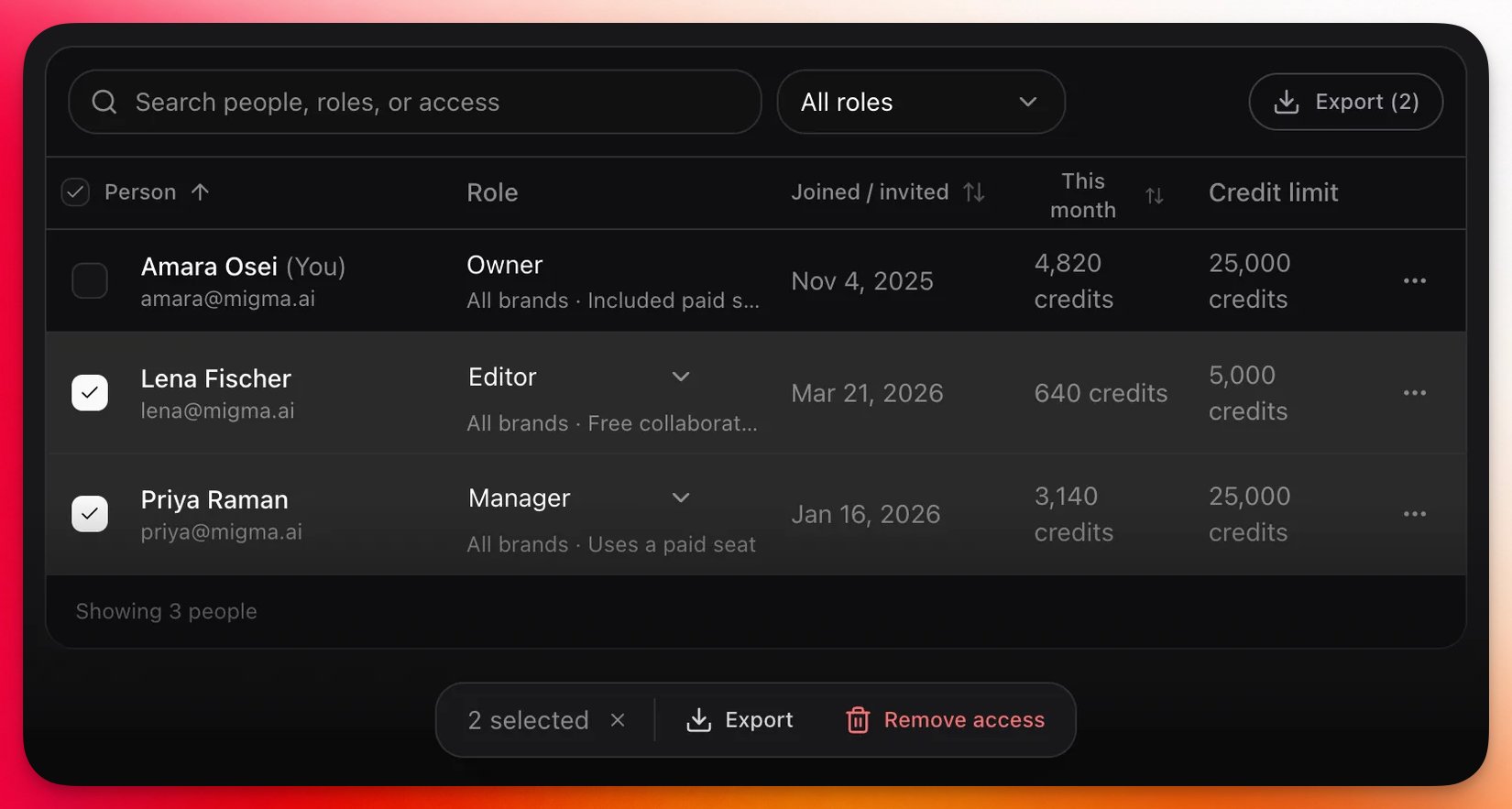
Export with nothing selected downloads every person in the workspace plus any pending invitations.
How access is enforced
Roles aren’t just a UI hint. Every sensitive action — generating an email, sending a campaign, leaving a comment, managing members — is checked against the user’s role on the server before it runs.Checked on every action
Checked on every action
A commenter can’t generate or send even if they reach the right screen — the server denies the action. Members get exactly their role’s permissions, nothing extra.
Owner and admins get manager access
Owner and admins get manager access
The account owner (and org admins) automatically have manager access to every brand in the account, without an explicit invite.
All-brands Manager can run the account
All-brands Manager can run the account
A Manager on all brands can manage sending domains, People, invites, seats, and API keys, whether they hold a paid seat or are a free collaborator. A Manager on one brand cannot. Plan and billing stay with the owner.
One role per brand
One role per brand
Access is granted per brand. Account-wide invites apply the same role across all of your brands at once.
Related
Workspaces, seats & real-time
Hub for workspaces, seats, and live editing.
Workspaces
Switch team workspace and shared credits.
Real-time collaboration
Presence and live canvas on a shared brand.
Visual canvas
The shared canvas where your team plans and builds emails together.
Agencies & client brands
Run client work, and bring clients in to review without a seat.