

Send campaigns only to contacts with marketing consent. See What you can send with Migma. Run Email Preflight before important sends.
- Click Campaigns in the left sidebar
- Hit New Campaign
- Follow the five steps below
1
Choose or prepare your email
Pick an email you have already created. Click the thumbnail to preview it before selecting.For a standard campaign, click Generate New if you need a new email. Migma opens the creator for this campaign’s brand. Review and edit the result, then click Use in campaign to return with that email selected. If the design contains multiple emails, focus the one you want to use first. You can click Back to campaign to return without applying it. Nothing in the campaign changes until you click Use in campaign.Want to test versions against each other? Switch to A/B test, add two to five emails, and choose what percentage of your audience joins the test. After the test sends, you pick the winner and it goes out to everyone else.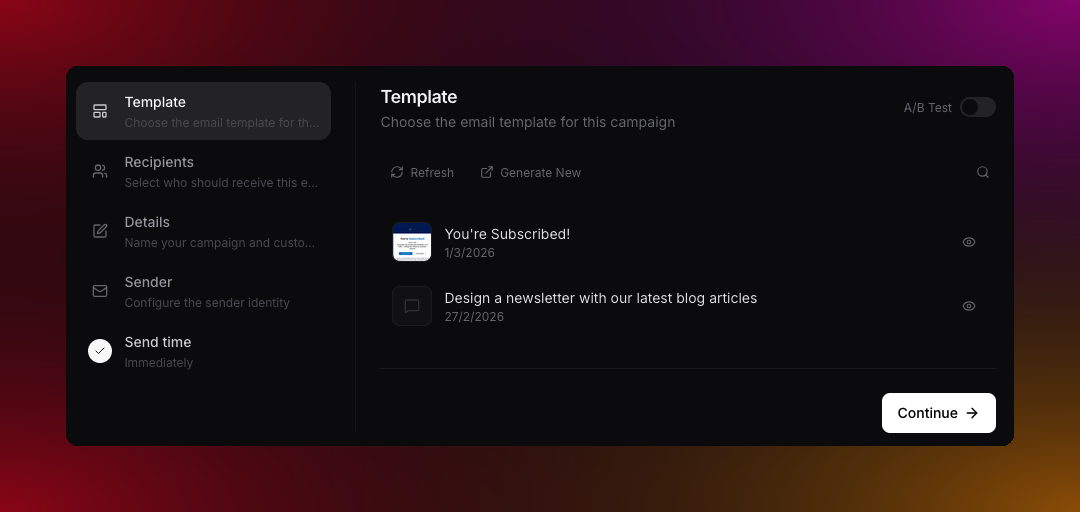
2
Pick your recipients
Choose one or more segments, or one or more lists. You cannot mix segments and lists in the same campaign. The count is unique people. Someone in two selected segments still gets one email.Need a new segment? Choose Create segment in the campaign wizard. Migma drafts the filters for you to review, shows the matching contact count, and adds the saved segment to your selection.Unsubscribed, bounced, non-subscribed, and invalid contacts are excluded automatically. You do not need to filter them out yourself. A selection with zero eligible people cannot send.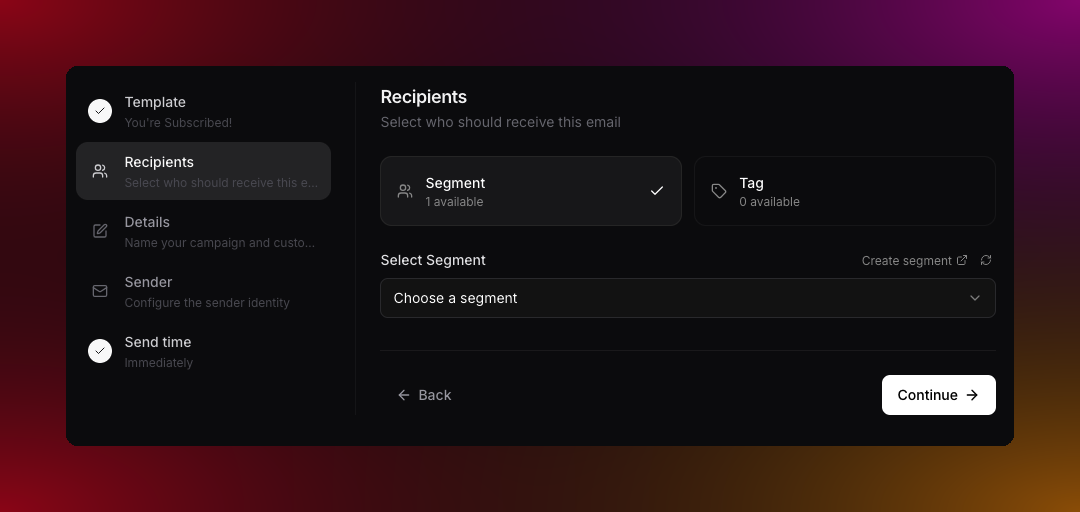
3
Fill in the details
Give your campaign a name (just for your own reference)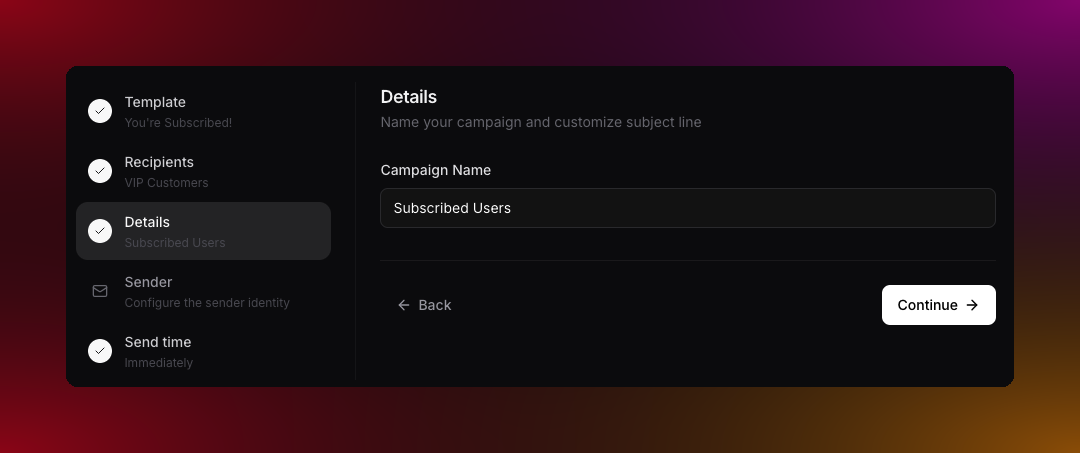
4
Configure the sender
Choose your sending domain and a saved From address. Migma fills the saved name, email, and reply-to default. You can change reply-to for this campaign.Add or manage From addresses under Sending Domains. Each address belongs to one identity:
hello@yourbrand.com on the main domain, hello@notify.yourbrand.com on the transactional identity. SES verifies those identities separately.If you track clicks in Google Analytics or similar, set your UTM parameters here.5
Send or schedule
Under Send test, add the addresses that should receive a preview. Tests use your selected sender’s domain when it is ready, or Migma’s domain otherwise. The info icon beside Send test explains this; the result shows the address used. The same behavior applies in Publish → Send test.Tests from your domain use your sending allowance and respect account, domain, and recipient safety checks. A blocked or failed send does not retry through Migma’s domain.Send right away or pick a date, time, and timezone to schedule it for later. Scheduled campaigns can be cancelled or sent early from the Campaigns page.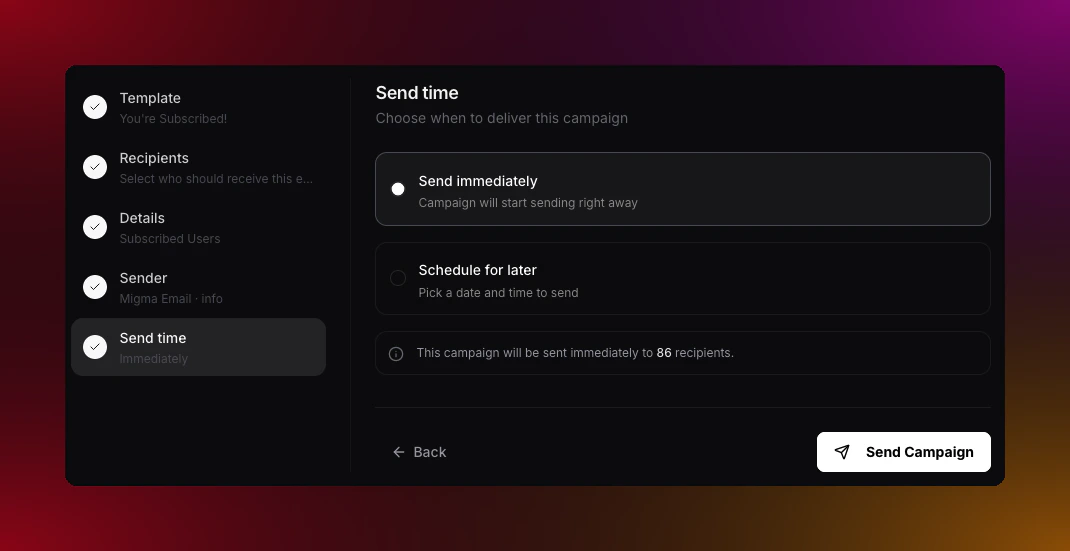
What do you want to do next?
Track results
Open rates, clicks, bounces, and unsubscribes in one place.
Manage your audience
Update contacts, lists, and segments.
Inbox icons
Show your brand logo in recipients’ inboxes.
Marketing calendar
Plan and schedule campaigns across the month.