

What you can see
Emails and series
Compare complete emails side by side and move them around the canvas.
References
Keep HTML, screenshots, saved emails, and inspiration near the work they inform.
Comments
Leave feedback on an email or an open area, mention teammates, and resolve the thread when done.
Past versions
Preview an earlier canvas without changing the latest version, then restore it when needed.
Point at one area
Use Mark Select when your request concerns one part of an email or reference.1
Stay on the canvas overview
Mark Select appears when the canvas is open and has something you can point at. Visual Editor appears after you open one email, so the two controls do not show together.
2
Choose Mark Select
Select Mark Select in the message box, then drag a box over the area you mean.
3
Add your instruction
The selected area appears inside your message. Add a request such as “make this shorter” or “use this footer on email 2,” then send.
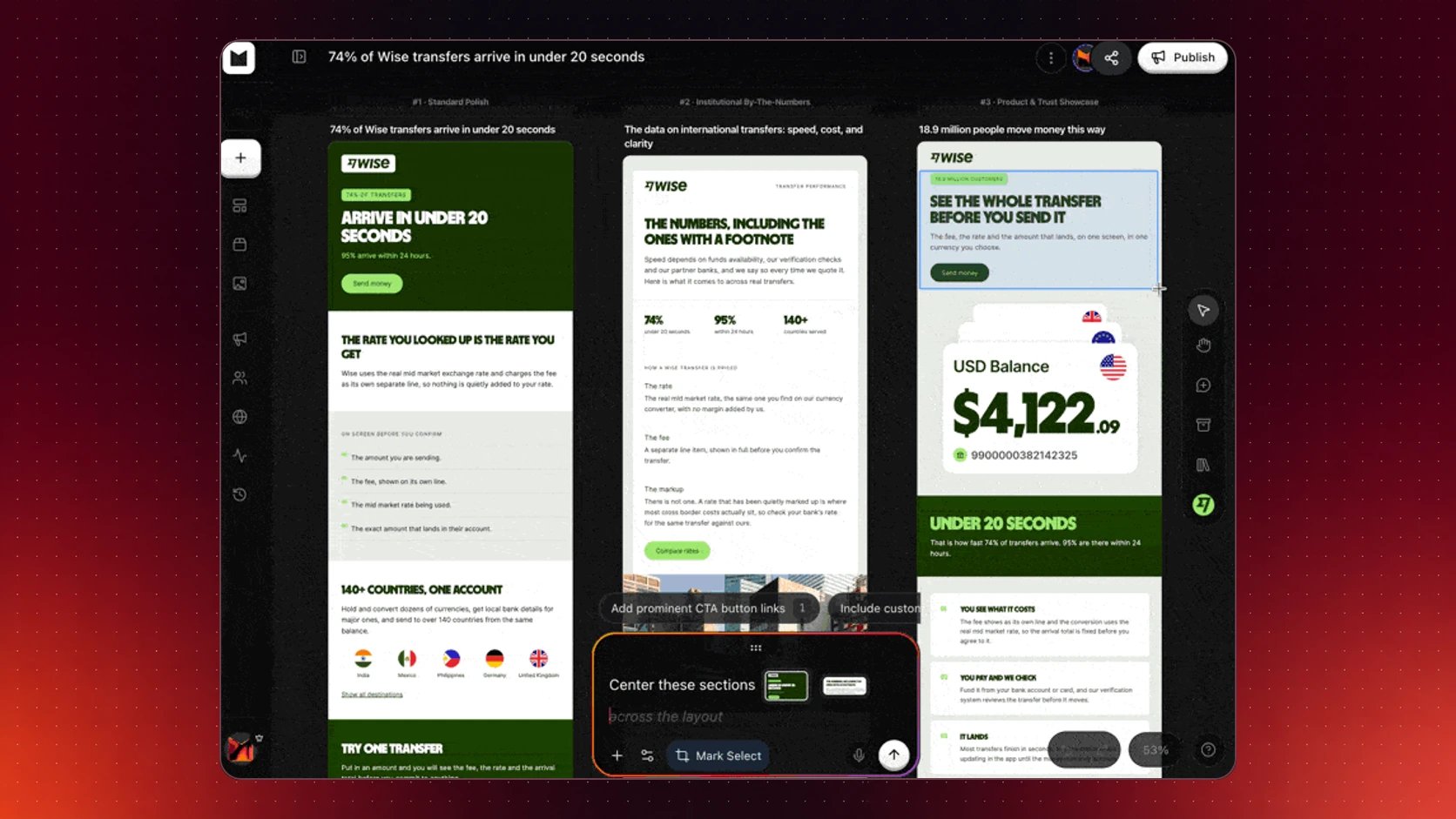
Mark one area, add the instruction, then send
Add a reference
Right-click an open area of the canvas to add supporting material.
See HTML to Email when you want to turn pinned HTML into editable work.
Review with your team
1
Add a comment
Choose the comment control and click where the feedback belongs. You can also right-click an open area and choose Comment here.
2
Mention someone
Type
@, choose a teammate, then post the comment. Replies stay attached to the same place.3
Resolve it
Resolve the thread when the feedback is handled. Reopen it when more work is needed.
Open one email
Choose Edit email from the email card you want. The canvas moves into a focused email view where you can use design chat, Visual Editor, Email Preflight, and Publish. Use Duplicate in new chat for one email or Duplicate series for the whole sequence when you want another direction. Rename changes the label in Migma, not the email subject.Use version history
1
Open history
Choose a saved version from the canvas history.
2
Preview it
The earlier version opens read-only. Choose Back to latest to leave without changing anything.
3
Restore when needed
Review the confirmation, then restore. Later canvas changes leave the current view, but remain recoverable from history.
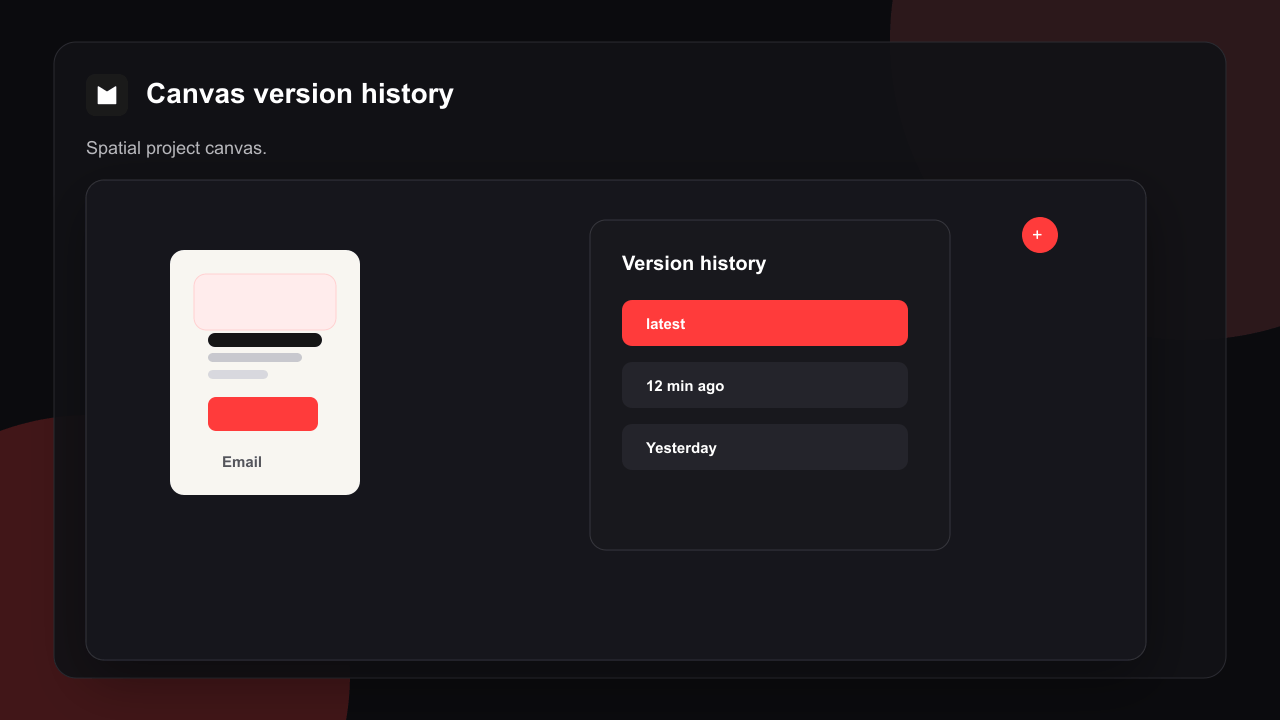
Preview and restore an earlier canvas version
Work together live
When teammates open the same brand, Migma shows their presence, cursors, and canvas changes. See Real-time collaboration for roles and shared editing.Next
Edit one email
Use Visual Editor for direct text, image, button, link, and layout changes.
Create an email series
Prepare a connected sequence and review every email together.