

Overview
Design in Figma, then import the frame into Migma as editable email HTML with no vendor lock-in.Recently improved. Figma conversion quality is better: layout, spacing, and typography come across more faithfully. The same deterministic engine powers every import, including Figma, image, HTML, and Claude design.
Cleaner Output
Cleaner HTML/React, better component detection, improved font handling
Design Structure
Preserves layout, spacing, typography, and visual hierarchy for review
No Lock-In
Export to any ESP or framework
Why Figma to Email?
For Designers
Design with full creative freedom in Figma
No need to learn email HTML constraints
Maintain design system consistency
Faster than manual hand-off to developers
For Developers
Editable HTML output
Email source you can review before export
No manual implementation of mockups
Email-client compatible out of the box
For Teams
Bridge design-development workflow
Reduce back-and-forth iterations
Maintain single source of truth (Figma)
Scale email production
How It Works
1
Design in Figma
Create your email design in Figma using frames, components, and auto-layout
2
Get Figma URL
Share your Figma file and copy the URL
3
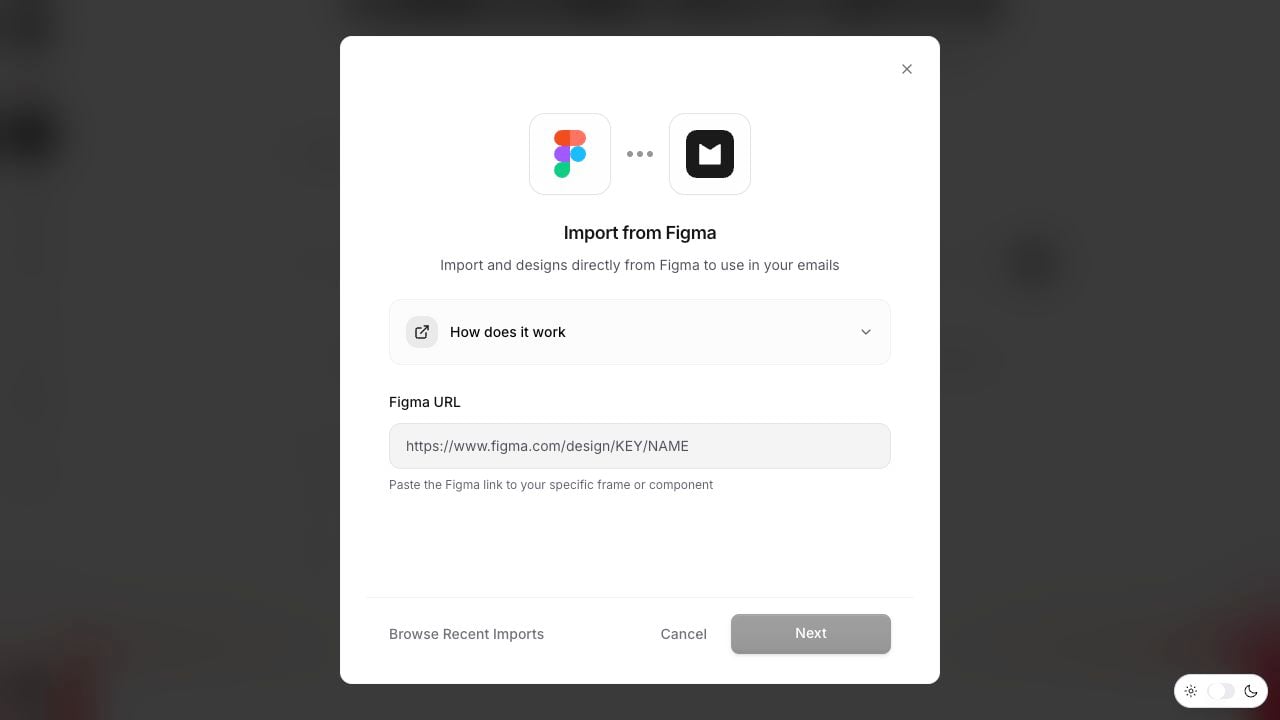
Paste in Migma
Navigate to Create page and paste Figma URL with special prompt
4
AI Converts
Migma analyzes the design and generates editable email HTML
5
Review & Export
Preview, refine, and export in your preferred format
Step-by-Step: Import from Figma
1. Prepare Your Figma File
Design guidelines: Set your file up so it converts cleanly. Build with Auto Layout, use real sized images, flatten icons to images, and name your layers. See the full guide: Designing in Figma for Email.2. Share Your Figma File
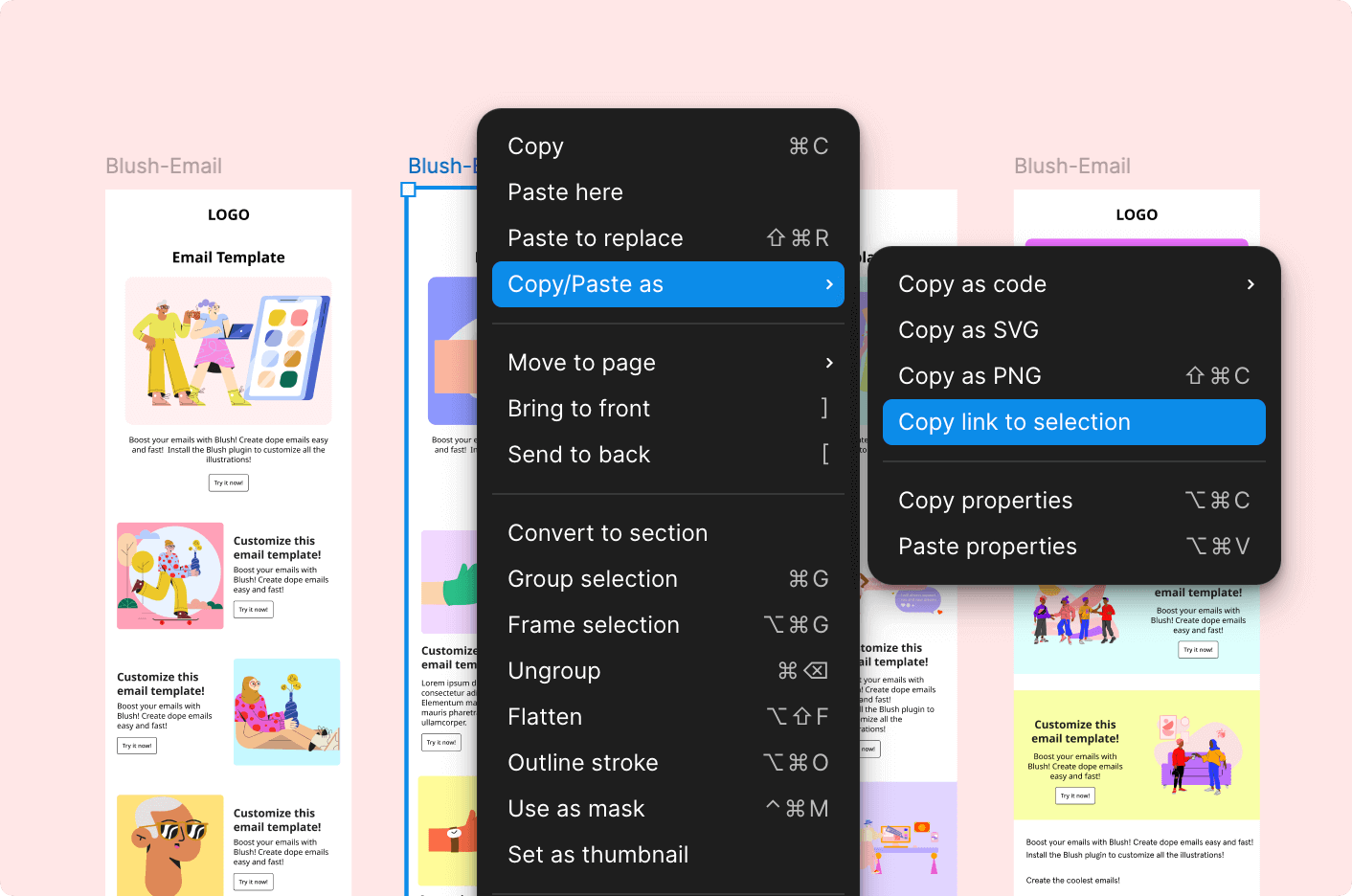
1
Open Sharing Settings
Click Share button in top-right of Figma
2
Set Permissions
Choose “Anyone with the link can view”
3
Copy Link
Click Copy link to get your Figma file URL
3. Import to Migma
4. Review Conversion
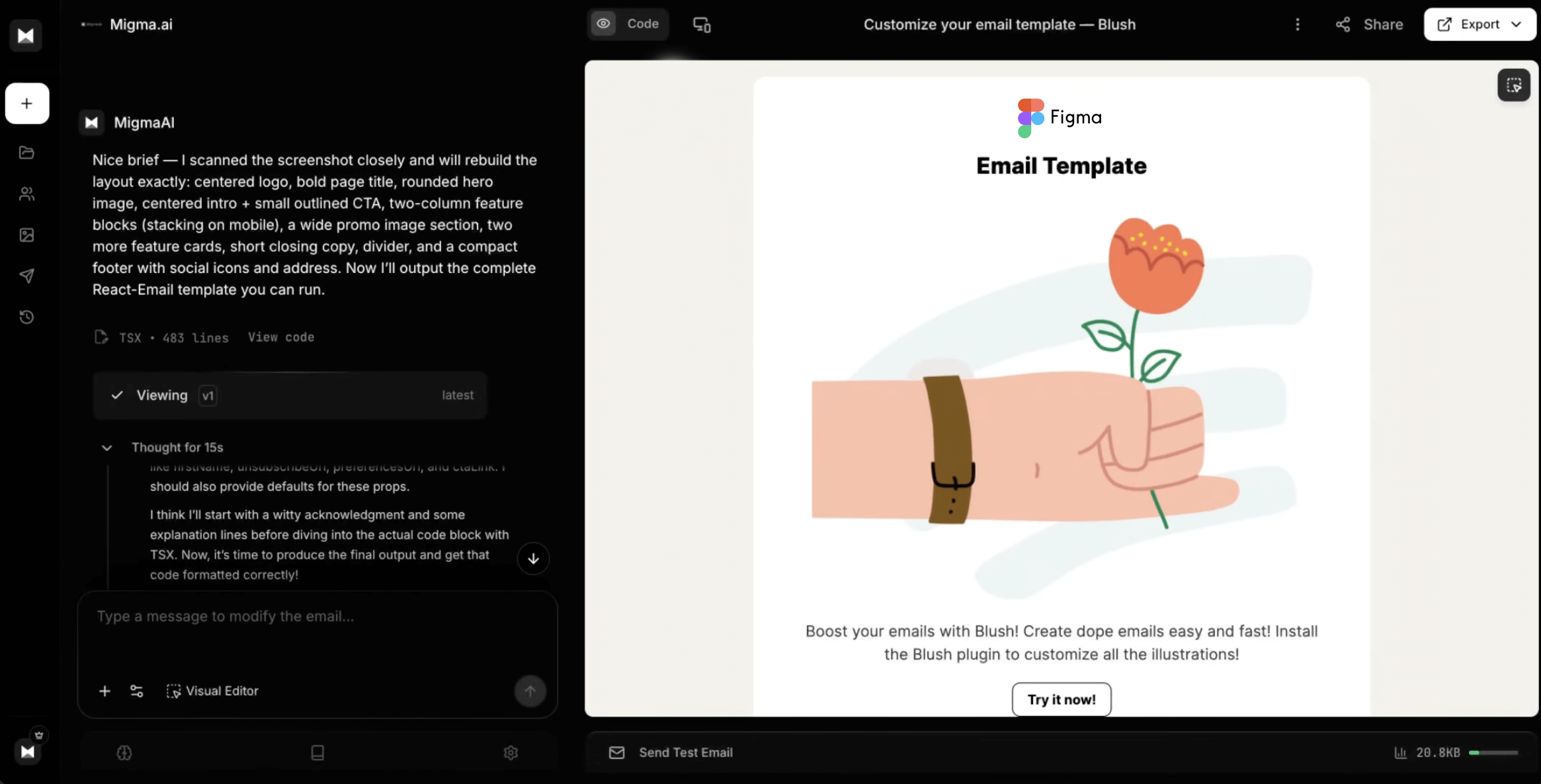
Migma generates:- Editable HTML
- Mobile-responsive breakpoints
- Email-client compatible CSS
- Inline styles where needed
- Proper image optimization
What Migma Converts
Fully Supported
Layout
Frames, auto-layout, grids, columns
Typography
Text styles, fonts, sizes, colors, alignment
Colors
Fills, gradients (simplified for email), borders
Images
Image fills, exports, backgrounds
Shapes
Rectangles, rounded corners, borders
Spacing
Padding, margins, auto-layout gaps
⚠️ Converted with Adaptations
Complex Shapes
Complex Shapes
What happens: Complex vectors simplified to rectangles or imagesBest practice: Use simple shapes or export as images
Advanced Effects
Advanced Effects
What happens: Shadows, blurs converted to email-safe alternativesBest practice: Keep effects minimal for email compatibility
Animations
Animations
What happens: Converted to static stateBest practice: Use static designs or simple GIFs
Custom Fonts
Custom Fonts
What happens: Fallbacks provided for unsupported fontsBest practice: Use Google Fonts or web-safe fonts
Export Formats
Choose your preferred output format:- HTML
Standard HTML with inline CSSBest for:
- Direct ESP upload
- Maximum compatibility
- Simple email workflows
- Inline styles
- Table-based layout (for Outlook)
- Email-safe CSS
- Responsive media queries
Figma design best practices
Designing in Figma for Email
What to use and what to avoid so your Figma frame converts into a clean, reliable email.
Advanced Features
Brand Color Override
Import Figma but apply your brand colors:Responsive Breakpoints
Migma automatically handles mobile responsiveness, but you can specify:Component Mapping
Map Figma components to email patterns:Figma Plugins for Migma
Recommended Figma Plugins
While not required, these plugins enhance your Figma-to-email workflow:Email-Ready Components
Use email-specific component libraries designed for conversion
Export Helpers
Batch export images at correct sizes
Contrast Checkers
Ensure text readability
Responsive Preview
Preview at 375px mobile width
Comparison: Figma vs Other Methods
Troubleshooting
Import failed: Cannot access Figma file
Import failed: Cannot access Figma file
Cause: File not publicly shared or wrong permissionsSolution:
- Open Figma file
- Click Share → Anyone with link can view
- Copy new link and retry
Fonts don't match
Fonts don't match
Cause: Custom fonts not available in email clientsSolution:
- Migma automatically provides web-safe fallbacks
- Consider using Google Fonts
- Specify preferred fallback:
Layout broken on mobile
Layout broken on mobile
Cause: Fixed widths or complex positioningSolution:
- Use Figma auto-layout
- Avoid absolute positioning
- Request specific mobile behavior:
Colors slightly different
Colors slightly different
Cause: Color profile differences or renderingSolution:
- Verify hex codes in Figma
- Manually adjust in refinement:
Missing images
Missing images
Cause: Images not exported or inaccessibleSolution:
- Ensure images in Figma are fills (not links)
- Check image export settings
- Re-upload images if needed
Designer-Developer Workflow
Collaboration Pattern
1
Designer Creates
Designer builds email in Figma following guidelines
2
Designer Shares
Designer shares Figma link with developer/marketer
3
Import to Migma
Developer/marketer imports to Migma
4
Review Together
Both review converted HTML, make adjustments
5
Refine in Chat
Use Migma chat to make final tweaks collaboratively
6
Export & Deploy
Export to ESP and launch campaign
Feedback Loop
Designer → Migma → Developer:- Designer updates Figma
- Re-import to Migma
- Compare versions
- Implement changes
Next Steps
Visual Editor
Edit Figma imports visually
Email Preflight
Run Preflight before send
Export Options
Export to HTML, PNG, or PDF
Image Clone
Clone emails from screenshots
Need Help?
Figma Templates
Download email-ready Figma templates
Join Discord
Share designs and get feedback
Contact Support
Get help with complex conversions