

Create the List
1
Open the segment menu
Go to Audience → Segments. Open the segment’s ⋯ menu and choose Split into a list.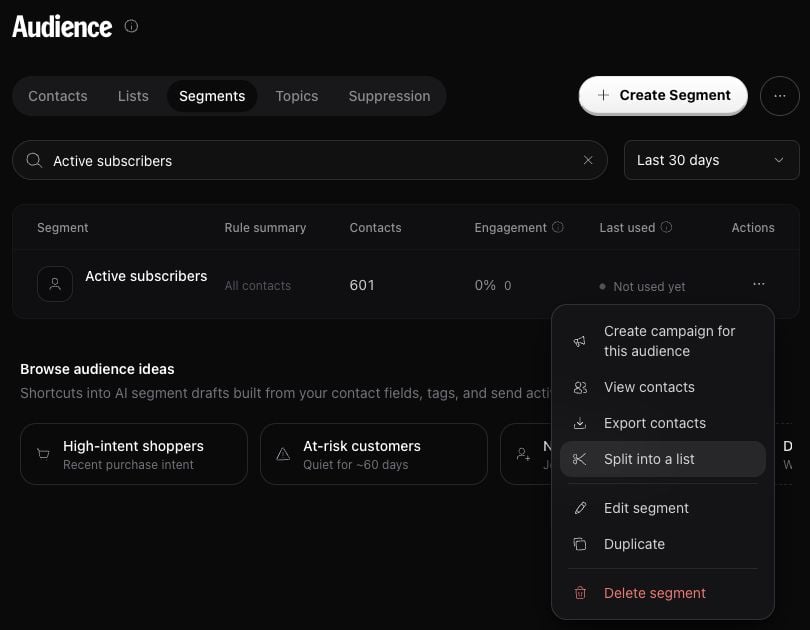
2
Choose the number and name
Under Contacts, enter how many contacts you want, such as 200. Under List name, enter a name you will recognize later, such as Spring launch – batch 1. Click Create list.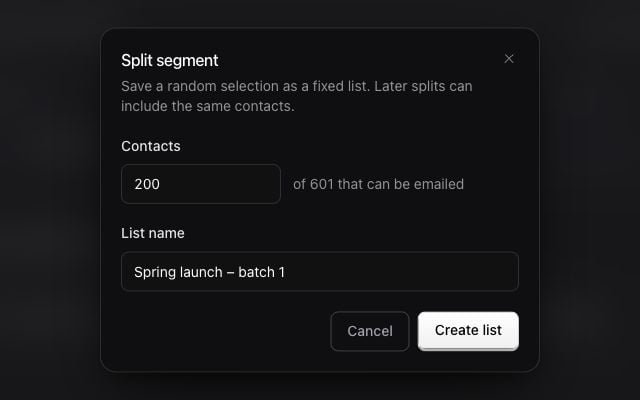
3
Open the finished list
The new list appears in Lists immediately and fills in the background. You can close the dialog while it works.When it finishes, the dialog shows how many contacts were saved. Click View list, or find it later under Audience → Lists. You can select this list in a campaign’s Recipients step.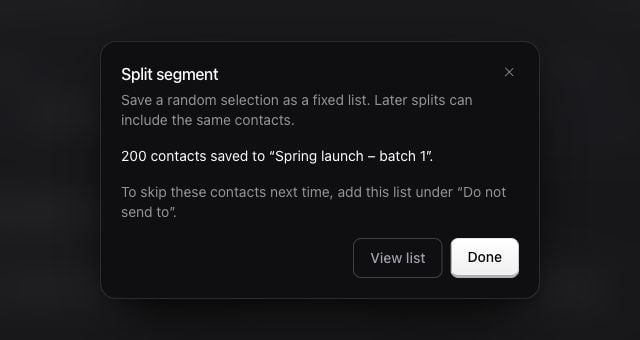
Send to the Rest Next Time
To send to the rest of Active subscribers after using Spring launch – batch 1:- Open your next campaign’s Recipients step.
- Choose the Active subscribers segment as the audience.
- Under Do not send to, click Add → Lists and choose Spring launch – batch 1. Add any other earlier batch lists you want to skip.
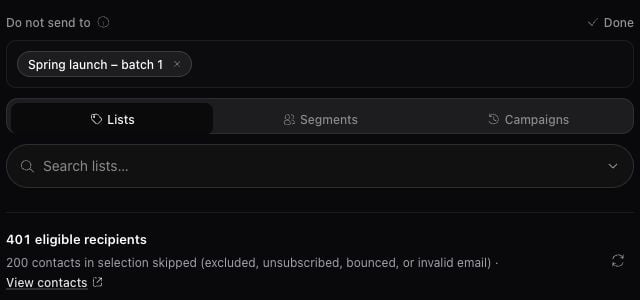
A second split of the same segment can include contacts from the first split. Excluding a list only in the campaign skips those contacts; it does not replace them with others to fill your batch.
If a Split Cannot Start
If the segment changes while the list is filling, the final list may contain fewer contacts than you requested. Check the saved count before using it.
See Lists and Segments for more ways to group contacts, or Send Campaign to use your new list.