> ## Documentation Index
> Fetch the complete documentation index at: https://docs.migma.ai/llms.txt
> Use this file to discover all available pages before exploring further.
# What is Migma?
> See how Migma creates, checks, localizes, sends, and improves email with your team and tools.
Migma is your AI email marketer. Give it a goal, your brand, or an existing design. It prepares one email or a complete series, then waits for your review.
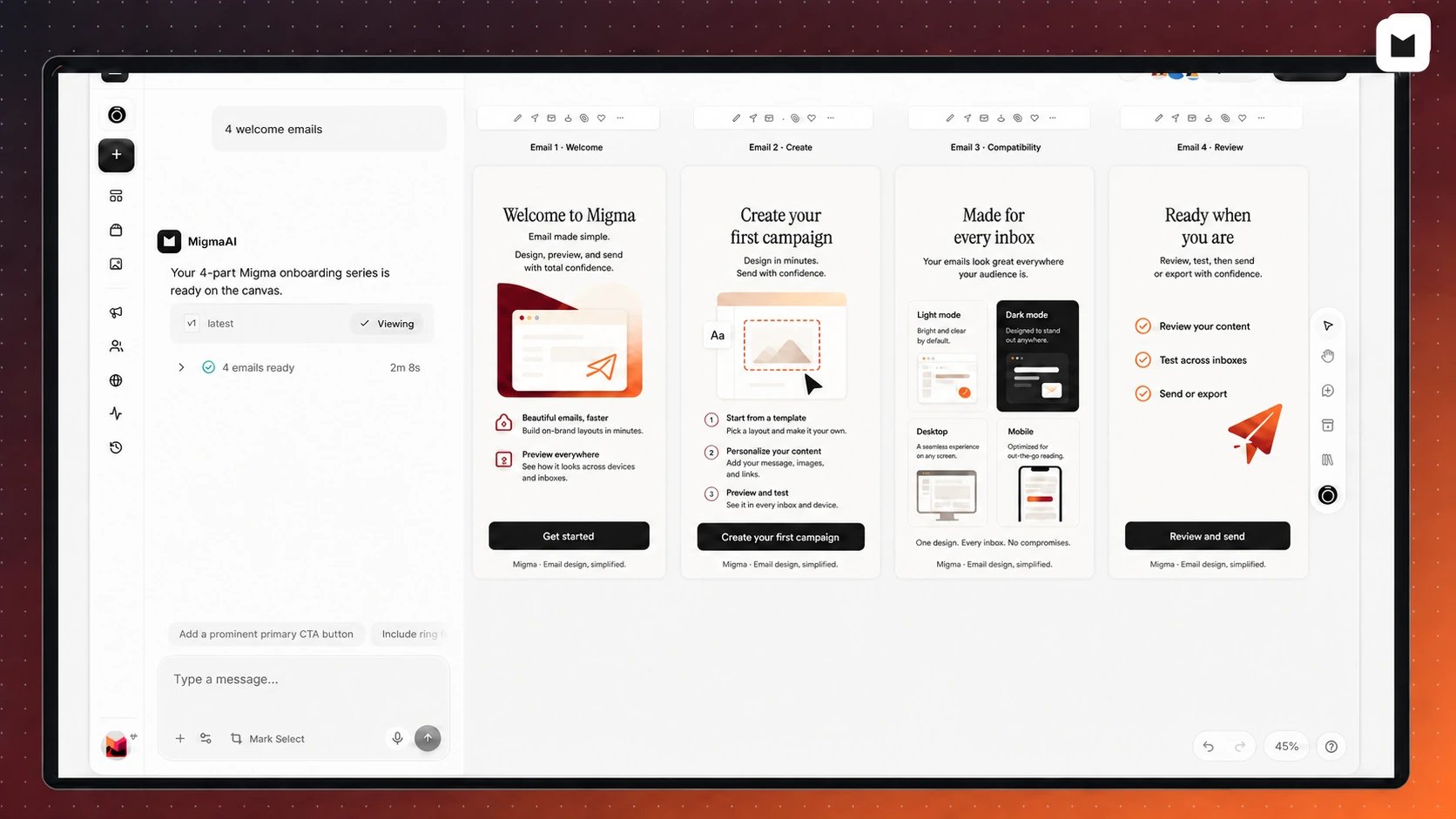 ## Complete emails, not flat pictures
Migma keeps copy, buttons, links, and layout live and editable. Images support the design instead of replacing the whole email.
Each email is prepared as email-safe HTML for Outlook, Gmail, Apple Mail, Yahoo, mobile, light mode, and dark mode. [Email Preflight](/email-editor/email-preflight) checks inbox previews, links, wording, and common sending problems before anyone receives it.
* **One email or a full series:** ask for a welcome flow, launch, newsletter, onboarding series, win-back campaign, or transactional email. [See email series](/creating-emails/email-series).
* **Designed around your goal:** Migma plans the message, structure, images, and calls to action around what the reader should understand or do next.
* **Built from your brand:** reuse your logo, colors, fonts, products, voice, approved facts, and standing instructions. [Set up your brand](/get-started/configure-brand).
* **Easy to change:** edit through chat, mark one exact area on the canvas, or change text, images, buttons, colors, spacing, links, and sections directly. [Use the Visual Editor](/email-editor/visual-editor).
## Start with almost anything
Describe what you need, or bring work you already have. Migma can start from a Figma frame, screenshot, HTML email, Claude design, video, past email, or saved reference.
Favorite an email or save a design reference when you want Migma to use it again. Your current request still decides what the new email should become.
Say what you are sending, who it is for, and what should happen next.
Use Figma, a screenshot, HTML, Claude design, or video as your starting point.
Browse saved work and competitor emails, add references to the canvas, then remix them for your brand.
## Review everything together
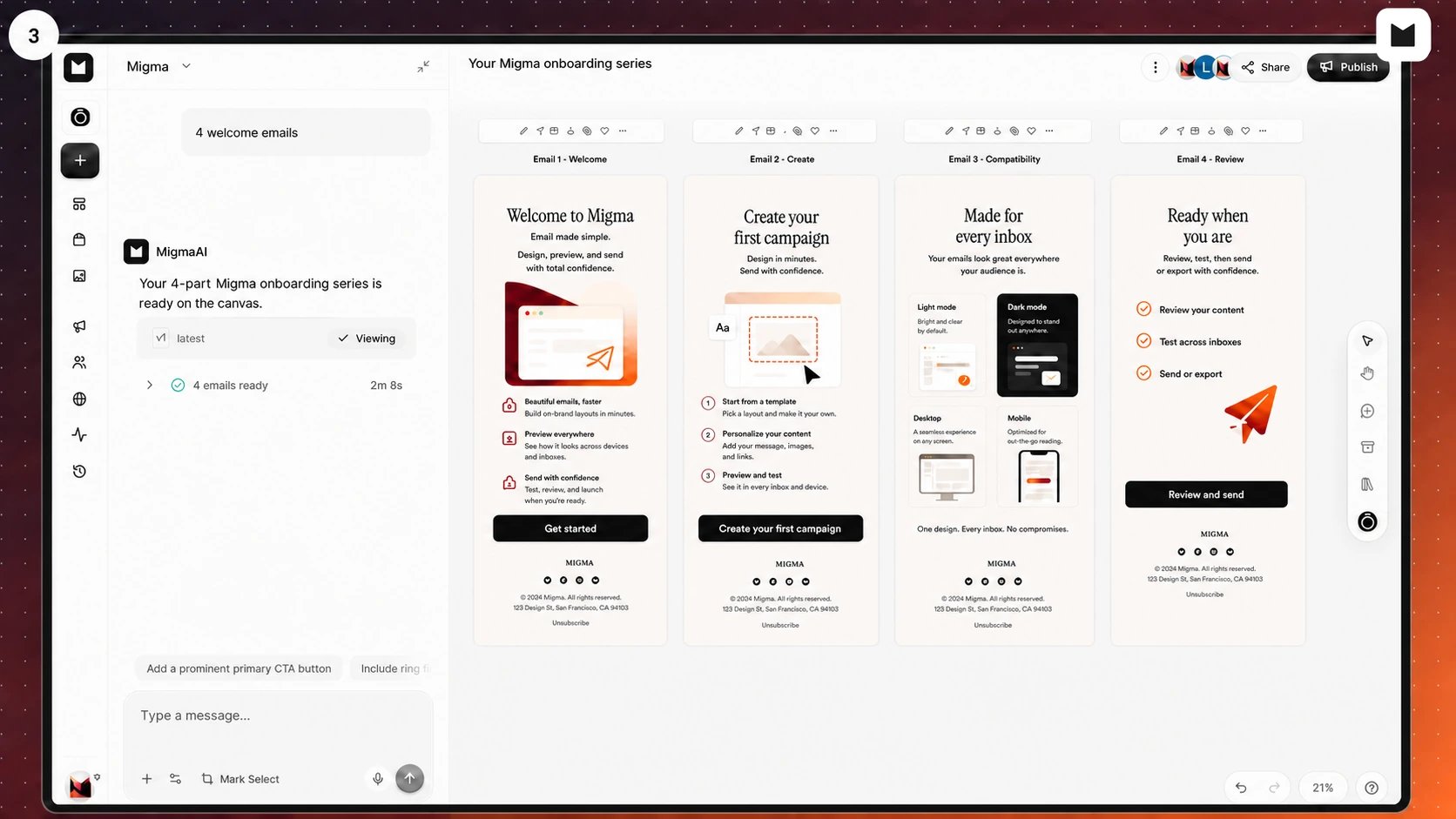
Migma puts every email in a series on one visual canvas. Your team can compare the full journey, comment, make changes, and work together in real time.
## Complete emails, not flat pictures
Migma keeps copy, buttons, links, and layout live and editable. Images support the design instead of replacing the whole email.
Each email is prepared as email-safe HTML for Outlook, Gmail, Apple Mail, Yahoo, mobile, light mode, and dark mode. [Email Preflight](/email-editor/email-preflight) checks inbox previews, links, wording, and common sending problems before anyone receives it.
* **One email or a full series:** ask for a welcome flow, launch, newsletter, onboarding series, win-back campaign, or transactional email. [See email series](/creating-emails/email-series).
* **Designed around your goal:** Migma plans the message, structure, images, and calls to action around what the reader should understand or do next.
* **Built from your brand:** reuse your logo, colors, fonts, products, voice, approved facts, and standing instructions. [Set up your brand](/get-started/configure-brand).
* **Easy to change:** edit through chat, mark one exact area on the canvas, or change text, images, buttons, colors, spacing, links, and sections directly. [Use the Visual Editor](/email-editor/visual-editor).
## Start with almost anything
Describe what you need, or bring work you already have. Migma can start from a Figma frame, screenshot, HTML email, Claude design, video, past email, or saved reference.
Favorite an email or save a design reference when you want Migma to use it again. Your current request still decides what the new email should become.
Say what you are sending, who it is for, and what should happen next.
Use Figma, a screenshot, HTML, Claude design, or video as your starting point.
Browse saved work and competitor emails, add references to the canvas, then remix them for your brand.
## Review everything together
Migma puts every email in a series on one visual canvas. Your team can compare the full journey, comment, make changes, and work together in real time.
 ## Prepare every version your audience needs
Use one campaign to deliver supported language versions based on each contact's language. Migma keeps the design and message consistent while the language changes.
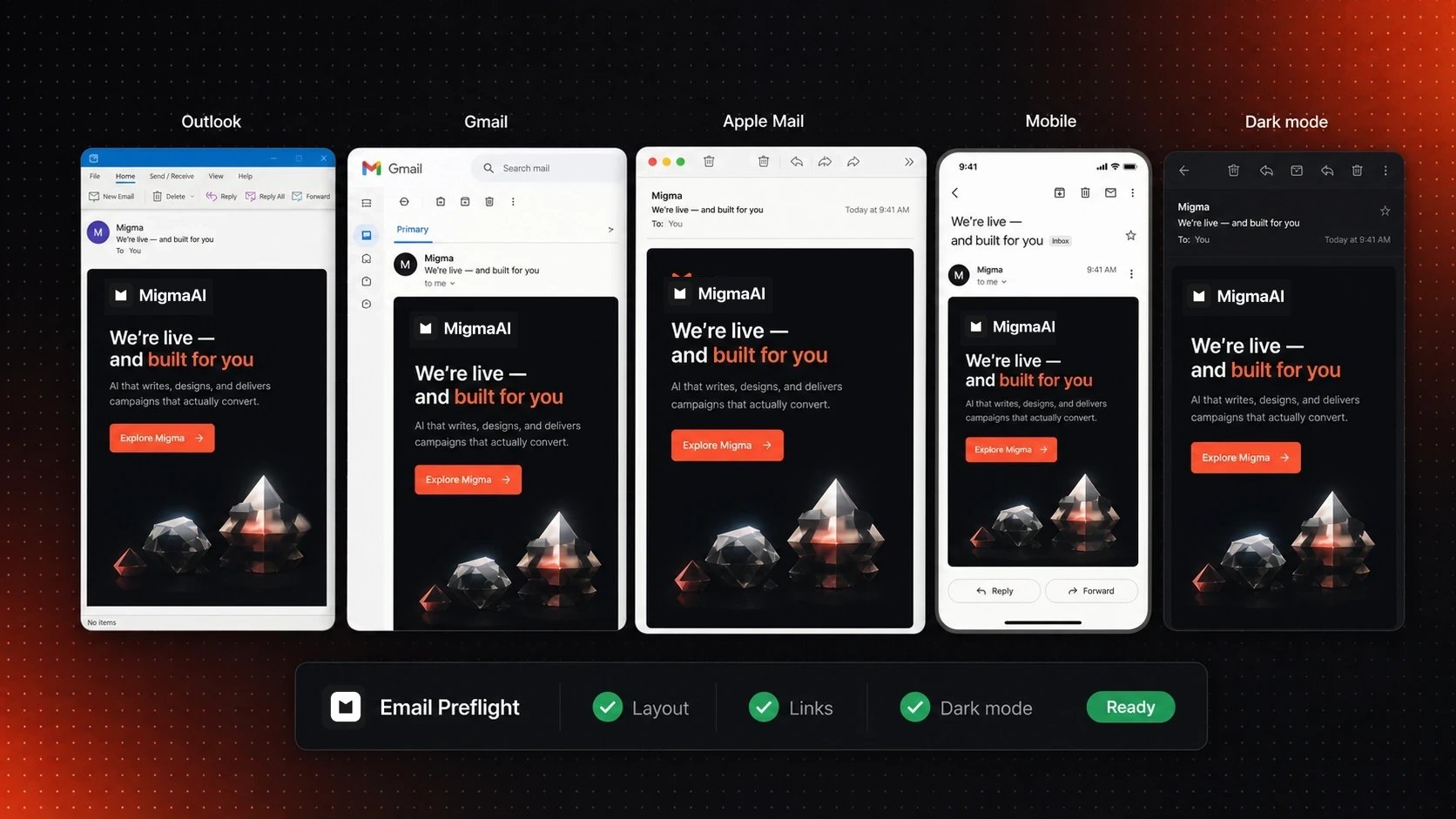
Before sending, preview the email across major inboxes and display modes. Send yourself a test when you want to check the real result.
## Prepare every version your audience needs
Use one campaign to deliver supported language versions based on each contact's language. Migma keeps the design and message consistent while the language changes.
Before sending, preview the email across major inboxes and display modes. Send yourself a test when you want to check the real result.
 Prepare supported translations and send each contact the right version.
Review Outlook, Gmail, Apple Mail, mobile, light mode, and dark mode before sending.
## Work from Migma or your AI assistant
Create and review in Migma, or connect Claude, ChatGPT, Grok, Slack, Telegram, Codex, Cursor, and other supported AI clients. They use approved Migma access for brands, drafts, opted-in audiences, campaigns, and results.
Prepare email work from Claude Code, Claude Desktop, or Claude.ai, then review the result in Migma.
Use the Migma plugin in ChatGPT, approve access, and open completed drafts in Migma.
Connect through Migma's agent tools, approve access, and keep one reviewed email workflow.
Ask for branded drafts from chat, then open Migma to review, export, or send.
Connecting an agent does not give it unlimited control. You review requested access, and sending requires send-capable permission.
## Keep your current tools
Migma can use product and business context from connected tools while writing. When the email is ready, send with Migma or hand it to your existing platform.
Prepare supported translations and send each contact the right version.
Review Outlook, Gmail, Apple Mail, mobile, light mode, and dark mode before sending.
## Work from Migma or your AI assistant
Create and review in Migma, or connect Claude, ChatGPT, Grok, Slack, Telegram, Codex, Cursor, and other supported AI clients. They use approved Migma access for brands, drafts, opted-in audiences, campaigns, and results.
Prepare email work from Claude Code, Claude Desktop, or Claude.ai, then review the result in Migma.
Use the Migma plugin in ChatGPT, approve access, and open completed drafts in Migma.
Connect through Migma's agent tools, approve access, and keep one reviewed email workflow.
Ask for branded drafts from chat, then open Migma to review, export, or send.
Connecting an agent does not give it unlimited control. You review requested access, and sending requires send-capable permission.
## Keep your current tools
Migma can use product and business context from connected tools while writing. When the email is ready, send with Migma or hand it to your existing platform.
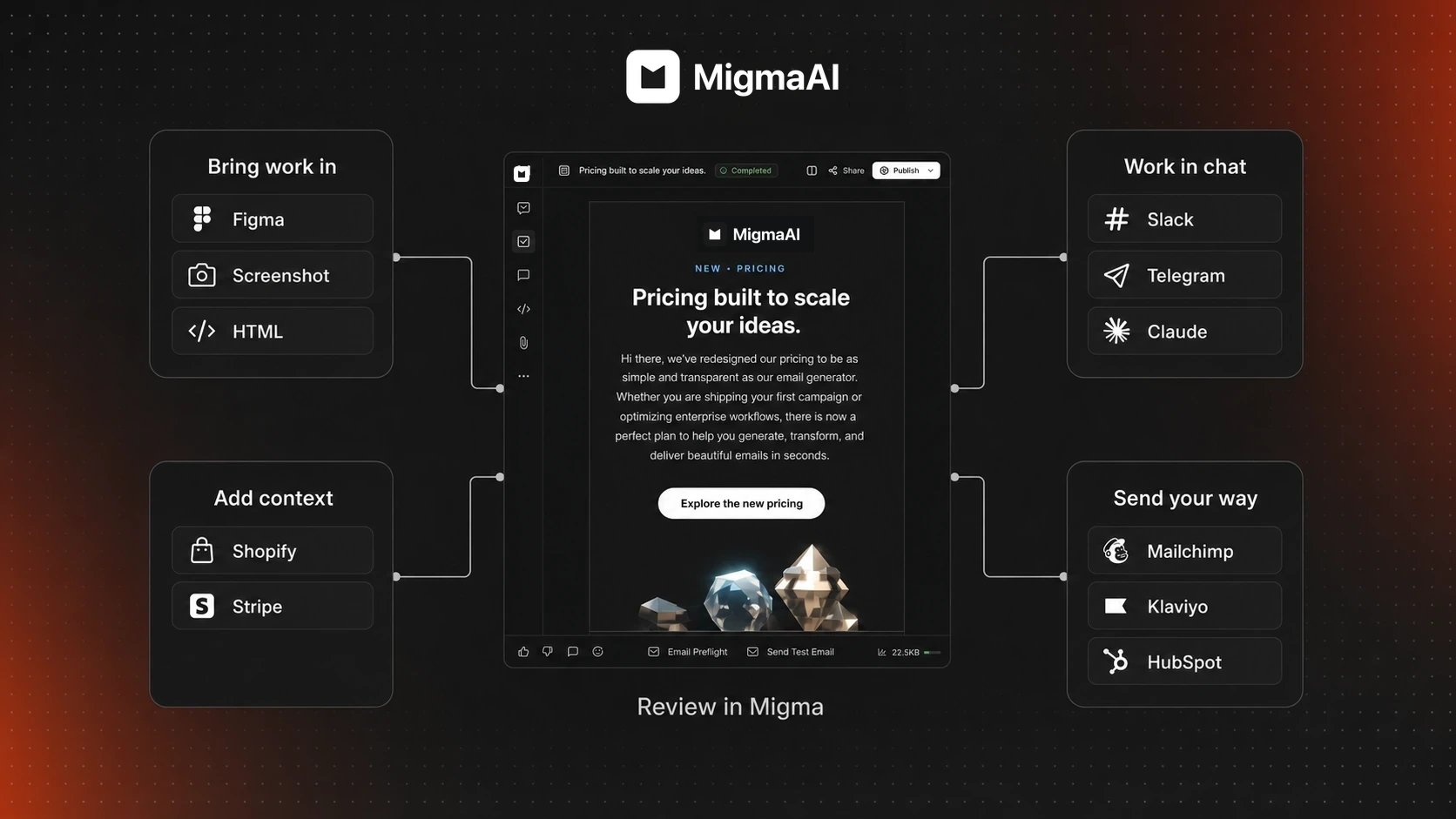 Use connected Shopify, Stripe, and external tools while preparing the email.
Hand reviewed work to Mailchimp, Klaviyo, Brevo, Omnisend, or an existing HubSpot connection.
Choose an audience, sender, schedule, and tracking options, then approve the send.
Review delivery, opens, clicks, recipient activity, and Click map results for Migma sends.
## Plan, audience, and sending
* **Marketing Calendar:** review suggested moments and emails Migma prepared for upcoming events. Nothing schedules until you approve it.
* **Audience:** import opted-in contacts from Mailchimp, Klaviyo, HubSpot, or CSV. Build changing segments from plain English, such as "customers in Spain with an active plan."
* **Sending Domains:** start with a Migma address for tests and small sends, connect a domain you own for production, or buy a domain in Migma.
Review upcoming moments and prepared drafts.
Import contacts, organize lists, and build dynamic segments.
Choose the right sender for testing or production.
Creating and editing never sends. Tests, exports, audience changes, schedules, and live sends stay behind your action or approved access. Email only people who asked to hear from you. [Cold email is not allowed](/get-started/what-you-can-send).
## Start using Migma
Choose a guide to continue.
Follow the path from brand and brief to reviewed email.
Create a draft, make changes, and send yourself a test.
Use connected Shopify, Stripe, and external tools while preparing the email.
Hand reviewed work to Mailchimp, Klaviyo, Brevo, Omnisend, or an existing HubSpot connection.
Choose an audience, sender, schedule, and tracking options, then approve the send.
Review delivery, opens, clicks, recipient activity, and Click map results for Migma sends.
## Plan, audience, and sending
* **Marketing Calendar:** review suggested moments and emails Migma prepared for upcoming events. Nothing schedules until you approve it.
* **Audience:** import opted-in contacts from Mailchimp, Klaviyo, HubSpot, or CSV. Build changing segments from plain English, such as "customers in Spain with an active plan."
* **Sending Domains:** start with a Migma address for tests and small sends, connect a domain you own for production, or buy a domain in Migma.
Review upcoming moments and prepared drafts.
Import contacts, organize lists, and build dynamic segments.
Choose the right sender for testing or production.
Creating and editing never sends. Tests, exports, audience changes, schedules, and live sends stay behind your action or approved access. Email only people who asked to hear from you. [Cold email is not allowed](/get-started/what-you-can-send).
## Start using Migma
Choose a guide to continue.
Follow the path from brand and brief to reviewed email.
Create a draft, make changes, and send yourself a test.