> ## Documentation Index
> Fetch the complete documentation index at: https://docs.migma.ai/llms.txt
> Use this file to discover all available pages before exploring further.
# Complete Migma Onboarding
> Migma's onboarding takes you from a fresh signup to your first AI-generated, on-brand email in four steps. Plan on about 5–10 minutes end to end.
## Overview
Migma's onboarding takes you from a fresh signup to your first AI-generated, on-brand email in four steps. Plan on about 5–10 minutes end to end.
Create your account.
Pull your logo, colors, and fonts from your website.
Connect past emails so the AI learns your voice and style.
Describe what you want and let Migma draft it on brand.
***
## Step 1 — Sign up at migma.ai
Head to [migma.ai](https://migma.ai) and create an account.
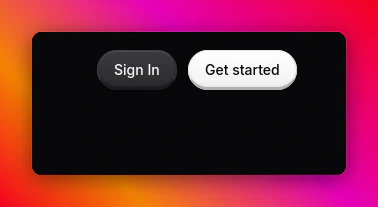
Click **Get started** in the top-right of [migma.ai](https://migma.ai).
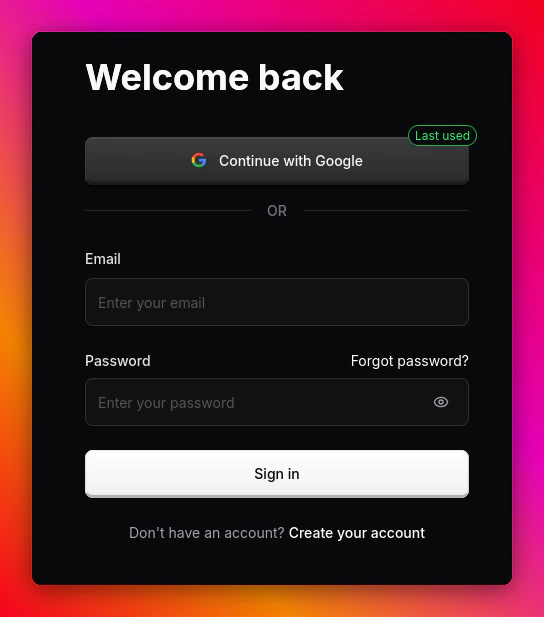
 Continue with Google for the fastest path, or use email + password.
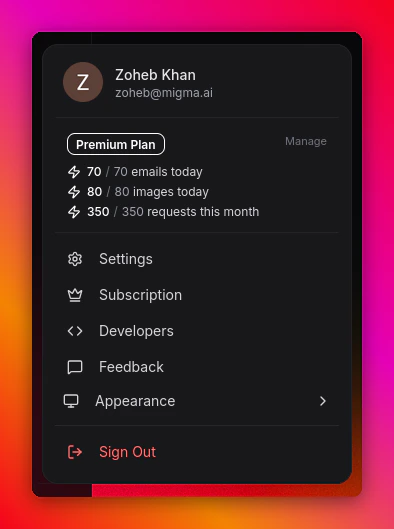
 Once you're in, your profile appears in the top-right with your plan and usage.
 ***
## Step 2 — Import a brand
Migma auto-extracts your visual identity from your website so every email looks on brand from the first draft.
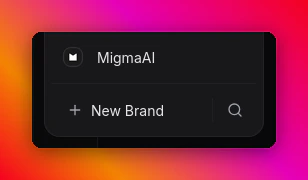
From the sidebar, open **My Brands** and click **+ New Brand**.
***
## Step 2 — Import a brand
Migma auto-extracts your visual identity from your website so every email looks on brand from the first draft.
From the sidebar, open **My Brands** and click **+ New Brand**.
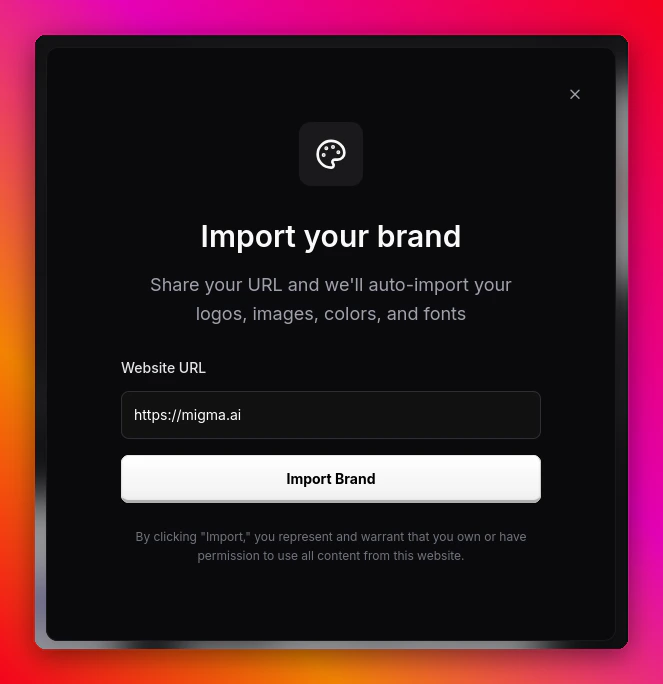
 Paste your homepage URL — Migma auto-imports your logos, images, colors, and fonts.
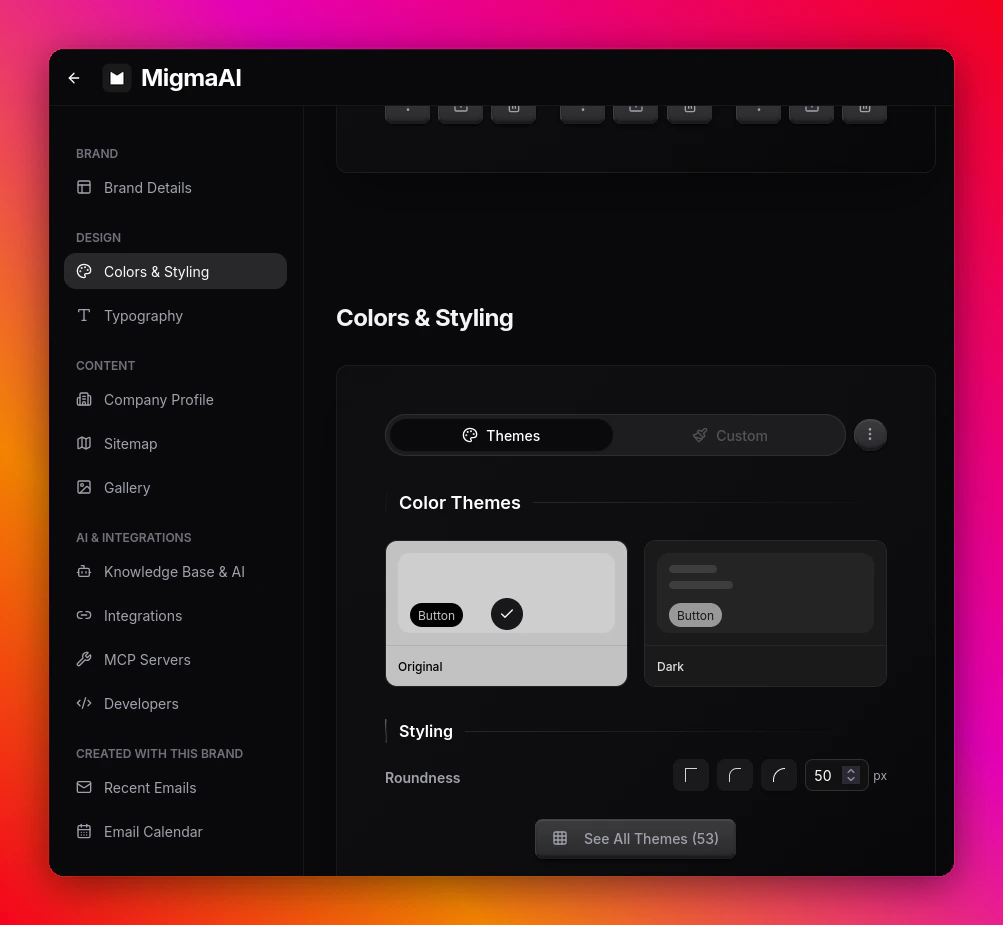
 Inspect the extracted color themes and tweak roundness, typography, and other styling.
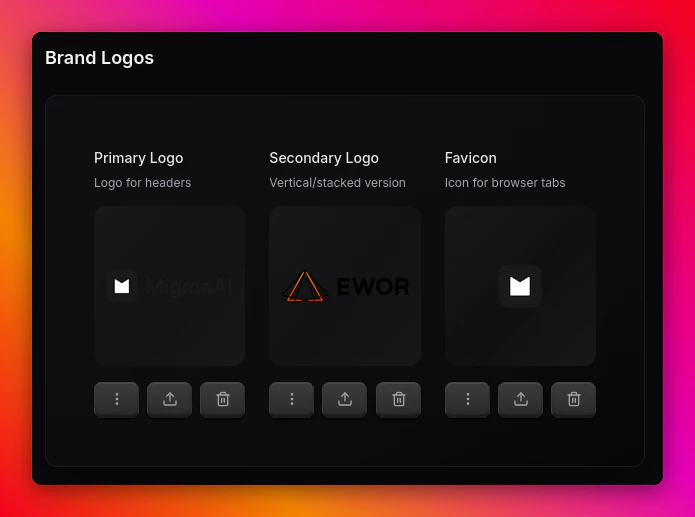
 Verify your primary logo, secondary logo, and favicon look right, then save your Brand Kit.
 Want to fine-tune later? See [Configure brand](/get-started/configure-brand) for the full Brand Kit reference.
***
## Step 3 — Set up your brand guidelines
Brand guidelines are how Migma learns about you — your past emails, product details, and reference material. Feeding it gives the AI context so generated emails match your existing voice instead of sounding generic.
Under **Content**, open **Brand Guidelines** to add reference material. Tone-of-voice instructions live in the separate **AI Instructions** section.
Want to fine-tune later? See [Configure brand](/get-started/configure-brand) for the full Brand Kit reference.
***
## Step 3 — Set up your brand guidelines
Brand guidelines are how Migma learns about you — your past emails, product details, and reference material. Feeding it gives the AI context so generated emails match your existing voice instead of sounding generic.
Under **Content**, open **Brand Guidelines** to add reference material. Tone-of-voice instructions live in the separate **AI Instructions** section.
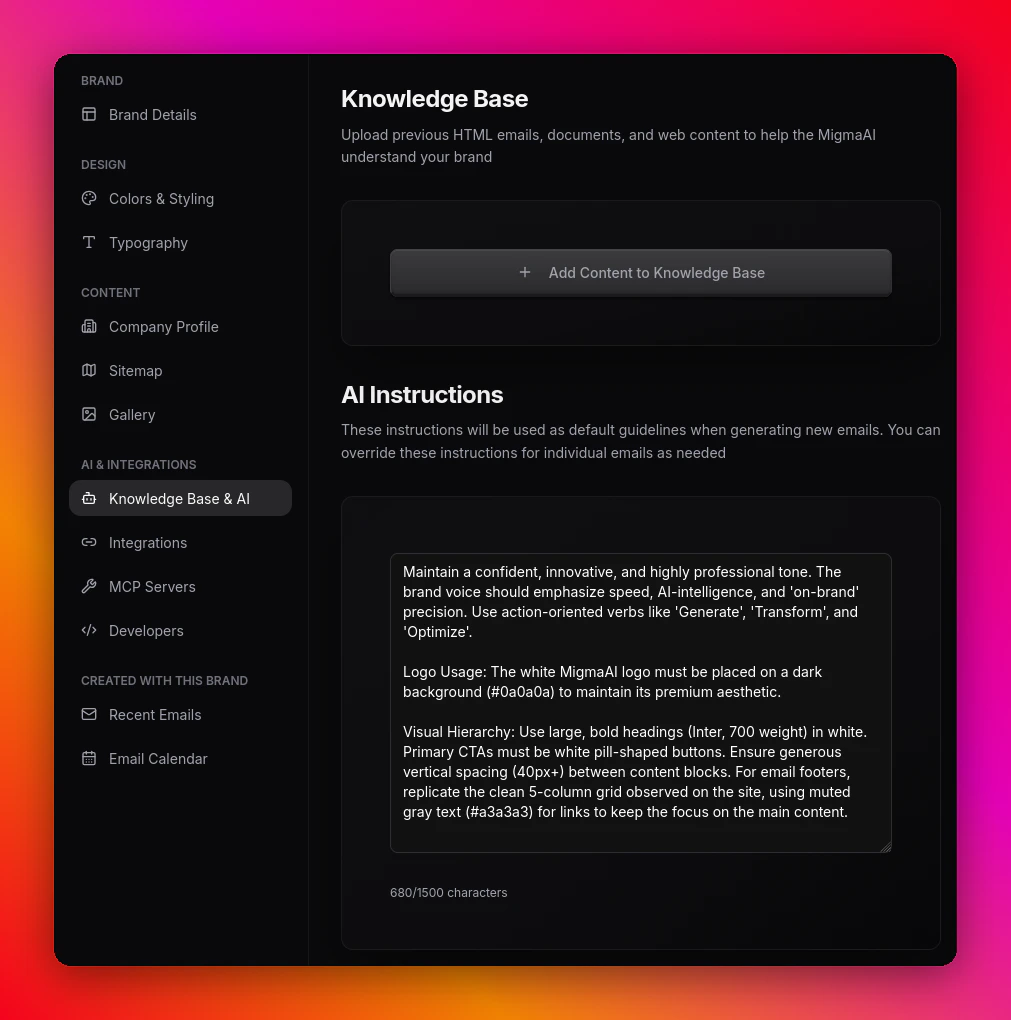 Click **Add Content** and paste a past email, brief, or any reference. Plain text, HTML, and Markdown all work — or drop a file.
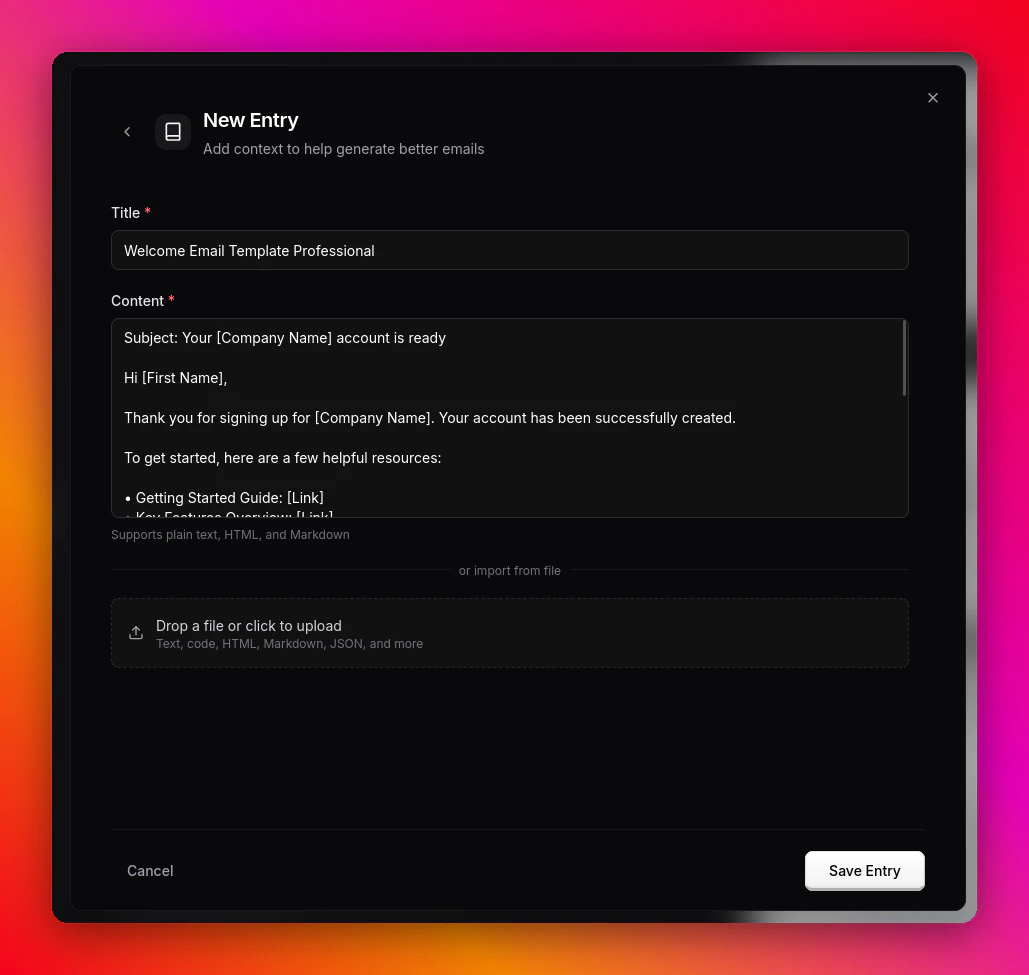 Repeat for a handful of representative emails and notes. The richer the library, the closer your first generated draft will be to your usual style.
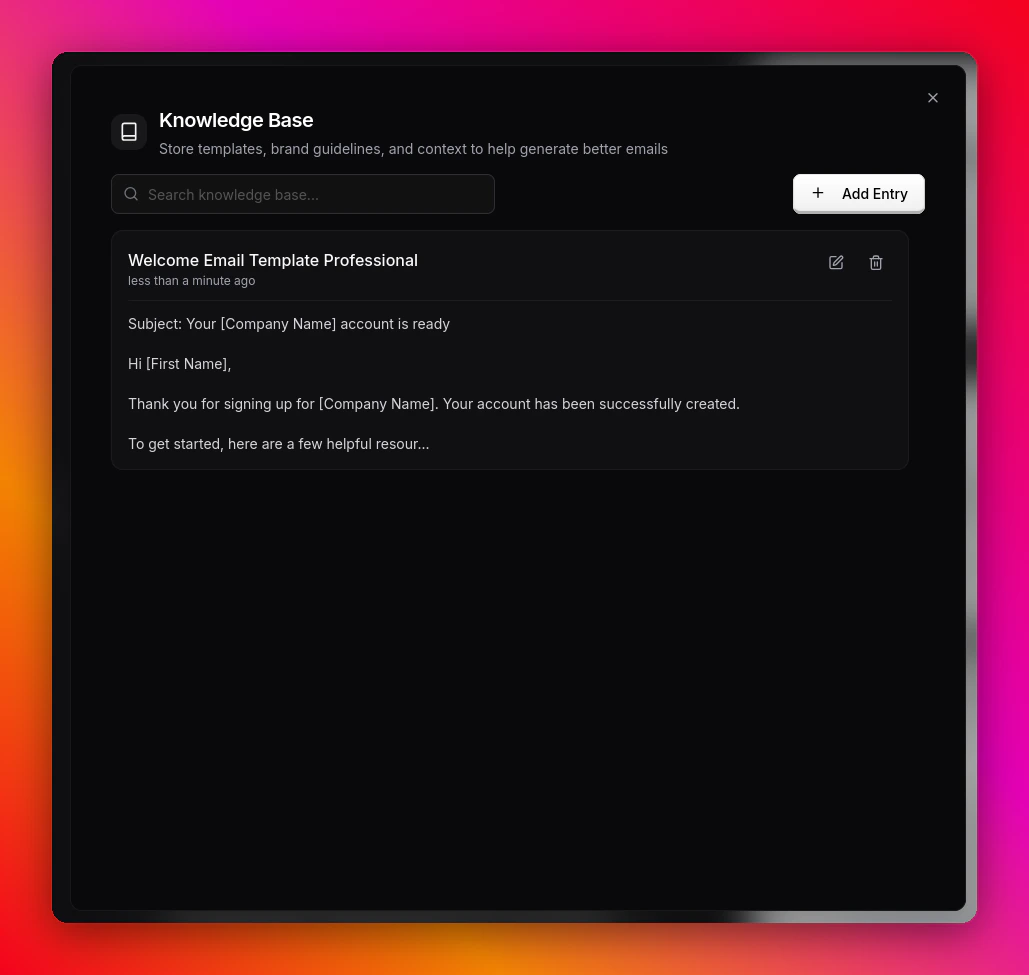 The more representative content you add, the closer the first draft will be to your usual style.
***
## Step 4 — Generate your first email
With your brand and guidelines in place, you're ready to create.
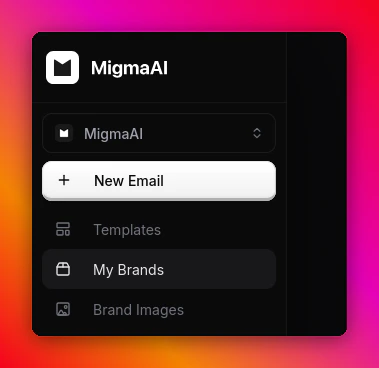
From the sidebar, click **New Email**.
The more representative content you add, the closer the first draft will be to your usual style.
***
## Step 4 — Generate your first email
With your brand and guidelines in place, you're ready to create.
From the sidebar, click **New Email**.
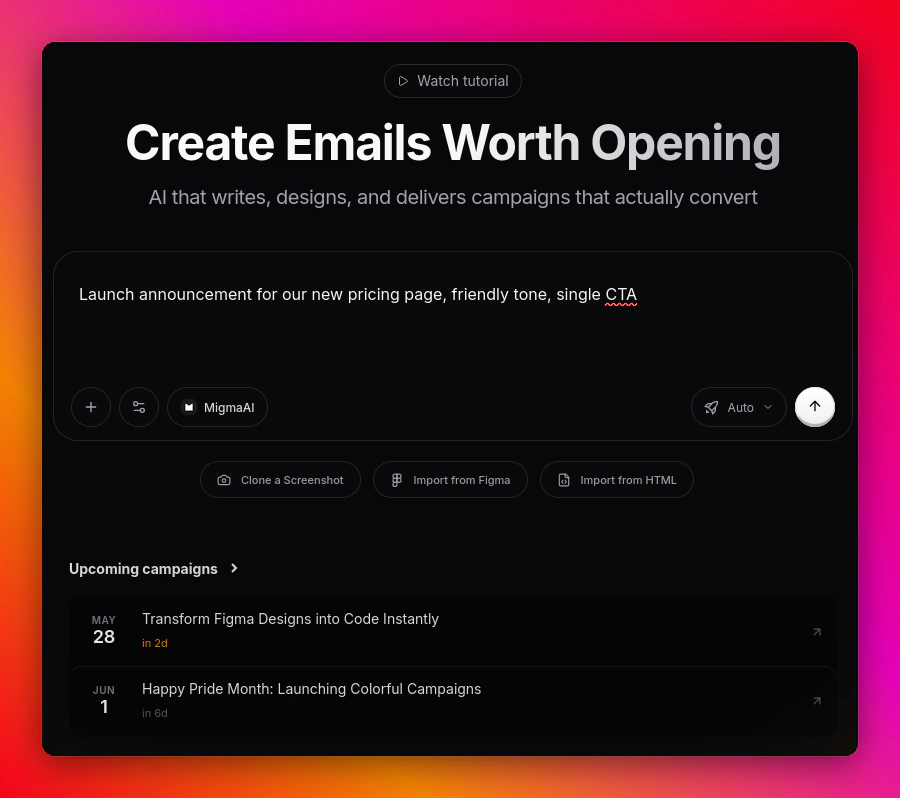
 Prompt naturally — e.g. *"Launch announcement for our new pricing page, friendly tone, single CTA."* You can also clone a screenshot or import from Figma/HTML.
 Migma drafts using your Brand Kit and Brand Guidelines. Iterate inline until it's ready to send.
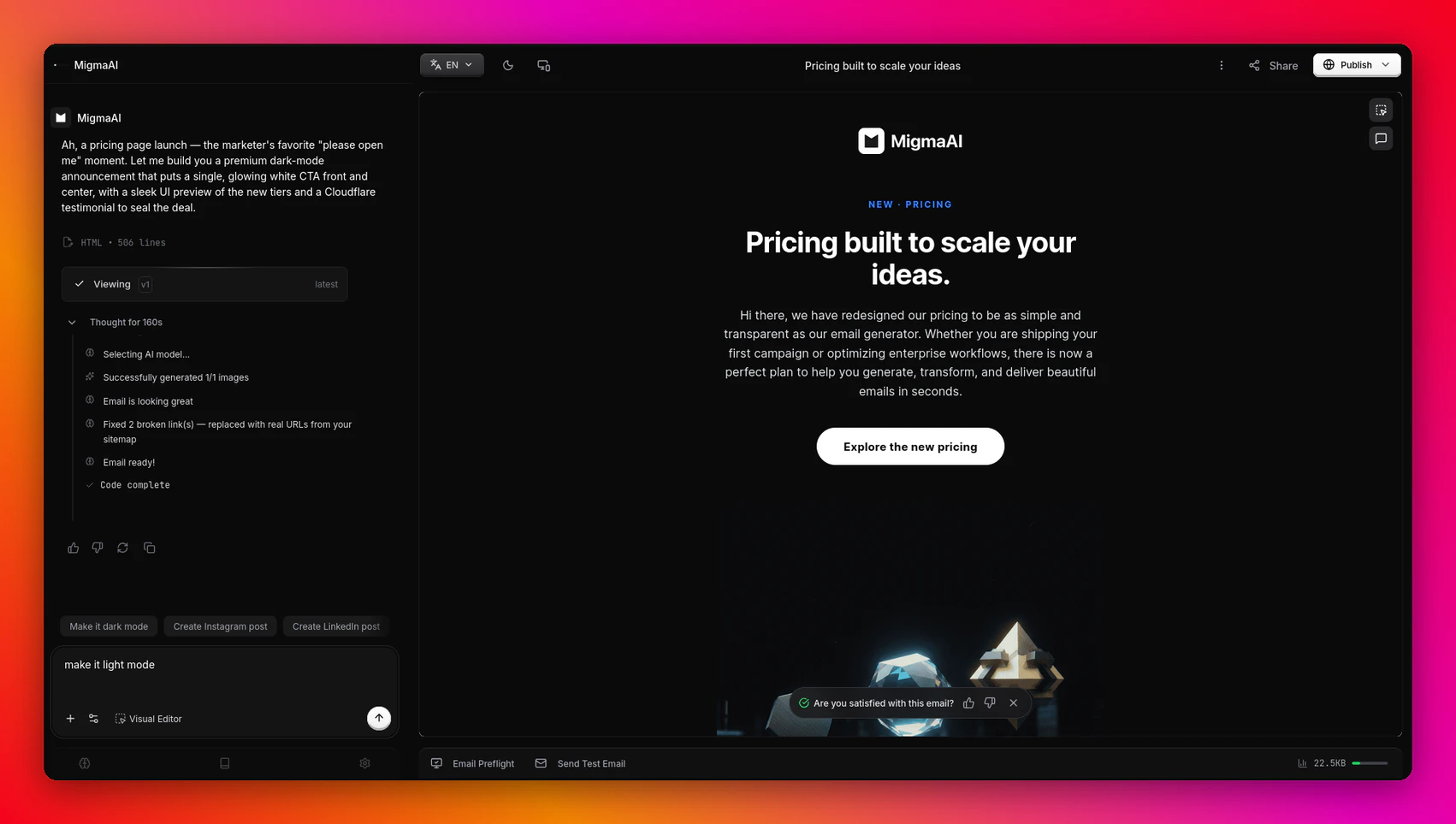 Full walkthrough of prompt-based creation
***
## What's next
Fine-tune your Brand Kit
Explore everything Migma can do
Launch your first email to an audience
Pick a plan that fits
Stuck during onboarding? Reach out via the in-app chat or browse the [FAQ](/faq).
Full walkthrough of prompt-based creation
***
## What's next
Fine-tune your Brand Kit
Explore everything Migma can do
Launch your first email to an audience
Pick a plan that fits
Stuck during onboarding? Reach out via the in-app chat or browse the [FAQ](/faq).