> ## Documentation Index
> Fetch the complete documentation index at: https://docs.migma.ai/llms.txt
> Use this file to discover all available pages before exploring further.
# Configure Your Brand
> Import your brand identity automatically from your website or configure manually
## Overview
Your brand configuration is the foundation of every email Migma generates. Import your brand identity automatically from your website, or configure it manually with complete control over every element.
Extract everything from your website URL in seconds
AI automatically finds logos, colors, fonts, and voice
Fine-tune every element after import
***
## Method 1: Automatic Brand Import (Recommended)
The fastest way to set up your brand is to let Migma extract everything automatically from your website.
### What Gets Imported
**Migma extracts:**
* Primary logo (from header/homepage)
* Secondary logo variations
* Favicon
**Supported formats:** SVG, PNG, JPG, WebP
Migma intelligently finds the highest quality versions and removes backgrounds automatically.
**Migma detects:**
* Primary brand color
* Secondary/accent colors
* Full color palette (up to 10 colors)
* Color usage patterns
**How it works:** AI analyzes your website's CSS, images, and visual hierarchy to identify your core brand colors.
**Migma identifies:**
* Heading font family
* Body text font family
* Font weights and styles
* Font fallbacks
**Google Fonts supported:** Migma automatically includes Google Fonts in email-safe format.
**Migma analyzes:**
* Website copy and messaging
* Tone and personality
* Brand values and positioning
* Writing style patterns
**Result:** AI learns how to write in your brand's voice for email copy.
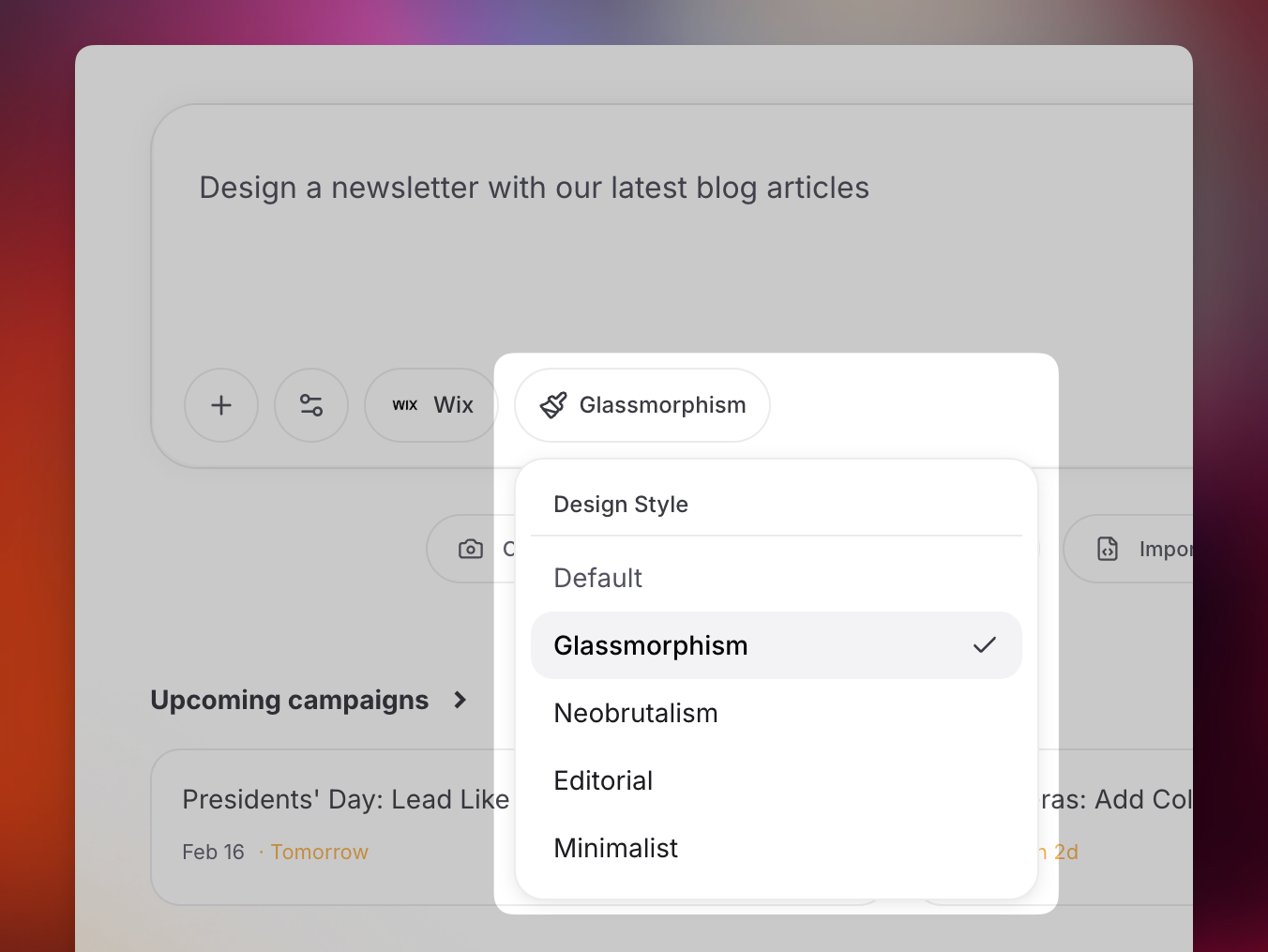
**Migma captures:**
* Design patterns and layouts
* Button styles
* Spacing and typography scale
* Component aesthetics
**Usage:** Informs email layout and design choices.
 **Migma analyzes:**
* Relevant About, product, pricing, news, and contact pages
* Company facts, products, positioning, and differentiators
* Headline, body-copy, and CTA patterns
* Footer structure, contact details, social links, and trust signals
* Recurring icon, illustration, and emoji usage when present
Useful findings are saved under **Brand Guidelines** and guide future email copy and design. Migma also researches recent public brand and industry updates in the background and keeps one dated summary current. Anything you add to Brand Guidelines yourself stays untouched.
***
### Step-by-Step: Import Your Brand
Go to **Projects** from the main navigation menu
Click **"New Project"** or **"Import Brand"** button
Input your company website URL (e.g., `https://yourcompany.com`)
Use your homepage URL for best results. Migma will crawl multiple pages.
Click **"Import Brand"** to begin automatic extraction
Import typically takes 30-60 seconds. You'll see progress indicators for each step:
* 🔍 Analyzing website...
* 🎨 Extracting colors and fonts...
* 📸 Processing logos...
* ✍️ Learning brand voice...
Once complete, review the extracted brand elements
Fine-tune any elements that need correction (optional)
Click **"Save Project"** to finalize your brand configuration
**Import Failed?** If import fails:
* Ensure your website is publicly accessible
* Try your homepage instead of a subpage
* Check that your website doesn't block crawlers
* Use manual configuration as an alternative
***
## Method 2: Manual Brand Configuration
Prefer to configure everything manually? You have complete control over every brand element.
### Creating a Project Manually
Navigate to **Projects** from the main menu
Click **"New Project"** → **"Manual Setup"**
**Required fields:**
* Project name
* Company name
* Industry/category
* Website URL (optional)
Follow the sections below to set up each element
***
### Upload Logos
Upload your logo files to use in email headers and footers.
**Logo Types:**
| Logo Type | Usage | Recommended Format |
| ------------------ | ------------------------------ | ------------------------------- |
| **Primary Logo** | Email headers, main branding | PNG with transparent background |
| **Secondary Logo** | Alternative layouts, dark mode | PNG or SVG |
| **Favicon** | Small icons, social shares | PNG or ICO (32x32px or 64x64px) |
**Best Practices:**
* Use PNG with transparent backgrounds
* Minimum width: 200px for primary logo
* Maximum file size: 2MB per logo
* SVG format for sharpest quality
***
### Define Color Palette
Set your brand colors that will be used throughout your emails.
**Color Configuration:**
Your main brand color, used for:
* CTA buttons
* Links
* Headers and accents
* Important elements
**Tip:** Choose your most recognizable brand color
Your accent color, used for:
* Secondary buttons
* Highlights
* Icons and badges
* Complementary elements
**Tip:** Should complement your primary color
Extended palette for more variety:
* Background colors
* Text variations
* Section dividers
* Visual interest
**Tip:** Add 3-5 additional colors from your brand palette
**How to Add Colors:**
1. Click on the color picker
2. Enter hex code (e.g., `#6D28D9`) or use the visual picker
3. Name your color (e.g., "Brand Purple", "Accent Green")
4. Add additional colors as needed
**Accessibility:** Migma automatically checks color contrast ratios and warns if text readability might be an issue.
***
### Configure Typography
Choose fonts that match your brand identity.
**Font Selection:**
Used for email subject lines, h1, h2, h3 headings
**Options:**
* Google Fonts library (500+ fonts)
* Web-safe fallback fonts
* Custom font URLs (advanced)
**Popular choices:** Montserrat, Poppins, Playfair Display, Roboto, Inter
Choose a font that's bold and readable at various sizes
Used for paragraphs, lists, and general text content
**Options:**
* Google Fonts library
* Web-safe fallback fonts
* Custom font URLs (advanced)
**Popular choices:** Open Sans, Lato, Roboto, Inter, Source Sans Pro
Prioritize readability over style for body text
**Email Client Compatibility:** Not all email clients support custom fonts. Migma automatically includes fallback fonts (Arial, Helvetica, sans-serif) for maximum compatibility.
***
### Set Brand Voice & Personality
Define how Migma should write email copy in your brand's voice.
**Voice Configuration Options:**
Describe your brand's personality in a few sentences:
**Example:**
```
We're a friendly, innovative SaaS company that makes
complex technology simple. We communicate in a warm,
approachable tone while maintaining professionalism.
We use humor sparingly and always focus on customer value.
```
Specify writing preferences:
* **Tone:** Professional, Casual, Friendly, Authoritative, Playful
* **Formality:** Formal, Semi-formal, Informal
* **Person:** First person (we/our), Second person (you/your), Third person
* **Sentence length:** Short and punchy, Medium, Long and detailed
**What to include:**
* Words and phrases you commonly use
* Your unique terminology
* Preferred call-to-action language
**What to avoid:**
* Words that don't fit your brand
* Competitor terminology
* Overly promotional language
Paste example copy from your website or marketing materials:
* Homepage copy
* Product descriptions
* Email examples
* Blog posts
**Why:** Helps AI learn your specific writing patterns
***
### Add Style Guidelines
Provide additional style guidelines for email design.
**What to Include:**
```markdown theme={null}
- Layout preferences (single column, hero images, minimal)
- Button styles (rounded, square, pill-shaped)
- Image usage guidelines
- Spacing preferences
- Email structure patterns
- Section layouts
```
**Example Style Guidelines:**
```
Our emails should feel modern and clean with plenty of white space.
We prefer single-column layouts with large, bold headlines. CTAs should
be prominent with rounded corners. We always include a hero image at
the top. Avoid cluttered designs - keep it simple and scannable.
```
***
### Configure Email Settings
Set up default email configuration for your project.
**Configure:**
* Default "From" name (e.g., "Migma Team")
* Default "From" email (e.g., "[hello@migma.ai](mailto:hello@migma.ai)")
* Default reply-to email
* BCC email (optional, for tracking)
These defaults are used unless you override them for specific emails.
**Required for CAN-SPAM compliance:**
* Company legal name
* Physical mailing address
* City, State, ZIP Code
* Country
This information appears in email footers. U.S. law requires a physical address in all commercial emails.
**Customize your email footer:**
* Social media links
* Unsubscribe link (automatic)
* Preference center link
* Privacy policy link
* Custom footer text
**Example:**
```
© 2024 Migma.ai. All rights reserved.
You received this email because you signed up at migma.ai
Unsubscribe | Update Preferences | Privacy Policy
123 Main St, San Francisco, CA 94105
```
***
## Advanced Configuration
### Add Brand Guidelines
Add brand guidelines to help AI understand your products, services, and key messages.
**What to Add:**
Names, descriptions, features, benefits, pricing
History, mission, values, team, locations
Value propositions, positioning, differentiators
Common questions and answers
**Format:**
```markdown theme={null}
## Product Name: Email Generator Pro
**Description:** Email creation platform that prepares
on-brand emails for review.
**Key Features:**
- Email generation
- Brand import automation
- 30+ email client compatibility
- Multi-language support
**Target Audience:** Marketing teams, agencies, SaaS companies
**Pricing:** Premium ($99.99/mo), Business ($299/mo)
```
***
### Upload Reference Images
Add images that represent your brand visually.
**Image Types:**
* Product screenshots
* Marketing materials
* Website screenshots
* Brand photography
* Design mockups
**Why:** Helps AI understand your visual style and can be included in generated emails.
***
### Add Custom CSS
For advanced users: Add custom CSS to fine-tune email styling.
**Use Cases:**
* Custom button styles
* Specific spacing adjustments
* Unique design patterns
* Brand-specific components
**Example:**
```css theme={null}
/* Custom button styles */
.cta-button {
border-radius: 8px;
padding: 16px 32px;
font-weight: 600;
text-transform: uppercase;
letter-spacing: 1px;
}
/* Brand-specific header */
.email-header {
background: linear-gradient(135deg, #6D28D9 0%, #A78BFA 100%);
padding: 40px 20px;
}
```
**Email Client Compatibility:** Not all CSS is supported in all email clients. Test your custom CSS thoroughly.
***
## Managing Projects
### Edit Existing Projects
Navigate to the Projects page
Click on the project you want to edit
Update any configuration elements
Click "Save" to apply updates
Changes apply to new emails immediately. Existing emails are not affected.
***
### Set Default Project
If you have multiple projects, set which one is used by default:
1. Go to **Projects** page
2. Find your preferred project
3. Click the **⭐ Set as Default** button
Now this project will be pre-selected when creating emails.
***
### Archive Projects
Keep your projects list clean by archiving unused projects:
1. Open the project you want to archive
2. Click **Settings** → **Archive Project**
3. Confirm archiving
**Note:** Archived projects can be restored anytime from the Projects page → "Archived" tab.
***
## Best Practices
Always try automatic import first. It's faster and captures nuances you might miss manually. You can always refine afterwards.
The more specific you are about brand voice, the better AI generates copy. Include examples and be detailed.
Upload the highest quality logos possible. Use PNG with transparent backgrounds or SVG for best results.
Ensure your color choices have good contrast for accessibility. Use Migma's built-in contrast checker.
Keep your brand guidelines current with new products, features, and messaging. This helps AI stay accurate.
***
## Troubleshooting
**Common causes:**
* Website is behind authentication/login
* Website blocks crawlers (robots.txt)
* Website has no accessible styling (headless CMS)
**Solution:** Use manual configuration or contact support
**Why:** AI might pick colors from images or background elements
**Solution:** Manually override the colors in brand settings under **Visual Identity** → **Colors & Styling**
**Common causes:**
* Logo file too large (over 2MB)
* Logo URL is private/inaccessible
* Logo format not supported
**Solution:** Re-upload in PNG or SVG format, ensure public URL
**Why:** Not all web fonts work in email clients
**Solution:** Choose the closest Google Font alternative or use web-safe fallbacks
***
## Next Steps
Now that your brand is configured, create your first email
Learn all the ways to create emails in Migma
Detailed guide on project management
Integrate brand import via API
***
## Need Help?
Get help from our community
Reach out to our team
Programmatic brand management
**Migma analyzes:**
* Relevant About, product, pricing, news, and contact pages
* Company facts, products, positioning, and differentiators
* Headline, body-copy, and CTA patterns
* Footer structure, contact details, social links, and trust signals
* Recurring icon, illustration, and emoji usage when present
Useful findings are saved under **Brand Guidelines** and guide future email copy and design. Migma also researches recent public brand and industry updates in the background and keeps one dated summary current. Anything you add to Brand Guidelines yourself stays untouched.
***
### Step-by-Step: Import Your Brand
Go to **Projects** from the main navigation menu
Click **"New Project"** or **"Import Brand"** button
Input your company website URL (e.g., `https://yourcompany.com`)
Use your homepage URL for best results. Migma will crawl multiple pages.
Click **"Import Brand"** to begin automatic extraction
Import typically takes 30-60 seconds. You'll see progress indicators for each step:
* 🔍 Analyzing website...
* 🎨 Extracting colors and fonts...
* 📸 Processing logos...
* ✍️ Learning brand voice...
Once complete, review the extracted brand elements
Fine-tune any elements that need correction (optional)
Click **"Save Project"** to finalize your brand configuration
**Import Failed?** If import fails:
* Ensure your website is publicly accessible
* Try your homepage instead of a subpage
* Check that your website doesn't block crawlers
* Use manual configuration as an alternative
***
## Method 2: Manual Brand Configuration
Prefer to configure everything manually? You have complete control over every brand element.
### Creating a Project Manually
Navigate to **Projects** from the main menu
Click **"New Project"** → **"Manual Setup"**
**Required fields:**
* Project name
* Company name
* Industry/category
* Website URL (optional)
Follow the sections below to set up each element
***
### Upload Logos
Upload your logo files to use in email headers and footers.
**Logo Types:**
| Logo Type | Usage | Recommended Format |
| ------------------ | ------------------------------ | ------------------------------- |
| **Primary Logo** | Email headers, main branding | PNG with transparent background |
| **Secondary Logo** | Alternative layouts, dark mode | PNG or SVG |
| **Favicon** | Small icons, social shares | PNG or ICO (32x32px or 64x64px) |
**Best Practices:**
* Use PNG with transparent backgrounds
* Minimum width: 200px for primary logo
* Maximum file size: 2MB per logo
* SVG format for sharpest quality
***
### Define Color Palette
Set your brand colors that will be used throughout your emails.
**Color Configuration:**
Your main brand color, used for:
* CTA buttons
* Links
* Headers and accents
* Important elements
**Tip:** Choose your most recognizable brand color
Your accent color, used for:
* Secondary buttons
* Highlights
* Icons and badges
* Complementary elements
**Tip:** Should complement your primary color
Extended palette for more variety:
* Background colors
* Text variations
* Section dividers
* Visual interest
**Tip:** Add 3-5 additional colors from your brand palette
**How to Add Colors:**
1. Click on the color picker
2. Enter hex code (e.g., `#6D28D9`) or use the visual picker
3. Name your color (e.g., "Brand Purple", "Accent Green")
4. Add additional colors as needed
**Accessibility:** Migma automatically checks color contrast ratios and warns if text readability might be an issue.
***
### Configure Typography
Choose fonts that match your brand identity.
**Font Selection:**
Used for email subject lines, h1, h2, h3 headings
**Options:**
* Google Fonts library (500+ fonts)
* Web-safe fallback fonts
* Custom font URLs (advanced)
**Popular choices:** Montserrat, Poppins, Playfair Display, Roboto, Inter
Choose a font that's bold and readable at various sizes
Used for paragraphs, lists, and general text content
**Options:**
* Google Fonts library
* Web-safe fallback fonts
* Custom font URLs (advanced)
**Popular choices:** Open Sans, Lato, Roboto, Inter, Source Sans Pro
Prioritize readability over style for body text
**Email Client Compatibility:** Not all email clients support custom fonts. Migma automatically includes fallback fonts (Arial, Helvetica, sans-serif) for maximum compatibility.
***
### Set Brand Voice & Personality
Define how Migma should write email copy in your brand's voice.
**Voice Configuration Options:**
Describe your brand's personality in a few sentences:
**Example:**
```
We're a friendly, innovative SaaS company that makes
complex technology simple. We communicate in a warm,
approachable tone while maintaining professionalism.
We use humor sparingly and always focus on customer value.
```
Specify writing preferences:
* **Tone:** Professional, Casual, Friendly, Authoritative, Playful
* **Formality:** Formal, Semi-formal, Informal
* **Person:** First person (we/our), Second person (you/your), Third person
* **Sentence length:** Short and punchy, Medium, Long and detailed
**What to include:**
* Words and phrases you commonly use
* Your unique terminology
* Preferred call-to-action language
**What to avoid:**
* Words that don't fit your brand
* Competitor terminology
* Overly promotional language
Paste example copy from your website or marketing materials:
* Homepage copy
* Product descriptions
* Email examples
* Blog posts
**Why:** Helps AI learn your specific writing patterns
***
### Add Style Guidelines
Provide additional style guidelines for email design.
**What to Include:**
```markdown theme={null}
- Layout preferences (single column, hero images, minimal)
- Button styles (rounded, square, pill-shaped)
- Image usage guidelines
- Spacing preferences
- Email structure patterns
- Section layouts
```
**Example Style Guidelines:**
```
Our emails should feel modern and clean with plenty of white space.
We prefer single-column layouts with large, bold headlines. CTAs should
be prominent with rounded corners. We always include a hero image at
the top. Avoid cluttered designs - keep it simple and scannable.
```
***
### Configure Email Settings
Set up default email configuration for your project.
**Configure:**
* Default "From" name (e.g., "Migma Team")
* Default "From" email (e.g., "[hello@migma.ai](mailto:hello@migma.ai)")
* Default reply-to email
* BCC email (optional, for tracking)
These defaults are used unless you override them for specific emails.
**Required for CAN-SPAM compliance:**
* Company legal name
* Physical mailing address
* City, State, ZIP Code
* Country
This information appears in email footers. U.S. law requires a physical address in all commercial emails.
**Customize your email footer:**
* Social media links
* Unsubscribe link (automatic)
* Preference center link
* Privacy policy link
* Custom footer text
**Example:**
```
© 2024 Migma.ai. All rights reserved.
You received this email because you signed up at migma.ai
Unsubscribe | Update Preferences | Privacy Policy
123 Main St, San Francisco, CA 94105
```
***
## Advanced Configuration
### Add Brand Guidelines
Add brand guidelines to help AI understand your products, services, and key messages.
**What to Add:**
Names, descriptions, features, benefits, pricing
History, mission, values, team, locations
Value propositions, positioning, differentiators
Common questions and answers
**Format:**
```markdown theme={null}
## Product Name: Email Generator Pro
**Description:** Email creation platform that prepares
on-brand emails for review.
**Key Features:**
- Email generation
- Brand import automation
- 30+ email client compatibility
- Multi-language support
**Target Audience:** Marketing teams, agencies, SaaS companies
**Pricing:** Premium ($99.99/mo), Business ($299/mo)
```
***
### Upload Reference Images
Add images that represent your brand visually.
**Image Types:**
* Product screenshots
* Marketing materials
* Website screenshots
* Brand photography
* Design mockups
**Why:** Helps AI understand your visual style and can be included in generated emails.
***
### Add Custom CSS
For advanced users: Add custom CSS to fine-tune email styling.
**Use Cases:**
* Custom button styles
* Specific spacing adjustments
* Unique design patterns
* Brand-specific components
**Example:**
```css theme={null}
/* Custom button styles */
.cta-button {
border-radius: 8px;
padding: 16px 32px;
font-weight: 600;
text-transform: uppercase;
letter-spacing: 1px;
}
/* Brand-specific header */
.email-header {
background: linear-gradient(135deg, #6D28D9 0%, #A78BFA 100%);
padding: 40px 20px;
}
```
**Email Client Compatibility:** Not all CSS is supported in all email clients. Test your custom CSS thoroughly.
***
## Managing Projects
### Edit Existing Projects
Navigate to the Projects page
Click on the project you want to edit
Update any configuration elements
Click "Save" to apply updates
Changes apply to new emails immediately. Existing emails are not affected.
***
### Set Default Project
If you have multiple projects, set which one is used by default:
1. Go to **Projects** page
2. Find your preferred project
3. Click the **⭐ Set as Default** button
Now this project will be pre-selected when creating emails.
***
### Archive Projects
Keep your projects list clean by archiving unused projects:
1. Open the project you want to archive
2. Click **Settings** → **Archive Project**
3. Confirm archiving
**Note:** Archived projects can be restored anytime from the Projects page → "Archived" tab.
***
## Best Practices
Always try automatic import first. It's faster and captures nuances you might miss manually. You can always refine afterwards.
The more specific you are about brand voice, the better AI generates copy. Include examples and be detailed.
Upload the highest quality logos possible. Use PNG with transparent backgrounds or SVG for best results.
Ensure your color choices have good contrast for accessibility. Use Migma's built-in contrast checker.
Keep your brand guidelines current with new products, features, and messaging. This helps AI stay accurate.
***
## Troubleshooting
**Common causes:**
* Website is behind authentication/login
* Website blocks crawlers (robots.txt)
* Website has no accessible styling (headless CMS)
**Solution:** Use manual configuration or contact support
**Why:** AI might pick colors from images or background elements
**Solution:** Manually override the colors in brand settings under **Visual Identity** → **Colors & Styling**
**Common causes:**
* Logo file too large (over 2MB)
* Logo URL is private/inaccessible
* Logo format not supported
**Solution:** Re-upload in PNG or SVG format, ensure public URL
**Why:** Not all web fonts work in email clients
**Solution:** Choose the closest Google Font alternative or use web-safe fallbacks
***
## Next Steps
Now that your brand is configured, create your first email
Learn all the ways to create emails in Migma
Detailed guide on project management
Integrate brand import via API
***
## Need Help?
Get help from our community
Reach out to our team
Programmatic brand management