> ## Documentation Index
> Fetch the complete documentation index at: https://docs.migma.ai/llms.txt
> Use this file to discover all available pages before exploring further.
# Billing, Plans & Free Trial
> Understand Migma plans, workspace billing, Business seats, real-time collaboration, free trials, and invoices.
## Pricing Plans
Migma has **two subscription plans** — **Premium** and **Business**. Both include a **7-day free trial** when you first subscribe (see below).
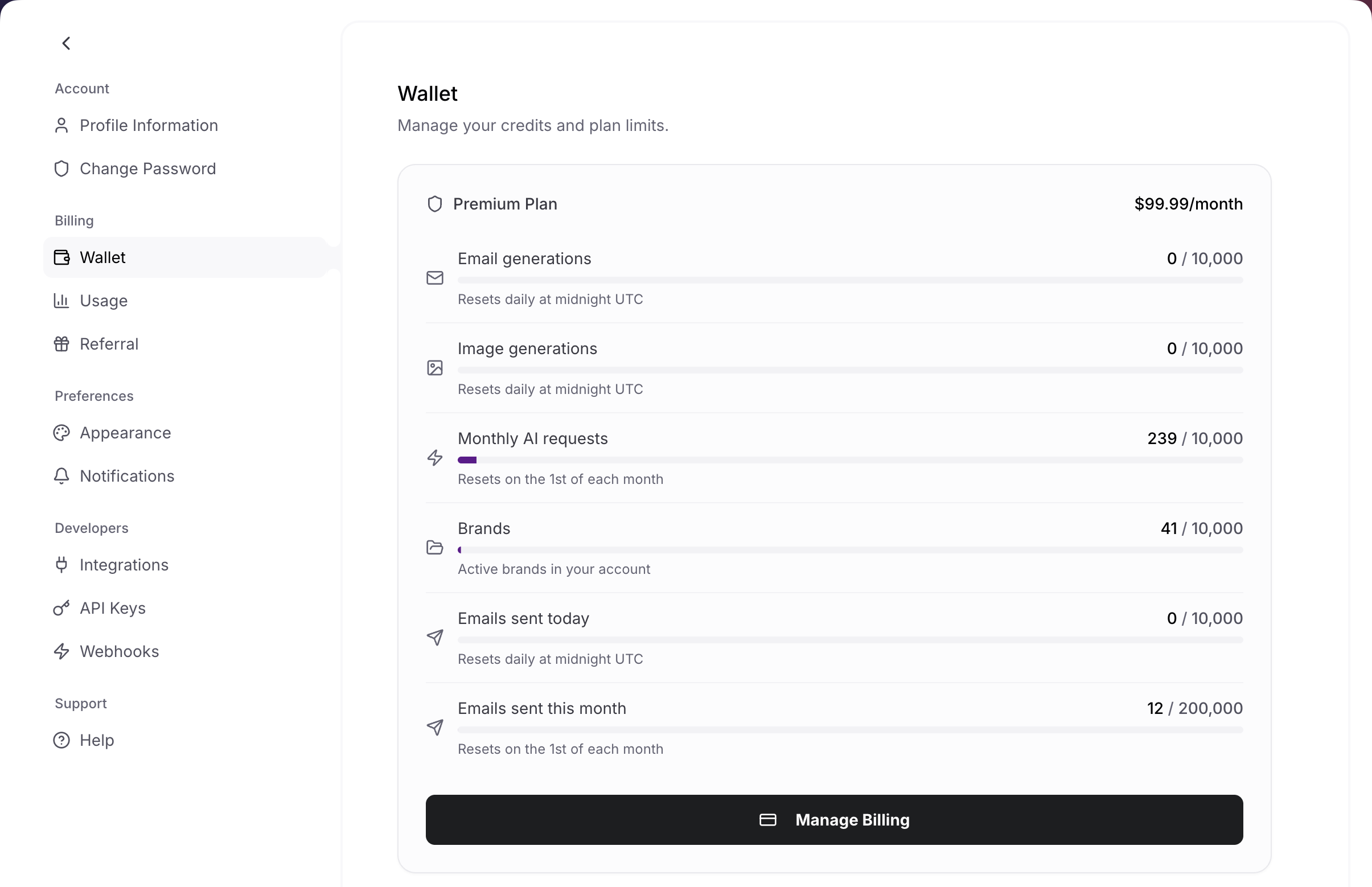
\*\*$99.99/month** or $950/year
* Personal workspace
* 100 AI emails per day
* 200,000 emails/month sending
* AI image & GIF generation
* Export to Mailchimp & more
* Figma design import
* Compatibility testing
\*\*$299/month** or $2,748/year
* Team workspace
* 2 editor seats included
* Real-time collaboration
* Unlimited AI emails
* 3M emails/month sending
* Unlimited AI images & GIFs
* Best AI models
* Unlimited brand kits
* Priority support
Need SSO, custom sending limits, or compliance packages? [Contact us](mailto:sales@migma.ai) about **Enterprise**.
**Global Deliverability (add-on).** See your email from the mailbox side: cross-provider campaign analytics, pre-send inbox placement testing, and domain and IP blocklist reputation monitoring. Available on any paid plan. [Learn more](/advanced-features/global-deliverability) or [contact us](mailto:sales@migma.ai?subject=Global%20Deliverability) to add it.
 ***
## Workspaces, seats, and real-time
Billing follows the **active workspace**. Your personal workspace uses your own plan. A team workspace uses the owner's plan, seats, and sending quota.
Switch between personal and team workspaces. Owners pay for the workspace plan, sending quota, and seats.
Business includes 2 editor seats. Commenters and viewers are free. Extra editor seats can be added as the team grows.
Presence, cursors, canvas sync, and generation awareness turn on automatically when teammates open the same brand.
Joining a paid team workspace does not require a paid personal plan. If the workspace owner gives you a seat, you get Business editor access in that workspace.
***
## Free Trial
Every new user gets a **7-day free trial** on their selected paid plan. Here's how it works:
Create your account at [migma.ai](https://migma.ai) and select **Premium** or **Business**.
You won't be charged anything when you start your trial. Your payment method is saved for after the trial period.
Enjoy all the features of your selected plan during the trial — no restrictions.
After 7 days, your subscription begins and you'll be charged the plan price. You'll receive a reminder email before your trial ends.
**The free trial is one-time only.** Each account is eligible for one free trial. If you've previously used a trial (even on an older account with the same email), you won't be eligible for another trial and will be charged immediately upon subscribing.
### Why was I charged immediately?
If you were charged right away instead of receiving a free trial, it's likely because:
* **You had a previous account** — If you signed up before (even months ago) and used a trial, the system recognizes your account and skips the trial period.
* **Previous subscription history** — If you've had a paid subscription in the past, the trial won't apply again.
If you believe you were charged in error, reach out to our support team at [support@migma.ai](mailto:support@migma.ai) or use the in-app chat. We're happy to help and can offer a full refund if needed.
***
## Managing Your Subscription
### View your current plan
Click your profile icon in the top-right corner and select **Settings**.
Navigate to the **Billing** section to see your current plan, usage, and next billing date.
### Upgrade or downgrade
Upgrades take effect immediately. You'll be charged a prorated amount for the remainder of your current billing period.
1. Go to **Settings → Billing**
2. Click **Manage billing**
3. Select your new plan
4. Confirm the change
You'll get instant access to all features of the higher plan.
Downgrades are scheduled for the end of your current billing period. You'll keep access to your current plan's features until then.
1. Go to **Settings → Billing**
2. Click **Manage billing**
3. Select the lower plan
4. Confirm the change
Your new plan takes effect at the start of your next billing cycle.
Save money by switching to annual billing:
* **Premium:** \$950/year (save \~21% vs. monthly)
* **Business:** \$2,748/year (save \~23% vs. monthly)
Go to **Settings → Billing → Manage billing** to switch your billing cycle.
***
## Canceling Your Subscription
You can cancel your subscription at any time. Here's what to expect:
Navigate to **Settings → Billing** in your Migma dashboard.
Select the cancel option. You'll be asked to confirm.
Your subscription remains active until the end of your current billing period. You won't be charged again.
After your billing period ends, your paid subscription ends. You can resubscribe anytime from **Settings → Billing**.
**Changed your mind?** You can reactivate your subscription at any time before your billing period ends by clicking **Reactivate subscription** in your billing settings. No need to re-enter payment details.
### Canceling during your free trial
If you cancel during your 7-day trial:
* You won't be charged at all
* You'll keep access until the trial period ends
* Your paid subscription will not continue after the trial unless you subscribe
***
## Refunds
If you were charged unexpectedly or aren't satisfied with the service, contact our support team:
[support@migma.ai](mailto:support@migma.ai)
Click the chat icon in the bottom-right corner of your dashboard
Our team reviews refund requests on a case-by-case basis and is happy to help resolve any billing concerns.
***
## Payment & Security
Migma accepts all major credit and debit cards:
* Visa
* Mastercard
* American Express
* Discover
All payments are securely processed through **Stripe**. We never store your full card details.
1. Go to **Settings → Billing**
2. Click **Manage billing**
3. Update your payment method in the Stripe portal
Your new payment method will be used for future charges.
All invoices and payment history are available in the Stripe billing portal:
1. Go to **Settings → Billing**
2. Click **Manage billing**
3. View your invoice history and download receipts
Yes. Migma uses **Stripe** for payment processing, which is PCI DSS Level 1 certified — the highest level of security certification in the payments industry. Your card details are encrypted and never touch our servers.
***
## Common Billing Questions
The free trial is available **once per account**. If you previously created an account with the same email address and used a trial (even if it was months ago), you won't receive another trial. This is the most common reason for an unexpected charge.
**What to do:** Contact our support team at [support@migma.ai](mailto:support@migma.ai). We can review your account and offer a refund if appropriate.
Your first charge occurs automatically **7 days after you started your trial**. You'll receive an email reminder before the trial ends so you can cancel if needed.
If a payment fails, Stripe will retry the charge a few times. You'll receive email notifications about the failed payment. If the payment continues to fail, your subscription will be canceled.
Update your payment method in **Settings → Billing → Manage billing** to avoid interruptions.
Currently, Migma doesn't offer a pause option. You can cancel your subscription and resubscribe later when you're ready. Your account data is retained for 90 days after cancellation.
No — your data is retained for **90 days** after cancellation. During this time, you can resubscribe and pick up where you left off. After 90 days, data may be permanently deleted.
***
## Next Steps
Start generating emails in under 5 minutes
Set up your brand identity for on-brand emails
Get help with any billing questions
***
## Workspaces, seats, and real-time
Billing follows the **active workspace**. Your personal workspace uses your own plan. A team workspace uses the owner's plan, seats, and sending quota.
Switch between personal and team workspaces. Owners pay for the workspace plan, sending quota, and seats.
Business includes 2 editor seats. Commenters and viewers are free. Extra editor seats can be added as the team grows.
Presence, cursors, canvas sync, and generation awareness turn on automatically when teammates open the same brand.
Joining a paid team workspace does not require a paid personal plan. If the workspace owner gives you a seat, you get Business editor access in that workspace.
***
## Free Trial
Every new user gets a **7-day free trial** on their selected paid plan. Here's how it works:
Create your account at [migma.ai](https://migma.ai) and select **Premium** or **Business**.
You won't be charged anything when you start your trial. Your payment method is saved for after the trial period.
Enjoy all the features of your selected plan during the trial — no restrictions.
After 7 days, your subscription begins and you'll be charged the plan price. You'll receive a reminder email before your trial ends.
**The free trial is one-time only.** Each account is eligible for one free trial. If you've previously used a trial (even on an older account with the same email), you won't be eligible for another trial and will be charged immediately upon subscribing.
### Why was I charged immediately?
If you were charged right away instead of receiving a free trial, it's likely because:
* **You had a previous account** — If you signed up before (even months ago) and used a trial, the system recognizes your account and skips the trial period.
* **Previous subscription history** — If you've had a paid subscription in the past, the trial won't apply again.
If you believe you were charged in error, reach out to our support team at [support@migma.ai](mailto:support@migma.ai) or use the in-app chat. We're happy to help and can offer a full refund if needed.
***
## Managing Your Subscription
### View your current plan
Click your profile icon in the top-right corner and select **Settings**.
Navigate to the **Billing** section to see your current plan, usage, and next billing date.
### Upgrade or downgrade
Upgrades take effect immediately. You'll be charged a prorated amount for the remainder of your current billing period.
1. Go to **Settings → Billing**
2. Click **Manage billing**
3. Select your new plan
4. Confirm the change
You'll get instant access to all features of the higher plan.
Downgrades are scheduled for the end of your current billing period. You'll keep access to your current plan's features until then.
1. Go to **Settings → Billing**
2. Click **Manage billing**
3. Select the lower plan
4. Confirm the change
Your new plan takes effect at the start of your next billing cycle.
Save money by switching to annual billing:
* **Premium:** \$950/year (save \~21% vs. monthly)
* **Business:** \$2,748/year (save \~23% vs. monthly)
Go to **Settings → Billing → Manage billing** to switch your billing cycle.
***
## Canceling Your Subscription
You can cancel your subscription at any time. Here's what to expect:
Navigate to **Settings → Billing** in your Migma dashboard.
Select the cancel option. You'll be asked to confirm.
Your subscription remains active until the end of your current billing period. You won't be charged again.
After your billing period ends, your paid subscription ends. You can resubscribe anytime from **Settings → Billing**.
**Changed your mind?** You can reactivate your subscription at any time before your billing period ends by clicking **Reactivate subscription** in your billing settings. No need to re-enter payment details.
### Canceling during your free trial
If you cancel during your 7-day trial:
* You won't be charged at all
* You'll keep access until the trial period ends
* Your paid subscription will not continue after the trial unless you subscribe
***
## Refunds
If you were charged unexpectedly or aren't satisfied with the service, contact our support team:
[support@migma.ai](mailto:support@migma.ai)
Click the chat icon in the bottom-right corner of your dashboard
Our team reviews refund requests on a case-by-case basis and is happy to help resolve any billing concerns.
***
## Payment & Security
Migma accepts all major credit and debit cards:
* Visa
* Mastercard
* American Express
* Discover
All payments are securely processed through **Stripe**. We never store your full card details.
1. Go to **Settings → Billing**
2. Click **Manage billing**
3. Update your payment method in the Stripe portal
Your new payment method will be used for future charges.
All invoices and payment history are available in the Stripe billing portal:
1. Go to **Settings → Billing**
2. Click **Manage billing**
3. View your invoice history and download receipts
Yes. Migma uses **Stripe** for payment processing, which is PCI DSS Level 1 certified — the highest level of security certification in the payments industry. Your card details are encrypted and never touch our servers.
***
## Common Billing Questions
The free trial is available **once per account**. If you previously created an account with the same email address and used a trial (even if it was months ago), you won't receive another trial. This is the most common reason for an unexpected charge.
**What to do:** Contact our support team at [support@migma.ai](mailto:support@migma.ai). We can review your account and offer a refund if appropriate.
Your first charge occurs automatically **7 days after you started your trial**. You'll receive an email reminder before the trial ends so you can cancel if needed.
If a payment fails, Stripe will retry the charge a few times. You'll receive email notifications about the failed payment. If the payment continues to fail, your subscription will be canceled.
Update your payment method in **Settings → Billing → Manage billing** to avoid interruptions.
Currently, Migma doesn't offer a pause option. You can cancel your subscription and resubscribe later when you're ready. Your account data is retained for 90 days after cancellation.
No — your data is retained for **90 days** after cancellation. During this time, you can resubscribe and pick up where you left off. After 90 days, data may be permanently deleted.
***
## Next Steps
Start generating emails in under 5 minutes
Set up your brand identity for on-brand emails
Get help with any billing questions