> ## Documentation Index
> Fetch the complete documentation index at: https://docs.migma.ai/llms.txt
> Use this file to discover all available pages before exploring further.
# Visual Canvas
> Lay out every email, post, and reference for a project on one spatial workspace you can arrange, connect, and version.
Every project in Migma has a Visual Canvas. It is an open, zoomable workspace where the things you're making and the things that inspire them live side by side. Each email, social post, and blog article shows up as a node you can move around. Around them you can pin raw material such as HTML files, images, and links to inspiration. Comment threads keep team feedback attached to the right place.
The canvas is a planning surface, not a separate editor. Content still lives where it always has — the canvas adds a spatial layer on top so you can see and organize the whole project at a glance.
## What lives on the canvas
Anything you've created for the project is already there. As you generate more, new nodes appear automatically.
Every email in the project, rendered as a live preview you can arrange.
Social content for the project, shown alongside the emails it supports.
Long-form articles, kept in the same workspace as the rest of the project.
## Adding references
The canvas isn't only for finished content. Right-click anywhere on an empty part of the surface to drop in supporting material that shapes what you build.
Right-click on an empty area of the canvas to bring up the add menu.
Choose a market inspiration reference or paste in raw HTML.
Drag the new node anywhere. It stays where you put it.
Here's what each kind is for:
| Node | What it's for |
| --------------------------- | ------------------------------------------------------------------------------- |
| **HTML reference** | Paste an existing HTML email. Migma can convert it into a fully editable email. |
| **Image reference** | A brand asset or a generated visual you want to keep on hand while you work. |
| **Link / market reference** | A URL or a competitor email pinned as inspiration, with a thumbnail preview. |
## Commenting on canvas
Use comments for review, questions, and design direction without covering email previews.
Select the comment button beside the canvas controls, then click where the feedback belongs. You can also right-click an empty area and choose **Comment here**.
Write the first comment. A compact marker with your avatar stays anchored beside the email or canvas area.
Type `@` or select the `@` button, then find a teammate by name or email. The mention stays attached to that person, and their in-app alert opens this exact thread. If they are away, the alert waits until they return.
Select the marker to read the thread and reply. Replies support the same teammate mentions. The marker shows the number of messages when a thread has replies.
Resolve the thread when the feedback is handled. Reopen it if more work is needed.
Migma reads unresolved canvas comments during the next design turn. Resolved threads remain available to your team but stop influencing later edits.
### Turning an HTML reference into an email
An HTML reference starts as a preview pinned to the canvas. When you want to actually work on it, Migma converts it into an editable email that renders through the same engine as everything else you make.
See how raw HTML becomes a fully editable, email-safe Migma email.
## Connecting and grouping nodes
Once you have nodes on the canvas, you can show how they relate.
Connect one node to another to sketch out the order or relationship between them — for example, the path through a sequence of emails. Flow lines are a visual aid for planning; they document how you think the pieces fit together.
Gather related nodes into a group to keep a section of the canvas tidy — all the assets for one launch, or one campaign's worth of content in a single block.
Flow lines and groups are organizational. They help you and your team read the canvas; they don't change how or when anything sends.
## Version history
Every meaningful change to the canvas is captured as a version, so you can always look back — or go back.
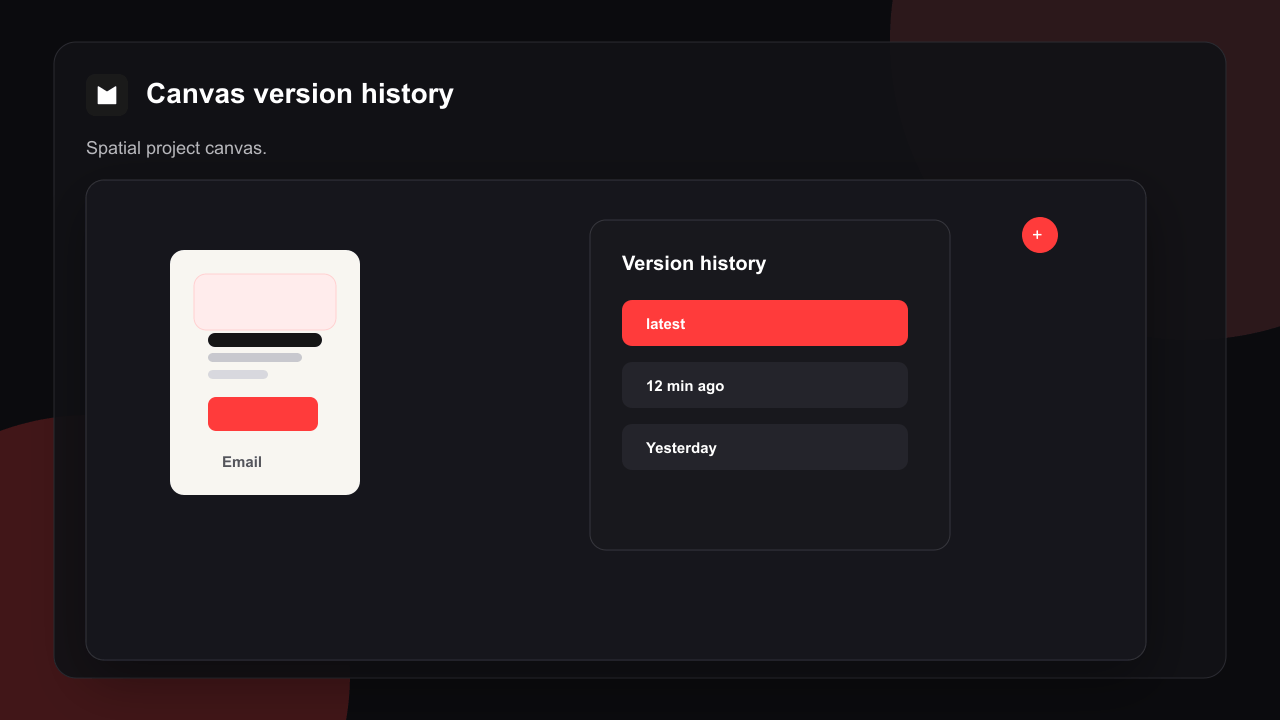
The version control in the canvas header lists each saved version with a label and how long ago it was made. The most recent is marked **latest**.
Select any version to view the canvas as it was at that point, read-only, without changing anything.
Restore a version to bring the canvas back to that state. Migma confirms first and shows you which later additions would leave the current view.
Restoring rewinds the canvas to an earlier turn — newer versions made after that point are dropped from the live view. Anything removed stays recoverable from history, but read the confirmation before you restore.
 ## Duplicate into a new chat
Use **Duplicate email** or **Duplicate series** from an email card menu when you want to try another direction without changing the original. Migma opens the latest canvas version in a new chat with the same email or sequence ready to refine.
## Rename chats, series, and emails
Open the actions menu for a chat, series, or email and choose **Rename**. A chat and its series share one name, so either rename keeps both labels aligned.
Renaming an individual email changes only the name shown in Migma. Its email subject stays unchanged.
## Working together
The canvas is realtime and multiplayer — when teammates are in the same project, you see each other's changes as they happen. That's covered in its own guide.
How presence, live updates, and shared editing work across a project.
## Where to next
Plan and generate a sequence of emails for the project.
Work the canvas alongside your team in real time.
Convert pinned HTML into a fully editable email.
Recreate any email from a screenshot.
## Duplicate into a new chat
Use **Duplicate email** or **Duplicate series** from an email card menu when you want to try another direction without changing the original. Migma opens the latest canvas version in a new chat with the same email or sequence ready to refine.
## Rename chats, series, and emails
Open the actions menu for a chat, series, or email and choose **Rename**. A chat and its series share one name, so either rename keeps both labels aligned.
Renaming an individual email changes only the name shown in Migma. Its email subject stays unchanged.
## Working together
The canvas is realtime and multiplayer — when teammates are in the same project, you see each other's changes as they happen. That's covered in its own guide.
How presence, live updates, and shared editing work across a project.
## Where to next
Plan and generate a sequence of emails for the project.
Work the canvas alongside your team in real time.
Convert pinned HTML into a fully editable email.
Recreate any email from a screenshot.