> ## Documentation Index
> Fetch the complete documentation index at: https://docs.migma.ai/llms.txt
> Use this file to discover all available pages before exploring further.
# Prompt-Based Creation
> Describe what you want. Migma builds the email.
You don't need to design anything or write any HTML. Just type what you want, the way you'd explain it to a colleague and Migma generates a complete, on-brand email in about 30 seconds.
## How it works
1. Click **New Email** in the left sidebar
2. Type what you want in the prompt box
3. Hit **Enter**
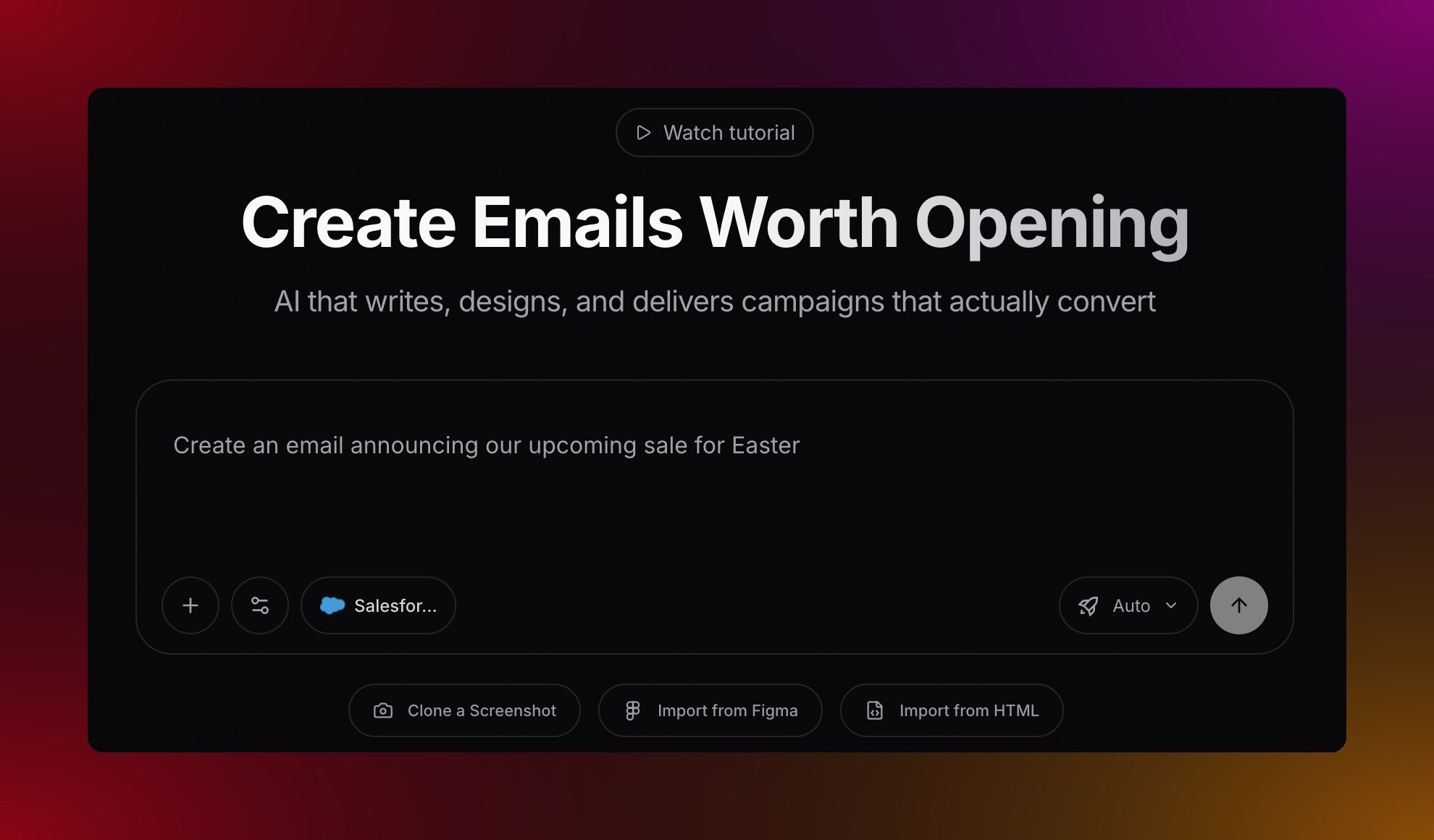 That's it. Migma reads your brand, writes the copy, and builds the full email. If you don't love the result, tweak the prompt and try again, it only takes 30 seconds either way.
***
## Writing a good prompt
You don't need to overthink this. A good prompt just answers four questions:
**What kind of email is it?** Newsletter, promo, welcome email, announcement, just name it.
**What should be in it?** List the content you want: a discount, a product feature, an event date, a customer story.
**What tone?** Friendly, urgent, professional, playful or just describe the feeling you're going for.
**What should people do?** The action you want readers to take: click a button, book a demo, shop now.
You don't have to answer all four perfectly. Even a rough prompt gets you 80% of the way there.
***
## Prompts you can steal
Not sure where to start? Copy one of these and make it your own.
**Welcome email**
```text theme={null}
Welcome email for new subscribers. Warm tone. One tip to help them get started, and a button to book a demo.
```
**Flash sale**
```text theme={null}
Black Friday sale. 30% off everything, ends Sunday midnight. Make it feel urgent. Big Shop Now button at the top.
```
**Monthly newsletter**
```text theme={null}
Monthly newsletter. Product update, one customer story, reminder about the webinar on the 15th.
```
**Product launch**
```text theme={null}
Launch email for our new AI analytics dashboard. Hero section with product screenshot, 3 key benefits, pricing at $49/mo with a 14-day free trial. Strong CTA to start the trial. Professional and exciting tone.
```
**Re-engagement**
```text theme={null}
Win-back email for subscribers who haven't opened in 90 days. Friendly, not pushy. Remind them what they're missing and offer 20% off to come back.
```
***
## Tips that actually help
Ask yourself: what do I want someone to do after reading this? Write that down first, then build the rest of the prompt around it.
If you want a specific layout — hero image at the top, three feature columns, a big CTA at the bottom — say so. Migma will follow it.
If this is email #2 in an onboarding sequence, mention that. Migma writes better when it knows where the email fits.
Generate first, refine second. It's faster to tweak a result than to perfect a prompt upfront. Each run takes 30 seconds.
***
## What do you want to do next?
Screenshot any email you like and Migma recreates it in your brand.
Click into any part of your email to change text, swap images, or adjust colors.
Already have a design? Bring it straight in from Figma.
Open rates, click rates, unsubscribes — all in one place after you send.
That's it. Migma reads your brand, writes the copy, and builds the full email. If you don't love the result, tweak the prompt and try again, it only takes 30 seconds either way.
***
## Writing a good prompt
You don't need to overthink this. A good prompt just answers four questions:
**What kind of email is it?** Newsletter, promo, welcome email, announcement, just name it.
**What should be in it?** List the content you want: a discount, a product feature, an event date, a customer story.
**What tone?** Friendly, urgent, professional, playful or just describe the feeling you're going for.
**What should people do?** The action you want readers to take: click a button, book a demo, shop now.
You don't have to answer all four perfectly. Even a rough prompt gets you 80% of the way there.
***
## Prompts you can steal
Not sure where to start? Copy one of these and make it your own.
**Welcome email**
```text theme={null}
Welcome email for new subscribers. Warm tone. One tip to help them get started, and a button to book a demo.
```
**Flash sale**
```text theme={null}
Black Friday sale. 30% off everything, ends Sunday midnight. Make it feel urgent. Big Shop Now button at the top.
```
**Monthly newsletter**
```text theme={null}
Monthly newsletter. Product update, one customer story, reminder about the webinar on the 15th.
```
**Product launch**
```text theme={null}
Launch email for our new AI analytics dashboard. Hero section with product screenshot, 3 key benefits, pricing at $49/mo with a 14-day free trial. Strong CTA to start the trial. Professional and exciting tone.
```
**Re-engagement**
```text theme={null}
Win-back email for subscribers who haven't opened in 90 days. Friendly, not pushy. Remind them what they're missing and offer 20% off to come back.
```
***
## Tips that actually help
Ask yourself: what do I want someone to do after reading this? Write that down first, then build the rest of the prompt around it.
If you want a specific layout — hero image at the top, three feature columns, a big CTA at the bottom — say so. Migma will follow it.
If this is email #2 in an onboarding sequence, mention that. Migma writes better when it knows where the email fits.
Generate first, refine second. It's faster to tweak a result than to perfect a prompt upfront. Each run takes 30 seconds.
***
## What do you want to do next?
Screenshot any email you like and Migma recreates it in your brand.
Click into any part of your email to change text, swap images, or adjust colors.
Already have a design? Bring it straight in from Figma.
Open rates, click rates, unsubscribes — all in one place after you send.