> ## Documentation Index
> Fetch the complete documentation index at: https://docs.migma.ai/llms.txt
> Use this file to discover all available pages before exploring further.
# Clone from Image
> Upload any email screenshot and recreate it as responsive HTML.
Upload a screenshot of any email, a competitor's, one you found online, a designer mockup and Migma recreates it as a fully responsive HTML email. You can get an exact copy, or have it adapted to your brand automatically.
**Recently improved.** Image-to-email fidelity is closer to the reference. Like every import path, output renders through Migma's email engine for Outlook, webmail, and mobile.
## How it works
1. Go to **New Email** in the left sidebar
2. Click **Clone a Screenshot**, or open the **+** menu and choose **Screenshot to Email**
3. Drop, paste, or browse for the screenshot you want to rebuild
4. Choose **Editable copy** or **Brand version**, then create the email
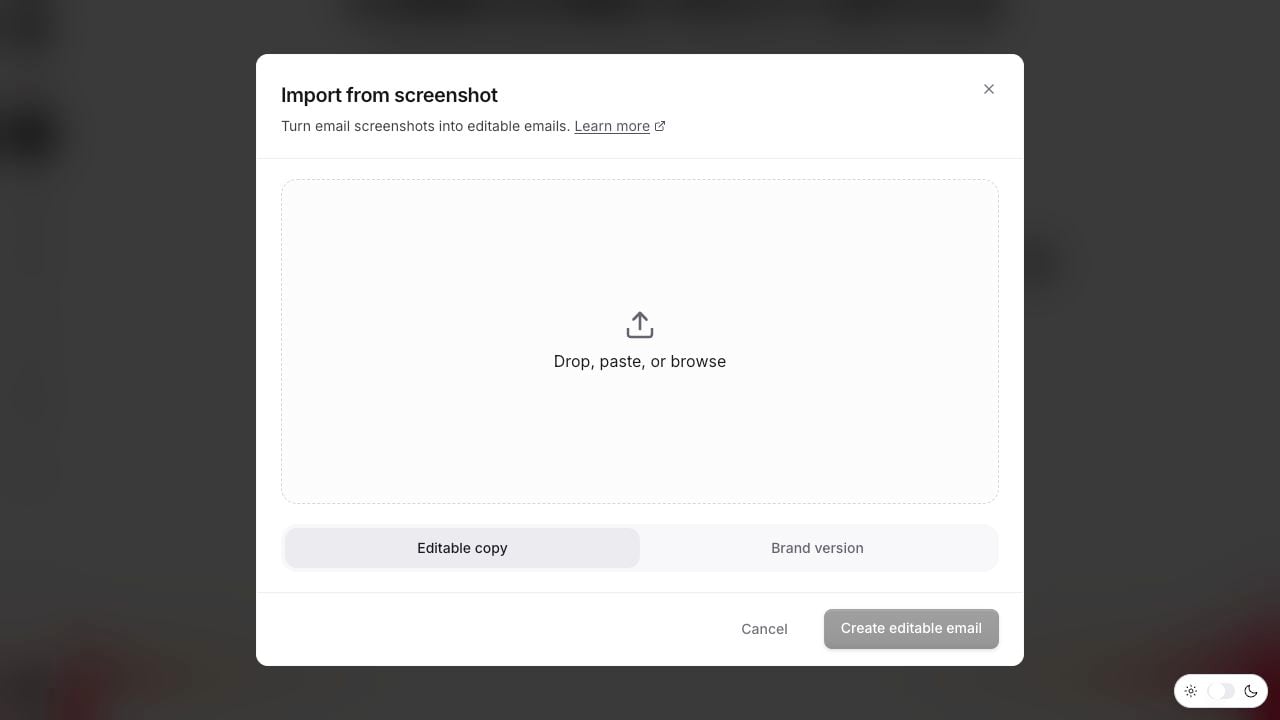 Migma reads the layout, extracts the text, and rebuilds the whole thing in about 30-60 seconds.
***
## Two ways to clone
**Exact clone** — recreates the email exactly as shown, no brand changes. Use this when you want a 1:1 copy or are analyzing a competitor's email.
```text theme={null}
Recreate this email exactly as shown without using project information
```
**Brand-adapted clone** — keeps the layout and structure but swaps in your colors, fonts, and logo. Use this when you like how an email is built but want it to feel like yours.
```text theme={null}
Recreate this email layout but apply my brand colors, fonts, and style
```
***
## What images work best
Migma does best with clean, high-resolution screenshots of full emails. The more of the email it can see, the better the result.
**Great sources:**
* Full email screenshots from Gmail or Outlook
* Designer mockups exported from Figma or Sketch at 2x
* Competitor emails from your inbox
**Supported formats:** JPG, PNG, WebP up to 10MB
Capture the full email from header to footer in one screenshot. Cropped sections lose context and the result won't be as accurate.
***
## Getting better results
You can combine your image with a text prompt to guide Migma more precisely:
```text theme={null}
Recreate this layout but use our brand colors (purple and gold), replace their
product with our AI email tool, and keep the 3-column feature section.
```
And if the first result isn't quite right, just follow up in chat:
```text theme={null}
The headline should be larger
Move the CTA button above the feature section
Increase spacing between rows
```
Don't try to get it perfect in one shot, it's faster to generate and refine than to write the perfect prompt upfront.
***
## Image clone vs Figma import
| | Image Clone | Figma Import |
| ------------------ | --------------------------------------- | ---------------------- |
| **Speed** | 30-60 sec | 60-90 sec |
| **Text accuracy** | OCR-based | Exact |
| **Color accuracy** | Very high | Pixel-perfect |
| **Best for** | Screenshots, mockups, competitor emails | Original Figma designs |
| **Setup needed** | None | Figma file access |
If you have the original Figma file, use the Figma import instead it's more accurate. For everything else, image clone is the faster path.
Import directly from your Figma file for pixel-perfect results
***
## What do you want to do next?
Click into any part of your cloned email to tweak text, images, or colors.
Replace placeholder images with on-brand visuals generated by AI.
Reuse and adapt emails you've already made.
Preflight your cloned email before send.
Convert an existing HTML email into a fully compatible Migma email.
Bring a Claude design straight in via React / JSX import.
Migma reads the layout, extracts the text, and rebuilds the whole thing in about 30-60 seconds.
***
## Two ways to clone
**Exact clone** — recreates the email exactly as shown, no brand changes. Use this when you want a 1:1 copy or are analyzing a competitor's email.
```text theme={null}
Recreate this email exactly as shown without using project information
```
**Brand-adapted clone** — keeps the layout and structure but swaps in your colors, fonts, and logo. Use this when you like how an email is built but want it to feel like yours.
```text theme={null}
Recreate this email layout but apply my brand colors, fonts, and style
```
***
## What images work best
Migma does best with clean, high-resolution screenshots of full emails. The more of the email it can see, the better the result.
**Great sources:**
* Full email screenshots from Gmail or Outlook
* Designer mockups exported from Figma or Sketch at 2x
* Competitor emails from your inbox
**Supported formats:** JPG, PNG, WebP up to 10MB
Capture the full email from header to footer in one screenshot. Cropped sections lose context and the result won't be as accurate.
***
## Getting better results
You can combine your image with a text prompt to guide Migma more precisely:
```text theme={null}
Recreate this layout but use our brand colors (purple and gold), replace their
product with our AI email tool, and keep the 3-column feature section.
```
And if the first result isn't quite right, just follow up in chat:
```text theme={null}
The headline should be larger
Move the CTA button above the feature section
Increase spacing between rows
```
Don't try to get it perfect in one shot, it's faster to generate and refine than to write the perfect prompt upfront.
***
## Image clone vs Figma import
| | Image Clone | Figma Import |
| ------------------ | --------------------------------------- | ---------------------- |
| **Speed** | 30-60 sec | 60-90 sec |
| **Text accuracy** | OCR-based | Exact |
| **Color accuracy** | Very high | Pixel-perfect |
| **Best for** | Screenshots, mockups, competitor emails | Original Figma designs |
| **Setup needed** | None | Figma file access |
If you have the original Figma file, use the Figma import instead it's more accurate. For everything else, image clone is the faster path.
Import directly from your Figma file for pixel-perfect results
***
## What do you want to do next?
Click into any part of your cloned email to tweak text, images, or colors.
Replace placeholder images with on-brand visuals generated by AI.
Reuse and adapt emails you've already made.
Preflight your cloned email before send.
Convert an existing HTML email into a fully compatible Migma email.
Bring a Claude design straight in via React / JSX import.