> ## Documentation Index
> Fetch the complete documentation index at: https://docs.migma.ai/llms.txt
> Use this file to discover all available pages before exploring further.
# HTML to Email
> Bring an existing HTML email into Migma and convert it into a fully editable, email-safe Migma email.
Already have an HTML email, a hand-coded template, an export from another tool, or a legacy newsletter that keeps breaking in Outlook? Drop it into Migma and it becomes a fully editable, email-safe Migma email. You can keep it exactly as-is, or have it adapted to your brand automatically.
Because every import is rebuilt through Migma's email engine, importing a broken legacy template is also the fastest way to **fix** Outlook and webmail rendering problems.
## How it works
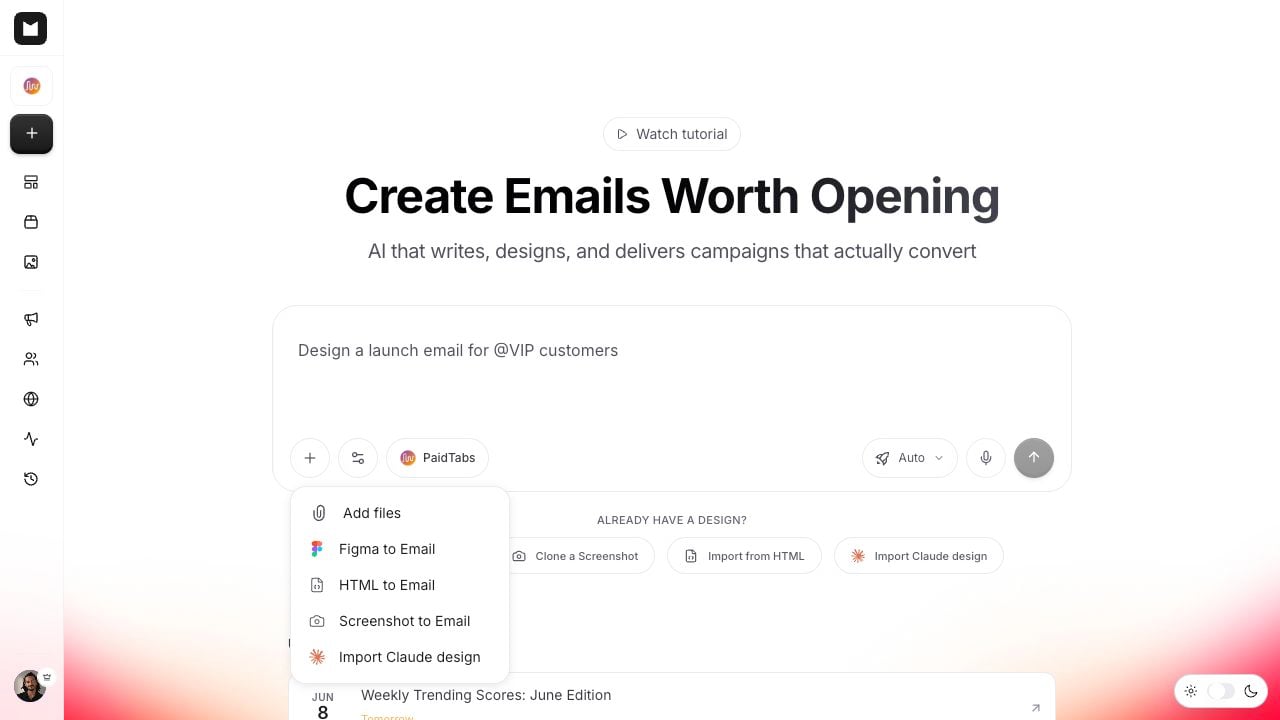 In the Migma create/chat input, click the **"+"** (plus) button to open the add-content dropdown.
Select the menu item labeled **HTML to Email**.
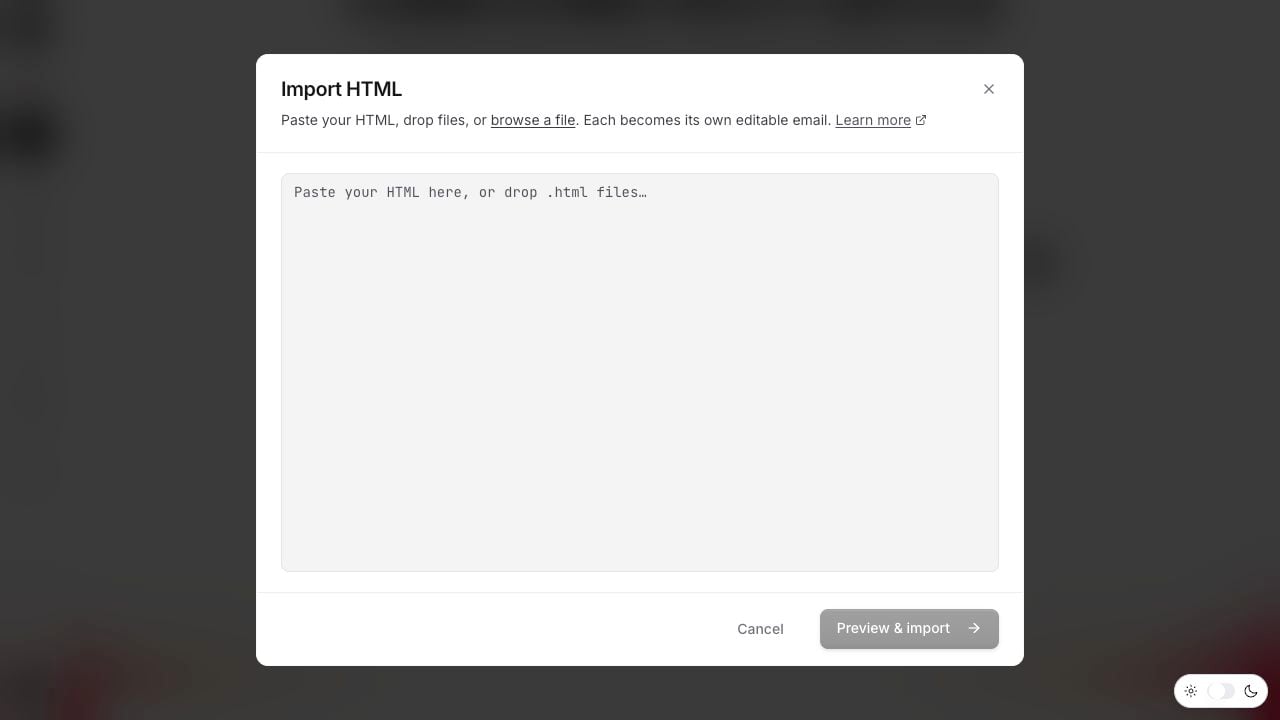
**Paste** the HTML code directly, or **drop / upload** a `.html` or `.eml` file.
Click **Preview & import**. Migma converts the source into an editable email.
Tweak in chat or the visual editor, run Email Preflight, then export.
Paste is best for a quick snippet or a copied template. Upload a `.eml` when you've saved a real email out of your inbox and want the exact source.
In the Migma create/chat input, click the **"+"** (plus) button to open the add-content dropdown.
Select the menu item labeled **HTML to Email**.
**Paste** the HTML code directly, or **drop / upload** a `.html` or `.eml` file.
Click **Preview & import**. Migma converts the source into an editable email.
Tweak in chat or the visual editor, run Email Preflight, then export.
Paste is best for a quick snippet or a copied template. Upload a `.eml` when you've saved a real email out of your inbox and want the exact source.
 ***
## Two ways to import
**Exact conversion** keeps your email as-is and makes it Migma-editable and email-safe. Nothing about the design changes. Use this when the template is already the way you want it and you only need it inside Migma.
```text theme={null}
Convert this HTML into an editable Migma email exactly as-is, no design changes
```
**Brand-adapt** keeps the layout and structure but swaps in your project's colors, fonts, and logo so it matches your brand context.
```text theme={null}
Convert this HTML but apply my brand colors, fonts, and logo
```
***
## What happens under the hood
This is not a model guessing at your markup. A deterministic converter parses your HTML and rebuilds it as an editable Migma email.
That single detail is what makes the import dependable:
A parser reads your HTML and maps it to an editable Migma email. The same input produces the same output every time, no model variance.
Every import uses the same rendering engine that powers emails built from scratch in Migma.
The engine emits email-safe HTML for Gmail, Outlook, Apple Mail, mobile clients, and dark mode review.
Because everything flows through that one engine, the output renders reliably across Outlook, Gmail, Apple Mail, and mobile, and stays consistent in dark and light mode (Migma emits explicit `color-scheme` metadata). So if your original template renders fine in some clients but falls apart in Outlook, re-importing it through Migma is the fix: it comes back out as clean, email-safe HTML.
Tangled, inline-everything legacy markup becomes an editable Migma email
Quirks that break specific clients are normalized by the engine
The result is fully editable, not a flattened snapshot
***
## Fixing a broken legacy template
This is the most common reason teams reach for HTML import. The workflow:
Paste or upload the HTML that's misbehaving in Outlook (or anywhere else).
The deterministic converter rebuilds it as an editable Migma email.
Run Email Preflight to see it across major clients and devices before you send.
Hand-coded emails often hide client-specific hacks (conditional comments, fixed pixel widths, nested tables) that work in one inbox and break in another. Migma's engine normalizes these, but always confirm the result in Email Preflight before sending to a real list.
***
## After import
Once your email is in Migma, it behaves exactly like one you built from scratch:
***
## Two ways to import
**Exact conversion** keeps your email as-is and makes it Migma-editable and email-safe. Nothing about the design changes. Use this when the template is already the way you want it and you only need it inside Migma.
```text theme={null}
Convert this HTML into an editable Migma email exactly as-is, no design changes
```
**Brand-adapt** keeps the layout and structure but swaps in your project's colors, fonts, and logo so it matches your brand context.
```text theme={null}
Convert this HTML but apply my brand colors, fonts, and logo
```
***
## What happens under the hood
This is not a model guessing at your markup. A deterministic converter parses your HTML and rebuilds it as an editable Migma email.
That single detail is what makes the import dependable:
A parser reads your HTML and maps it to an editable Migma email. The same input produces the same output every time, no model variance.
Every import uses the same rendering engine that powers emails built from scratch in Migma.
The engine emits email-safe HTML for Gmail, Outlook, Apple Mail, mobile clients, and dark mode review.
Because everything flows through that one engine, the output renders reliably across Outlook, Gmail, Apple Mail, and mobile, and stays consistent in dark and light mode (Migma emits explicit `color-scheme` metadata). So if your original template renders fine in some clients but falls apart in Outlook, re-importing it through Migma is the fix: it comes back out as clean, email-safe HTML.
Tangled, inline-everything legacy markup becomes an editable Migma email
Quirks that break specific clients are normalized by the engine
The result is fully editable, not a flattened snapshot
***
## Fixing a broken legacy template
This is the most common reason teams reach for HTML import. The workflow:
Paste or upload the HTML that's misbehaving in Outlook (or anywhere else).
The deterministic converter rebuilds it as an editable Migma email.
Run Email Preflight to see it across major clients and devices before you send.
Hand-coded emails often hide client-specific hacks (conditional comments, fixed pixel widths, nested tables) that work in one inbox and break in another. Migma's engine normalizes these, but always confirm the result in Email Preflight before sending to a real list.
***
## After import
Once your email is in Migma, it behaves exactly like one you built from scratch:
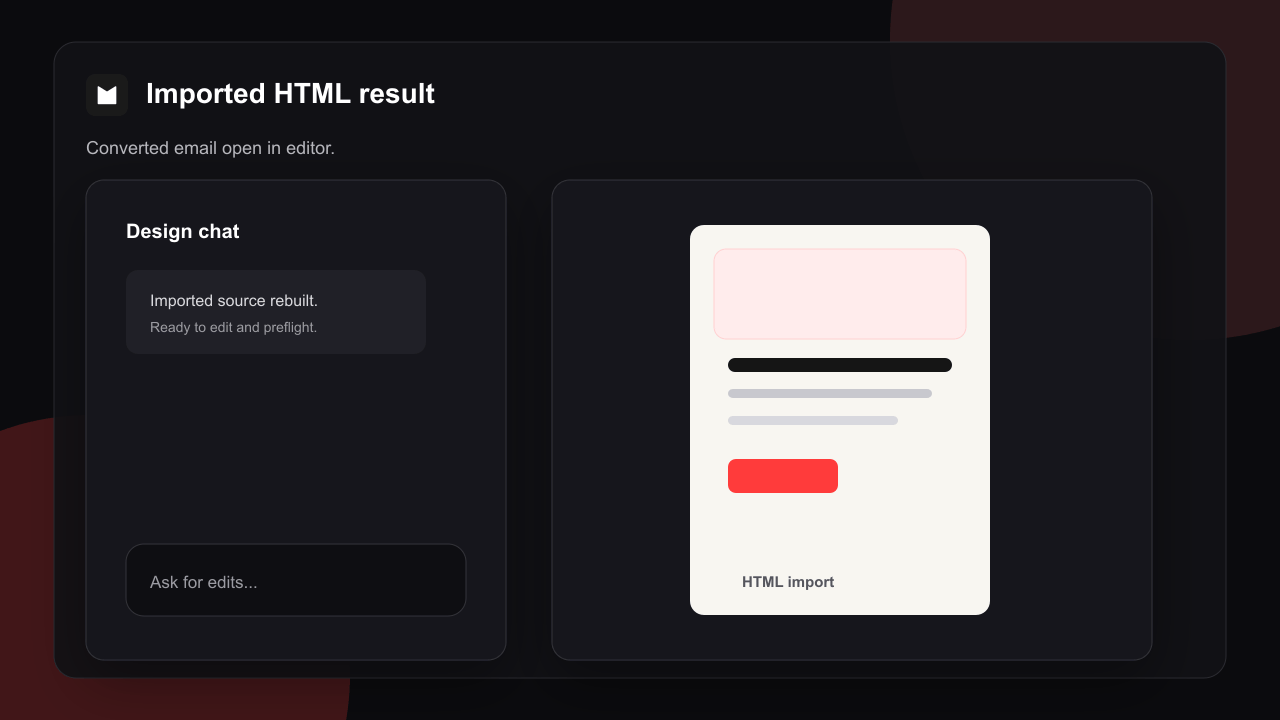 Ask for changes in plain language: "make the headline larger", "swap the hero image", "tighten the footer spacing".
Click into any block to adjust text, images, colors, and layout directly.
Test the imported email across major clients and devices before it goes out.
Export clean, email-safe HTML for any ESP. No vendor lock-in.
***
## HTML import vs other methods
| | HTML to Email | Figma to Email | Clone from Image | Claude Design |
| ------------ | ------------------------------------- | ---------------------- | ----------------------- | ------------------------- |
| **Source** | Existing HTML / `.html` / `.eml` | Figma file | Screenshot / mockup | React / JSX `.zip` |
| **Method** | Deterministic converter | Design analysis | Vision + OCR | Deterministic converter |
| **Speed** | Near-instant | 60-90 sec | 30-60 sec | Fast |
| **Text** | Carried over exactly | Exact | OCR-based | Carried over from design |
| **Best for** | Migrating & fixing existing templates | Original Figma designs | Emails you can only see | Emails designed in Claude |
| **Setup** | The HTML source | Figma file access | None | Export the `.zip` |
If you already have the HTML, this is the most faithful path. Your content and structure come across as-is, and you gain email-safe rendering on top. If you only have a picture of an email, use Clone from Image; if you're starting from a design file, use Figma to Email.
***
## Troubleshooting
**Cause:** Partial markup, such as a copied fragment rather than a full document.
**Solution:** Paste the complete HTML, or save the email as a `.html` / `.eml` file and upload that instead.
**Cause:** The original used a font that isn't available across email clients.
**Solution:** Migma maps to email-safe fallbacks automatically. To pin a specific one, ask in chat:
```text theme={null}
Use Arial as the fallback for the heading font
```
**Cause:** The original relied on CSS that some inboxes ignore. The engine rewrites those parts to email-safe equivalents.
**Solution:** This is expected. The import is optimized to render reliably across clients. Confirm the result in Email Preflight, then refine anything you want to adjust.
**Cause:** The HTML referenced images by relative path or from a source that's no longer reachable.
**Solution:** Use absolute, publicly reachable image URLs in your source, or re-add the images in the visual editor after import.
***
## Related
Import directly from a Figma design file.
Recreate an email from a screenshot or mockup.
How Migma keeps emails rendering reliably across inboxes.
Test your imported email across major clients and devices.
Export clean, email-safe HTML for any ESP.
Import a design built in Claude's design tool via React / JSX.
Ask for changes in plain language: "make the headline larger", "swap the hero image", "tighten the footer spacing".
Click into any block to adjust text, images, colors, and layout directly.
Test the imported email across major clients and devices before it goes out.
Export clean, email-safe HTML for any ESP. No vendor lock-in.
***
## HTML import vs other methods
| | HTML to Email | Figma to Email | Clone from Image | Claude Design |
| ------------ | ------------------------------------- | ---------------------- | ----------------------- | ------------------------- |
| **Source** | Existing HTML / `.html` / `.eml` | Figma file | Screenshot / mockup | React / JSX `.zip` |
| **Method** | Deterministic converter | Design analysis | Vision + OCR | Deterministic converter |
| **Speed** | Near-instant | 60-90 sec | 30-60 sec | Fast |
| **Text** | Carried over exactly | Exact | OCR-based | Carried over from design |
| **Best for** | Migrating & fixing existing templates | Original Figma designs | Emails you can only see | Emails designed in Claude |
| **Setup** | The HTML source | Figma file access | None | Export the `.zip` |
If you already have the HTML, this is the most faithful path. Your content and structure come across as-is, and you gain email-safe rendering on top. If you only have a picture of an email, use Clone from Image; if you're starting from a design file, use Figma to Email.
***
## Troubleshooting
**Cause:** Partial markup, such as a copied fragment rather than a full document.
**Solution:** Paste the complete HTML, or save the email as a `.html` / `.eml` file and upload that instead.
**Cause:** The original used a font that isn't available across email clients.
**Solution:** Migma maps to email-safe fallbacks automatically. To pin a specific one, ask in chat:
```text theme={null}
Use Arial as the fallback for the heading font
```
**Cause:** The original relied on CSS that some inboxes ignore. The engine rewrites those parts to email-safe equivalents.
**Solution:** This is expected. The import is optimized to render reliably across clients. Confirm the result in Email Preflight, then refine anything you want to adjust.
**Cause:** The HTML referenced images by relative path or from a source that's no longer reachable.
**Solution:** Use absolute, publicly reachable image URLs in your source, or re-add the images in the visual editor after import.
***
## Related
Import directly from a Figma design file.
Recreate an email from a screenshot or mockup.
How Migma keeps emails rendering reliably across inboxes.
Test your imported email across major clients and devices.
Export clean, email-safe HTML for any ESP.
Import a design built in Claude's design tool via React / JSX.