> ## Documentation Index
> Fetch the complete documentation index at: https://docs.migma.ai/llms.txt
> Use this file to discover all available pages before exploring further.
# Figma to Email
> Import Figma designs and export editable email HTML or MJML code
## Overview
Design in Figma, then import the frame into Migma as editable email HTML or MJML with no vendor lock-in.
**Recently improved.** Figma conversion quality is better: layout, spacing, and typography come across more faithfully. The same deterministic engine powers every import, including Figma, image, HTML, and Claude design.
Cleaner HTML/React, better component detection, improved font handling
Preserves layout, spacing, typography, and visual hierarchy for review
Export to any ESP or framework
***
## Why Figma to Email?
### For Designers
Design with full creative freedom in Figma
No need to learn email HTML constraints
Maintain design system consistency
Faster than manual hand-off to developers
### For Developers
Editable HTML output
Email source you can review before export
No manual implementation of mockups
Email-client compatible out of the box
### For Teams
Bridge design-development workflow
Reduce back-and-forth iterations
Maintain single source of truth (Figma)
Scale email production
***
## How It Works
Create your email design in Figma using frames, components, and auto-layout
Share your Figma file and copy the URL
Navigate to Create page and paste Figma URL with special prompt
Migma analyzes the design and generates editable email HTML
Preview, refine, and export in your preferred format
 ***
## Step-by-Step: Import from Figma
### 1. Prepare Your Figma File
**Design guidelines:** Set your file up so it converts cleanly. Build with Auto Layout, use real sized images, flatten icons to images, and name your layers. See the full guide: [Designing in Figma for Email](/creating-emails/figma-design-guide).
### 2. Share Your Figma File
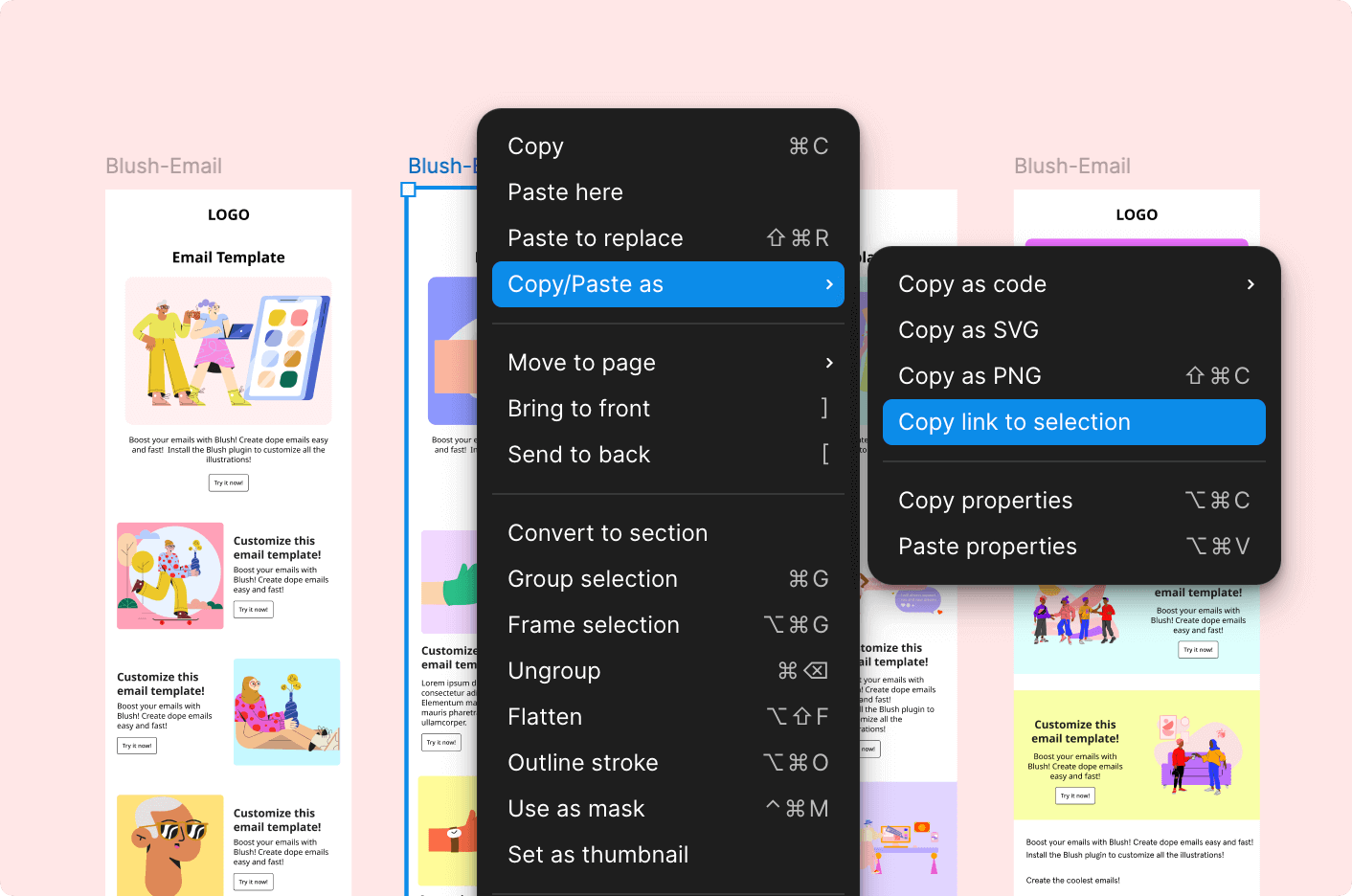
Click **Share** button in top-right of Figma
Choose **"Anyone with the link can view"**
**Important:** File must be publicly accessible or shared with Migma
Click **Copy link** to get your Figma file URL
### 3. Import to Migma
***
## Step-by-Step: Import from Figma
### 1. Prepare Your Figma File
**Design guidelines:** Set your file up so it converts cleanly. Build with Auto Layout, use real sized images, flatten icons to images, and name your layers. See the full guide: [Designing in Figma for Email](/creating-emails/figma-design-guide).
### 2. Share Your Figma File
Click **Share** button in top-right of Figma
Choose **"Anyone with the link can view"**
**Important:** File must be publicly accessible or shared with Migma
Click **Copy link** to get your Figma file URL
### 3. Import to Migma
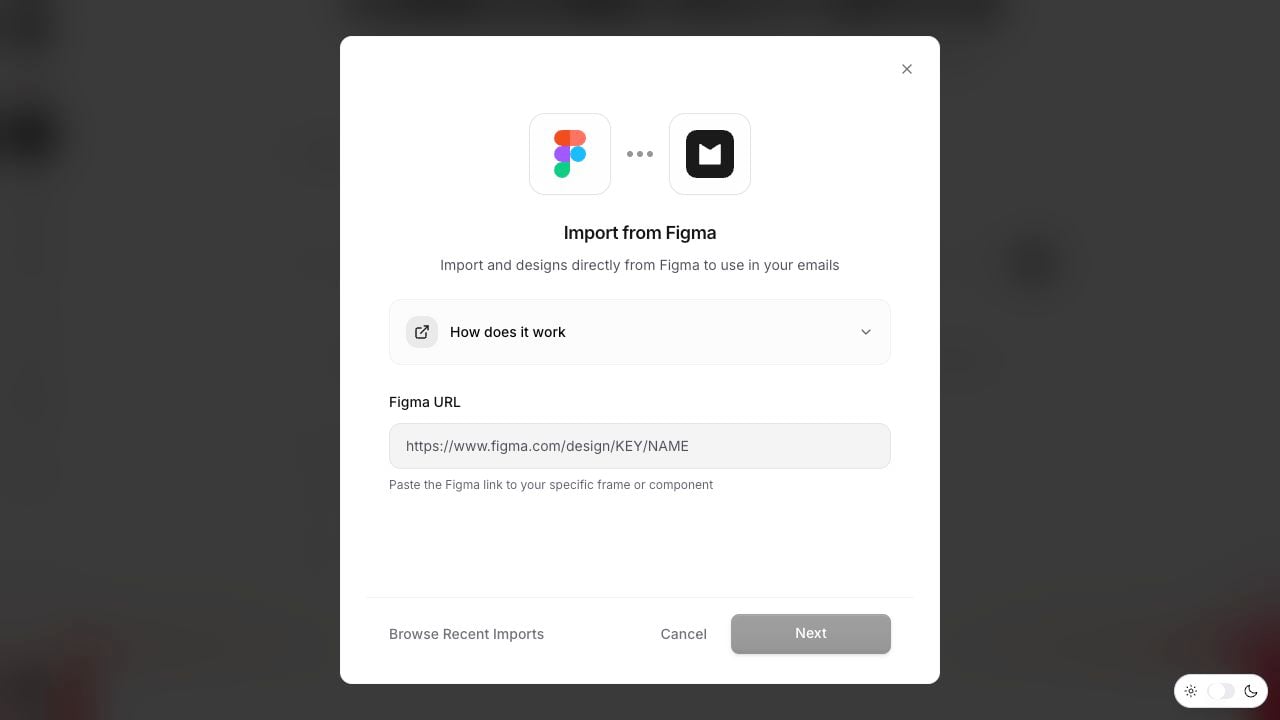 Navigate to **Create** page and use this prompt pattern:
```text theme={null}
Import from Figma: [PASTE YOUR FIGMA URL]
Convert this design to responsive email HTML
```
**Advanced prompt example:**
```text theme={null}
Import from Figma: https://www.figma.com/file/ABC123/Email-Design
Use my brand colors if different from design
Ensure mobile responsive breakpoints
Add alt text to all images
```
### 4. Review Conversion
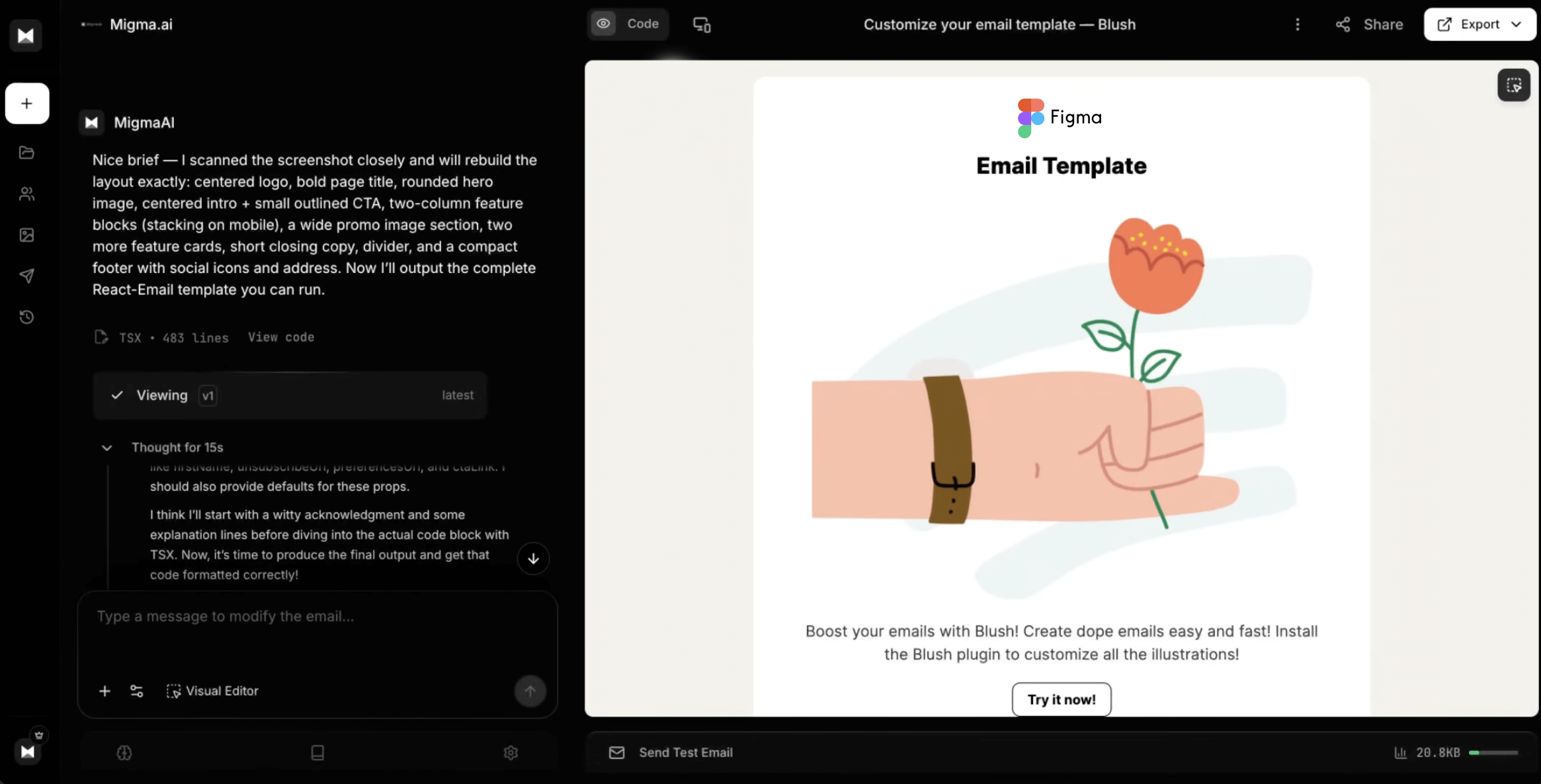
Migma generates:
* Editable HTML
* Mobile-responsive breakpoints
* Email-client compatible CSS
* Inline styles where needed
* Proper image optimization
Navigate to **Create** page and use this prompt pattern:
```text theme={null}
Import from Figma: [PASTE YOUR FIGMA URL]
Convert this design to responsive email HTML
```
**Advanced prompt example:**
```text theme={null}
Import from Figma: https://www.figma.com/file/ABC123/Email-Design
Use my brand colors if different from design
Ensure mobile responsive breakpoints
Add alt text to all images
```
### 4. Review Conversion
Migma generates:
* Editable HTML
* Mobile-responsive breakpoints
* Email-client compatible CSS
* Inline styles where needed
* Proper image optimization
 ***
## What Migma Converts
### Fully Supported
Frames, auto-layout, grids, columns
Text styles, fonts, sizes, colors, alignment
Fills, gradients (simplified for email), borders
Image fills, exports, backgrounds
Rectangles, rounded corners, borders
Padding, margins, auto-layout gaps
### ⚠️ Converted with Adaptations
**What happens:** Complex vectors simplified to rectangles or images
**Best practice:** Use simple shapes or export as images
**What happens:** Shadows, blurs converted to email-safe alternatives
**Best practice:** Keep effects minimal for email compatibility
**What happens:** Converted to static state
**Best practice:** Use static designs or simple GIFs
**What happens:** Fallbacks provided for unsupported fonts
**Best practice:** Use Google Fonts or web-safe fonts
***
## Export Formats
Choose your preferred output format:
**Standard HTML with inline CSS**
**Best for:**
* Direct ESP upload
* Maximum compatibility
* Simple email workflows
**Includes:**
* Inline styles
* Table-based layout (for Outlook)
* Email-safe CSS
* Responsive media queries
**MJML markup**
**Best for:**
* MJML-based workflows
* Framework flexibility
* Responsive-first design
* Developer preference
**Includes:**
* Semantic MJML tags
* Automatic responsiveness
* Clean code structure
* ESP compatibility
***
## Figma design best practices
What to use and what to avoid so your Figma frame converts into a clean, reliable email.
***
## Advanced Features
### Brand Color Override
Import Figma but apply your brand colors:
```text theme={null}
Import from Figma: [URL]
Replace all blue colors with my brand purple
Apply my brand fonts
Keep the layout structure
```
### Responsive Breakpoints
Migma automatically handles mobile responsiveness, but you can specify:
```text theme={null}
Import from Figma: [URL]
On mobile:
- Stack columns vertically
- Increase font sizes by 10%
- Make CTAs full-width
```
### Component Mapping
Map Figma components to email patterns:
```text theme={null}
Import from Figma: [URL]
Convert:
- "Button Primary" components to my CTA style
- "Card" components to email-safe boxes
- "Icon Grid" to table layout for Outlook
```
***
## Figma Plugins for Migma
### Recommended Figma Plugins
While not required, these plugins enhance your Figma-to-email workflow:
Use email-specific component libraries designed for conversion
Batch export images at correct sizes
Ensure text readability
Preview at 375px mobile width
***
## Comparison: Figma vs Other Methods
| Feature | Figma Import | Image Clone | HTML Import |
| ---------------- | ---------------- | -------------- | -------------- |
| **Accuracy** | ⭐⭐⭐⭐⭐ Highest | ⭐⭐⭐⭐ Very High | ⭐⭐⭐⭐⭐ Exact |
| **Speed** | 60-90 sec | 30-60 sec | Instant |
| **Text Quality** | Perfect | OCR-based | Perfect |
| **Best For** | Original designs | Screenshots | Code migration |
| **Setup** | Figma access | None | HTML source |
| **Flexibility** | High | Medium | Low |
***
## Troubleshooting
**Cause:** File not publicly shared or wrong permissions
**Solution:**
1. Open Figma file
2. Click Share → Anyone with link can view
3. Copy new link and retry
**Cause:** Custom fonts not available in email clients
**Solution:**
* Migma automatically provides web-safe fallbacks
* Consider using Google Fonts
* Specify preferred fallback:
```text theme={null}
Use Arial as fallback for custom font
```
**Cause:** Fixed widths or complex positioning
**Solution:**
* Use Figma auto-layout
* Avoid absolute positioning
* Request specific mobile behavior:
```text theme={null}
Stack all columns on mobile
```
**Cause:** Color profile differences or rendering
**Solution:**
* Verify hex codes in Figma
* Manually adjust in refinement:
```text theme={null}
Change all blue to exact hex #2563EB
```
**Cause:** Images not exported or inaccessible
**Solution:**
* Ensure images in Figma are fills (not links)
* Check image export settings
* Re-upload images if needed
***
## Designer-Developer Workflow
### Collaboration Pattern
Designer builds email in Figma following guidelines
Designer shares Figma link with developer/marketer
Developer/marketer imports to Migma
Both review converted HTML, make adjustments
Use Migma chat to make final tweaks collaboratively
Export to ESP and launch campaign
### Feedback Loop
**Designer → Migma → Developer:**
1. Designer updates Figma
2. Re-import to Migma
3. Compare versions
4. Implement changes
**Time saved:** Hours of manual HTML coding per email
***
## Next Steps
Edit Figma imports visually
Run Preflight before send
Export to HTML, MJML
Clone emails from screenshots
***
## Need Help?
Download email-ready Figma templates
Share designs and get feedback
Get help with complex conversions
***
## What Migma Converts
### Fully Supported
Frames, auto-layout, grids, columns
Text styles, fonts, sizes, colors, alignment
Fills, gradients (simplified for email), borders
Image fills, exports, backgrounds
Rectangles, rounded corners, borders
Padding, margins, auto-layout gaps
### ⚠️ Converted with Adaptations
**What happens:** Complex vectors simplified to rectangles or images
**Best practice:** Use simple shapes or export as images
**What happens:** Shadows, blurs converted to email-safe alternatives
**Best practice:** Keep effects minimal for email compatibility
**What happens:** Converted to static state
**Best practice:** Use static designs or simple GIFs
**What happens:** Fallbacks provided for unsupported fonts
**Best practice:** Use Google Fonts or web-safe fonts
***
## Export Formats
Choose your preferred output format:
**Standard HTML with inline CSS**
**Best for:**
* Direct ESP upload
* Maximum compatibility
* Simple email workflows
**Includes:**
* Inline styles
* Table-based layout (for Outlook)
* Email-safe CSS
* Responsive media queries
**MJML markup**
**Best for:**
* MJML-based workflows
* Framework flexibility
* Responsive-first design
* Developer preference
**Includes:**
* Semantic MJML tags
* Automatic responsiveness
* Clean code structure
* ESP compatibility
***
## Figma design best practices
What to use and what to avoid so your Figma frame converts into a clean, reliable email.
***
## Advanced Features
### Brand Color Override
Import Figma but apply your brand colors:
```text theme={null}
Import from Figma: [URL]
Replace all blue colors with my brand purple
Apply my brand fonts
Keep the layout structure
```
### Responsive Breakpoints
Migma automatically handles mobile responsiveness, but you can specify:
```text theme={null}
Import from Figma: [URL]
On mobile:
- Stack columns vertically
- Increase font sizes by 10%
- Make CTAs full-width
```
### Component Mapping
Map Figma components to email patterns:
```text theme={null}
Import from Figma: [URL]
Convert:
- "Button Primary" components to my CTA style
- "Card" components to email-safe boxes
- "Icon Grid" to table layout for Outlook
```
***
## Figma Plugins for Migma
### Recommended Figma Plugins
While not required, these plugins enhance your Figma-to-email workflow:
Use email-specific component libraries designed for conversion
Batch export images at correct sizes
Ensure text readability
Preview at 375px mobile width
***
## Comparison: Figma vs Other Methods
| Feature | Figma Import | Image Clone | HTML Import |
| ---------------- | ---------------- | -------------- | -------------- |
| **Accuracy** | ⭐⭐⭐⭐⭐ Highest | ⭐⭐⭐⭐ Very High | ⭐⭐⭐⭐⭐ Exact |
| **Speed** | 60-90 sec | 30-60 sec | Instant |
| **Text Quality** | Perfect | OCR-based | Perfect |
| **Best For** | Original designs | Screenshots | Code migration |
| **Setup** | Figma access | None | HTML source |
| **Flexibility** | High | Medium | Low |
***
## Troubleshooting
**Cause:** File not publicly shared or wrong permissions
**Solution:**
1. Open Figma file
2. Click Share → Anyone with link can view
3. Copy new link and retry
**Cause:** Custom fonts not available in email clients
**Solution:**
* Migma automatically provides web-safe fallbacks
* Consider using Google Fonts
* Specify preferred fallback:
```text theme={null}
Use Arial as fallback for custom font
```
**Cause:** Fixed widths or complex positioning
**Solution:**
* Use Figma auto-layout
* Avoid absolute positioning
* Request specific mobile behavior:
```text theme={null}
Stack all columns on mobile
```
**Cause:** Color profile differences or rendering
**Solution:**
* Verify hex codes in Figma
* Manually adjust in refinement:
```text theme={null}
Change all blue to exact hex #2563EB
```
**Cause:** Images not exported or inaccessible
**Solution:**
* Ensure images in Figma are fills (not links)
* Check image export settings
* Re-upload images if needed
***
## Designer-Developer Workflow
### Collaboration Pattern
Designer builds email in Figma following guidelines
Designer shares Figma link with developer/marketer
Developer/marketer imports to Migma
Both review converted HTML, make adjustments
Use Migma chat to make final tweaks collaboratively
Export to ESP and launch campaign
### Feedback Loop
**Designer → Migma → Developer:**
1. Designer updates Figma
2. Re-import to Migma
3. Compare versions
4. Implement changes
**Time saved:** Hours of manual HTML coding per email
***
## Next Steps
Edit Figma imports visually
Run Preflight before send
Export to HTML, MJML
Clone emails from screenshots
***
## Need Help?
Download email-ready Figma templates
Share designs and get feedback
Get help with complex conversions