> ## Documentation Index
> Fetch the complete documentation index at: https://docs.migma.ai/llms.txt
> Use this file to discover all available pages before exploring further.
# Email Series
> Describe a customer journey once and generate the whole multi-email sequence from a single prompt.
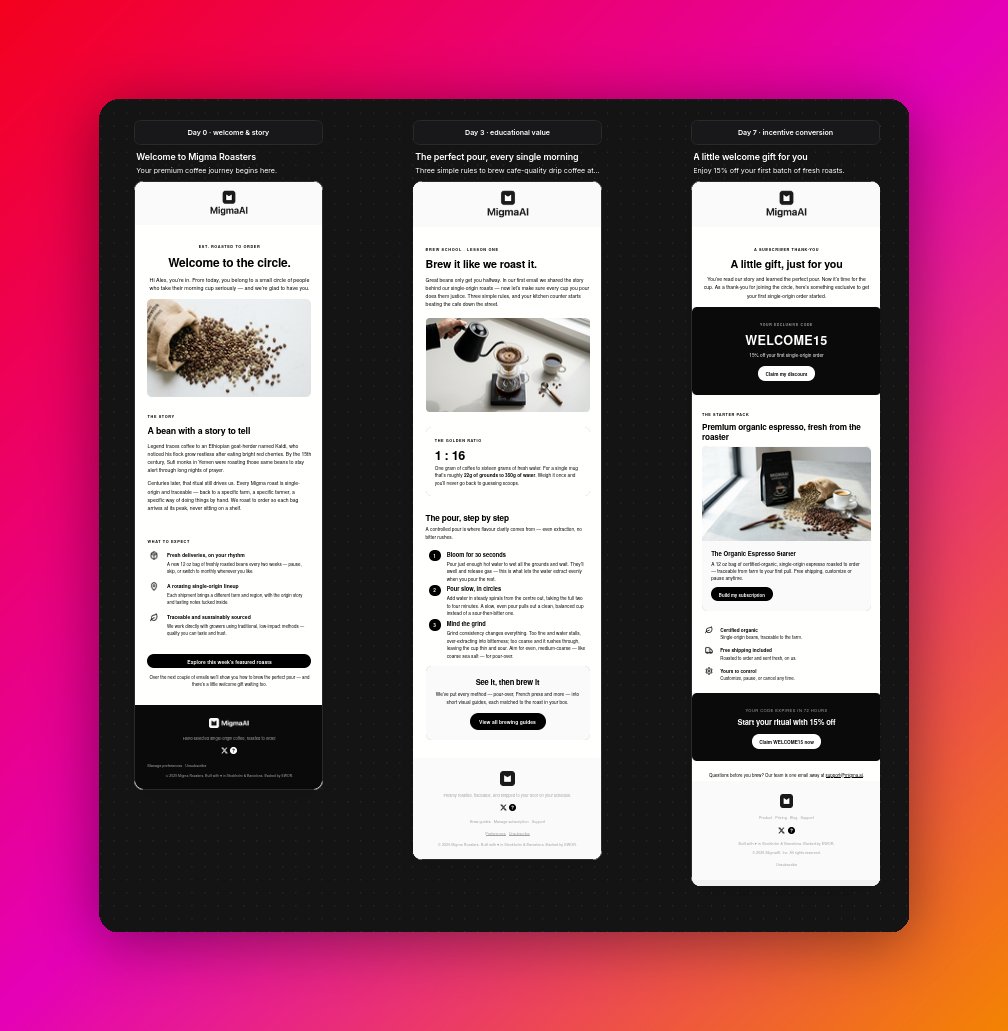
Describe a journey in plain language and Migma generates the entire sequence, welcome flows, product launches, onboarding drips, re-engagement campaigns. It plans the narrative arc up front so each email builds on the one before it, and lays the result out on your project's visual canvas as connected slots you can refine email by email.
Every email in a series is a normal Migma email. Each one is fully editable, preflightable, and sendable, the series is just a sequence of them planned together so the story holds across the whole journey.
## How it works
Describe the journey you want, including the goal, the audience, and roughly how many emails. Migma plans the arc, then writes and renders every email in the sequence.
Tell Migma the goal in one prompt, for example a 4-email welcome flow or a 3-part launch sequence.
It decides the role of each email, the order, and how each one hands off to the next, so the sequence reads as one connected story instead of unrelated sends.
Each email is generated and rendered through Migma's email engine, so the whole sequence is email-safe and built for inbox compatibility.
The finished series lands on your project's visual canvas as connected slots, one card per email, in send order.
```text theme={null}
Create a 4-email welcome series for new subscribers to my coffee subscription.
Email 1: warm welcome and what to expect. Email 2: the story behind our roasts.
Email 3: how to brew. Email 4: a first-order discount.
```
 ***
## Refine the whole sequence in chat
Once the series exists, keep shaping it from chat. You don't edit a static template, you talk to the sequence and it restructures itself.
### Add an email
Insert a new email anywhere in the journey. Give it a role and a few beats to hit, and Migma writes it to match the rest of the sequence.
```text theme={null}
Add a reminder email two days after the welcome
```
### Remove an email
Drop an email you don't need. The remaining emails stay intact and renumber their positions.
```text theme={null}
Remove the brewing-tips email
```
### Reorder emails
Change the order of the journey. Pass the new sequence and Migma rearranges the slots.
```text theme={null}
Move the discount email to the end
```
If an email refers back to an earlier one ("as we mentioned in the welcome…"), reordering can break that callback. Migma will flag it when it happens so you can fix the reference.
***
## Edit every email at once
The most powerful move is a cross-cutting edit. Ask for one change and Migma applies it to every email in the series at the same time, running each one through the same editing pipeline in parallel. If one email fails, the rest still go through.
```text theme={null}
Shorten every CTA
Soften the tone across all of them
Add the footer logo to every email
```
You can also scope the change to specific emails instead of the whole series when you only want a subset updated.
***
## Refine the whole sequence in chat
Once the series exists, keep shaping it from chat. You don't edit a static template, you talk to the sequence and it restructures itself.
### Add an email
Insert a new email anywhere in the journey. Give it a role and a few beats to hit, and Migma writes it to match the rest of the sequence.
```text theme={null}
Add a reminder email two days after the welcome
```
### Remove an email
Drop an email you don't need. The remaining emails stay intact and renumber their positions.
```text theme={null}
Remove the brewing-tips email
```
### Reorder emails
Change the order of the journey. Pass the new sequence and Migma rearranges the slots.
```text theme={null}
Move the discount email to the end
```
If an email refers back to an earlier one ("as we mentioned in the welcome…"), reordering can break that callback. Migma will flag it when it happens so you can fix the reference.
***
## Edit every email at once
The most powerful move is a cross-cutting edit. Ask for one change and Migma applies it to every email in the series at the same time, running each one through the same editing pipeline in parallel. If one email fails, the rest still go through.
```text theme={null}
Shorten every CTA
Soften the tone across all of them
Add the footer logo to every email
```
You can also scope the change to specific emails instead of the whole series when you only want a subset updated.
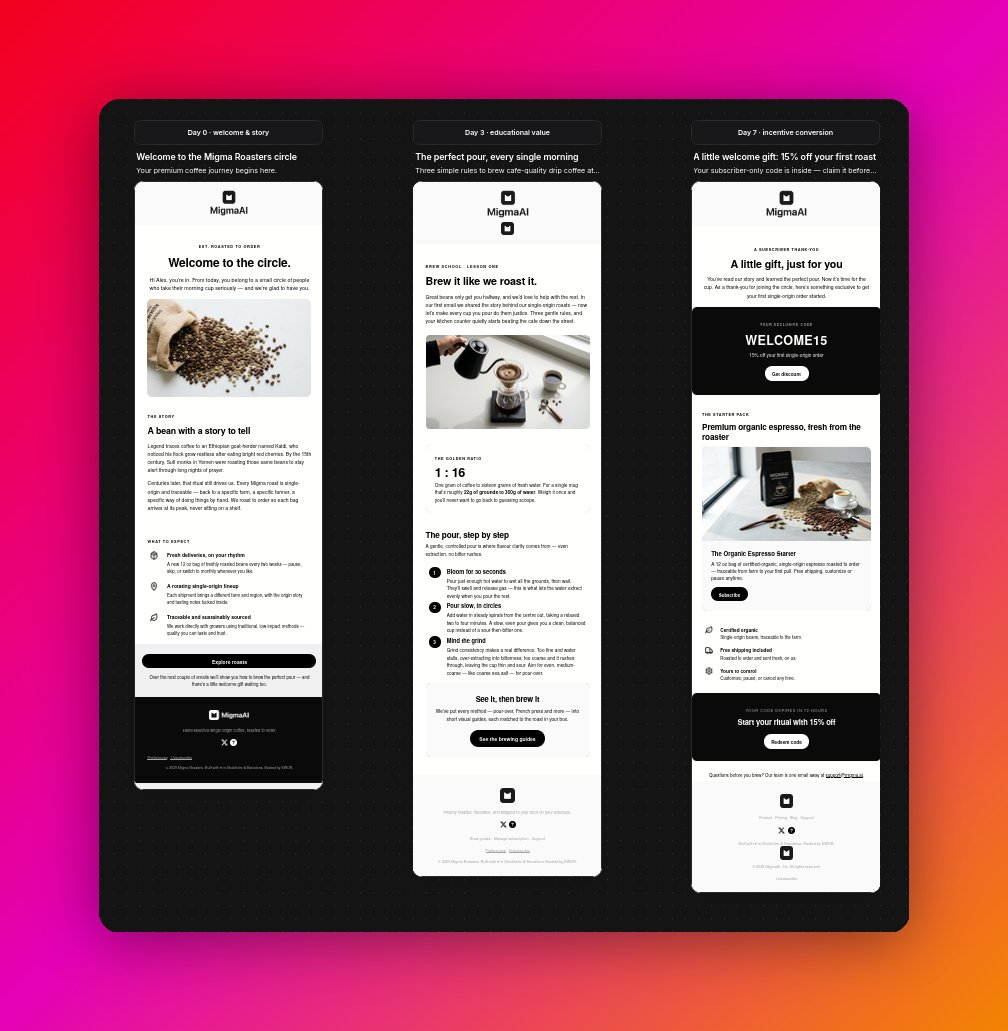 One instruction, applied to the entire sequence, consistent voice and styling without touching each email by hand.
***
## Per-email send cadence
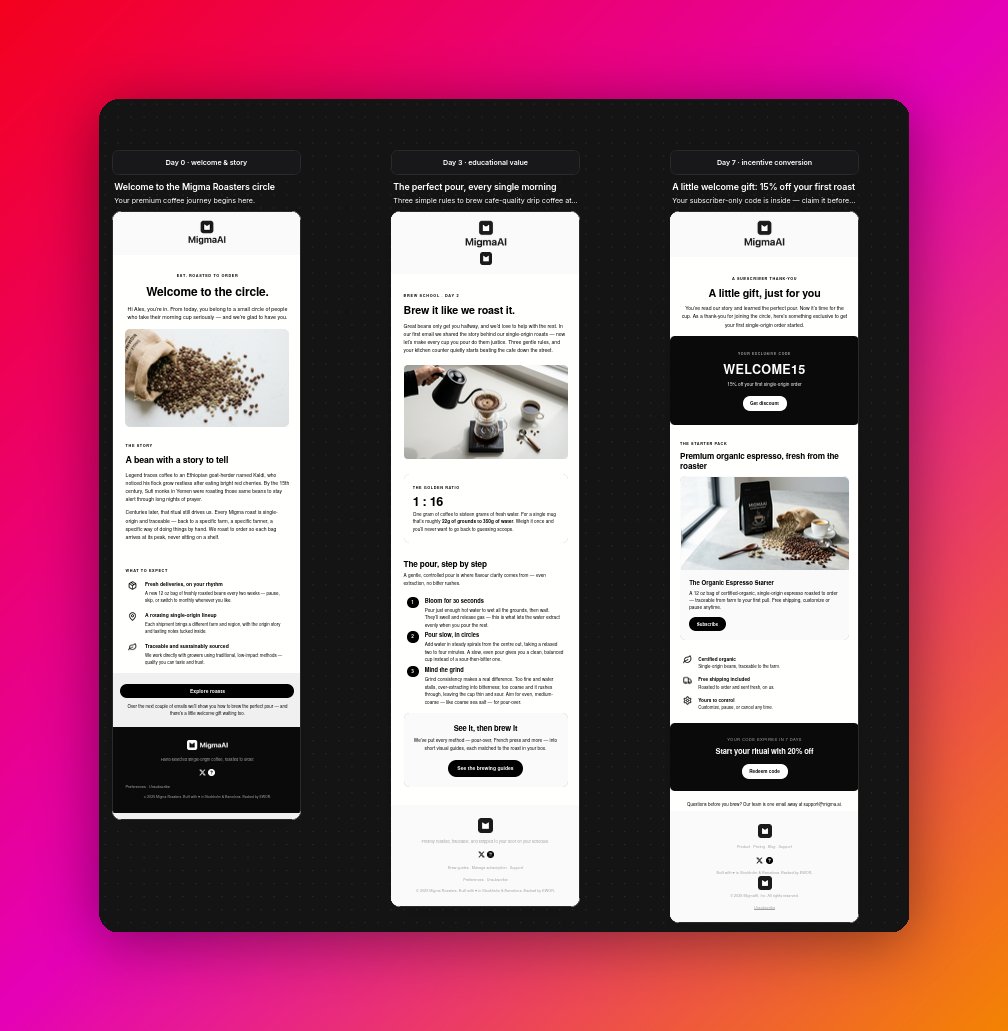
For a scheduled journey, each email can carry a send offset, the number of days from the start of the series when it should go out. That's how you space a drip: day 0, day 2, day 5, and so on.
| Email | Role | Send offset |
| ----- | -------------------- | ----------- |
| 1 | Welcome | Day 0 |
| 2 | Brand story | Day 2 |
| 3 | How to brew | Day 5 |
| 4 | First-order discount | Day 7 |
Set or adjust the cadence in chat, and new emails you add slot into the schedule automatically.
```text theme={null}
Send the welcome immediately, the story on day 2, and the discount on day 7
```
One instruction, applied to the entire sequence, consistent voice and styling without touching each email by hand.
***
## Per-email send cadence
For a scheduled journey, each email can carry a send offset, the number of days from the start of the series when it should go out. That's how you space a drip: day 0, day 2, day 5, and so on.
| Email | Role | Send offset |
| ----- | -------------------- | ----------- |
| 1 | Welcome | Day 0 |
| 2 | Brand story | Day 2 |
| 3 | How to brew | Day 5 |
| 4 | First-order discount | Day 7 |
Set or adjust the cadence in chat, and new emails you add slot into the schedule automatically.
```text theme={null}
Send the welcome immediately, the story on day 2, and the discount on day 7
```
 ***
## Restore an email to a previous version
Iterating across a whole series sometimes means a change touches an email you wanted to leave alone. You can restore any email to how it looked on an earlier turn, while leaving the rest of the sequence untouched.
```text theme={null}
Only the new emails should be dark — revert the first two to how they were
```
Restore works per email, so you can roll back exactly the slots you mean to and keep every other change you've made.
***
## Working with individual emails
Each slot on the canvas is a complete Migma email. Click any card to open it in the editor and work on it on its own, then jump back to the canvas to see it in the context of the full journey.
Open a slot and refine its copy, images, layout, or colors just like any single email. Changes stay scoped to that email unless you ask for a series-wide edit.
Run any email in the series through preflight to test it across devices and clients before the journey goes live.
Use **Duplicate email** for one slot or **Duplicate series** for the whole sequence. Migma opens the latest canvas version in a new chat so you can try another direction while the original stays intact.
Because each email is a normal Migma email, the whole sequence is ready to schedule and send once you're happy with it.
***
## What do you want to do next?
Learn how a single prompt turns into a finished, on-brand email.
Aim the whole sequence at a specific audience so the journey lands.
Preflight each email before the journey goes out.
See the whole sequence as connected nodes you can arrange and edit.
***
## Restore an email to a previous version
Iterating across a whole series sometimes means a change touches an email you wanted to leave alone. You can restore any email to how it looked on an earlier turn, while leaving the rest of the sequence untouched.
```text theme={null}
Only the new emails should be dark — revert the first two to how they were
```
Restore works per email, so you can roll back exactly the slots you mean to and keep every other change you've made.
***
## Working with individual emails
Each slot on the canvas is a complete Migma email. Click any card to open it in the editor and work on it on its own, then jump back to the canvas to see it in the context of the full journey.
Open a slot and refine its copy, images, layout, or colors just like any single email. Changes stay scoped to that email unless you ask for a series-wide edit.
Run any email in the series through preflight to test it across devices and clients before the journey goes live.
Use **Duplicate email** for one slot or **Duplicate series** for the whole sequence. Migma opens the latest canvas version in a new chat so you can try another direction while the original stays intact.
Because each email is a normal Migma email, the whole sequence is ready to schedule and send once you're happy with it.
***
## What do you want to do next?
Learn how a single prompt turns into a finished, on-brand email.
Aim the whole sequence at a specific audience so the journey lands.
Preflight each email before the journey goes out.
See the whole sequence as connected nodes you can arrange and edit.