> ## Documentation Index
> Fetch the complete documentation index at: https://docs.migma.ai/llms.txt
> Use this file to discover all available pages before exploring further.
# Claude Design to Email
> Import a design built in Claude's design tool and turn it into a fully editable, on-brand email.
Design an email in Claude's design tool, export it, and bring it straight into Migma as a fully editable email. Claude builds designs as React / JSX components (for example, Claude Artifacts), so Migma takes that export and converts it into a real, email-safe email you can refine, preflight, and send.
The result becomes email-safe HTML for Outlook, Gmail, Apple Mail, and mobile.
## How it works
Build your email in Claude's design tool. Claude exports the design as React / JSX components.
Download the design as a `.zip` of the React / JSX components.
In the Migma create / chat input, click the **+** (plus) button to open the add-content dropdown.
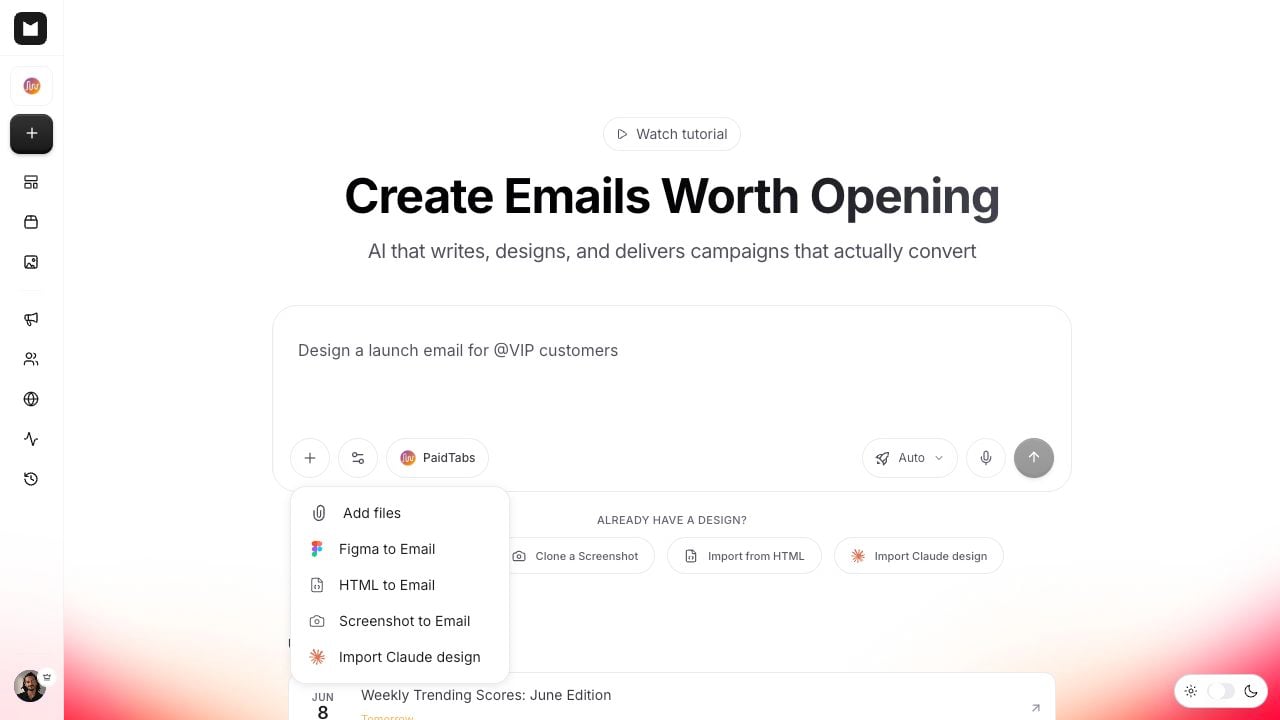 Select the menu item labeled **Import Claude design**. This is the Claude-design import.
The **Import a Claude design** dialog opens. Choose **Create editable email** or **Create brand version**, then click **Choose .zip file** and pick the export. Migma reads the zip and converts each email component into an editable email.
Select the menu item labeled **Import Claude design**. This is the Claude-design import.
The **Import a Claude design** dialog opens. Choose **Create editable email** or **Create brand version**, then click **Choose .zip file** and pick the export. Migma reads the zip and converts each email component into an editable email.
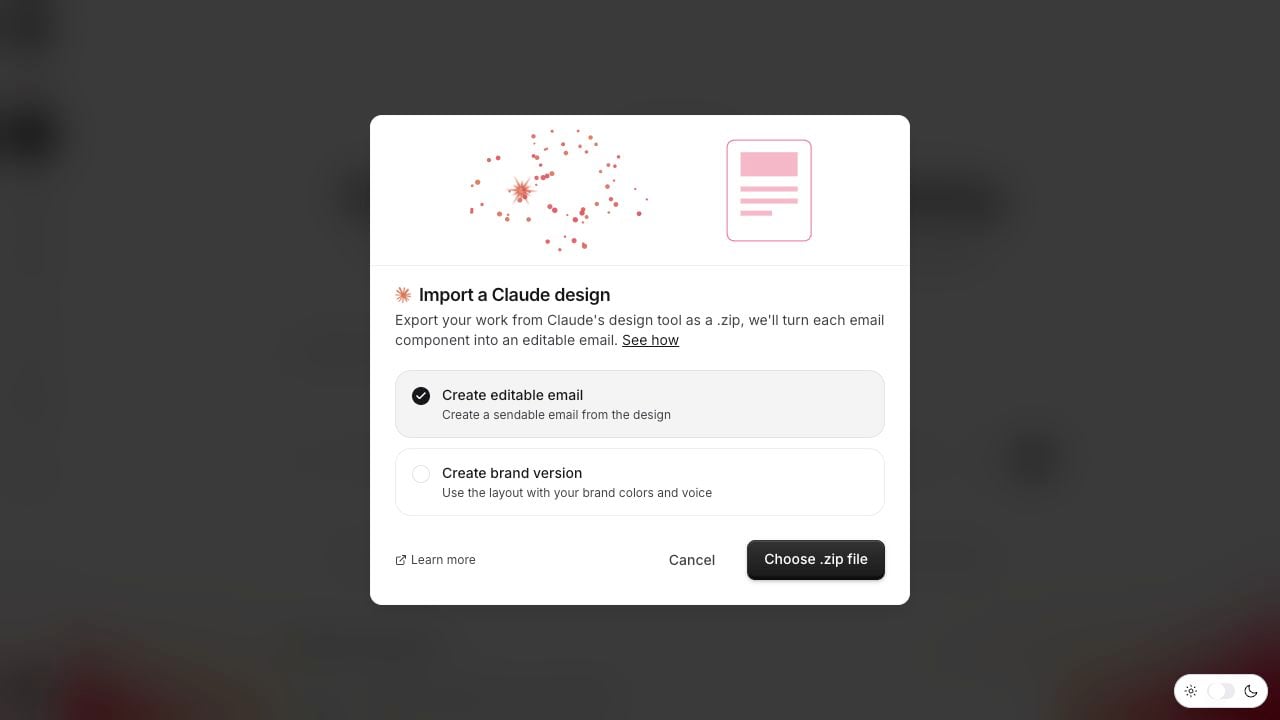 The Claude-design import is the **Import Claude design** menu item in the add-content dropdown.
***
## Editable or brand version
When you open the dialog, you pick how Migma should treat the design:
Keep the colors, layout, and styling as designed. A faithful, 1:1 translation of the design you built in Claude. This is the default.
Re-theme with your brand colors, voice, and remembered preferences. Migma keeps the layout, structure, and content of the design but maps the palette to your brand.
When you choose **Create brand version**, Migma maps the design's colors to your brand by role: page background, accent / CTA fill, body text, and muted text. Where your brand doesn't define a color for a role, the design's original value is kept. Either way, you can keep refining in chat after the import lands.
Both options preserve the layout and structure of your design. The difference is purely the color palette and brand voice: **Create editable email** keeps the design's own colors, **Create brand version** swaps in yours.
***
## What happens during import
The import runs in two stages:
Migma reads each email component in your export and translates it into an editable email, applying your editable-or-brand-version choice. If your export contains more than one top-level email component, you get one editable email per component.
Migma renders send-ready HTML. Claude design, Figma, HTML, and screenshot imports use the same email rendering path.
Claude exports React / JSX, and that's exactly what this import takes. No screenshot or redraw step in between.
Migma renders email-safe HTML, so the markup can be reviewed before send.
Review Outlook, Gmail, Apple Mail, and mobile before send.
Faithful to the design you built in Claude, or re-themed to your brand if you choose Create brand version
Stays consistent in dark and light mode. Migma emits explicit color-scheme metadata
Lands as a normal Migma email you can keep editing
***
## After import
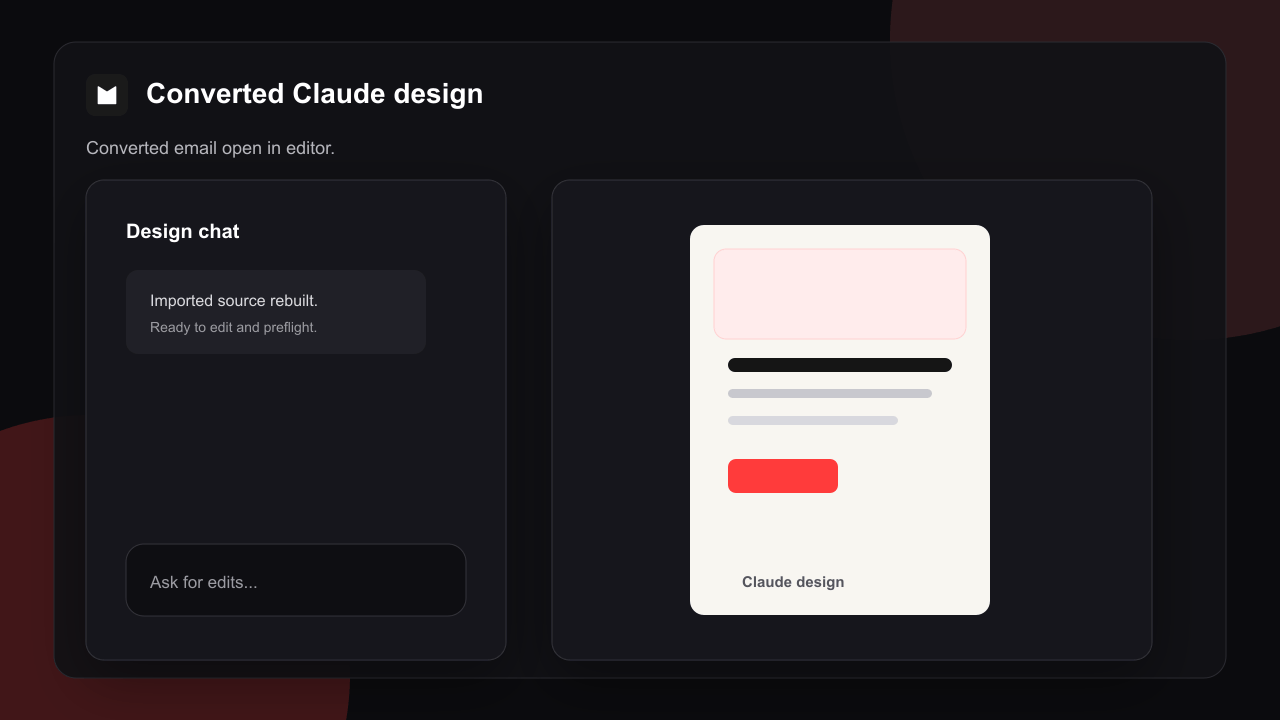
Once you upload the zip, Migma takes you into the chat / canvas and the converted email (or emails) stream in. From there each one behaves like any other Migma email:
Adjust copy, layout, colors, and images in the chat or the visual editor.
The Claude-design import is the **Import Claude design** menu item in the add-content dropdown.
***
## Editable or brand version
When you open the dialog, you pick how Migma should treat the design:
Keep the colors, layout, and styling as designed. A faithful, 1:1 translation of the design you built in Claude. This is the default.
Re-theme with your brand colors, voice, and remembered preferences. Migma keeps the layout, structure, and content of the design but maps the palette to your brand.
When you choose **Create brand version**, Migma maps the design's colors to your brand by role: page background, accent / CTA fill, body text, and muted text. Where your brand doesn't define a color for a role, the design's original value is kept. Either way, you can keep refining in chat after the import lands.
Both options preserve the layout and structure of your design. The difference is purely the color palette and brand voice: **Create editable email** keeps the design's own colors, **Create brand version** swaps in yours.
***
## What happens during import
The import runs in two stages:
Migma reads each email component in your export and translates it into an editable email, applying your editable-or-brand-version choice. If your export contains more than one top-level email component, you get one editable email per component.
Migma renders send-ready HTML. Claude design, Figma, HTML, and screenshot imports use the same email rendering path.
Claude exports React / JSX, and that's exactly what this import takes. No screenshot or redraw step in between.
Migma renders email-safe HTML, so the markup can be reviewed before send.
Review Outlook, Gmail, Apple Mail, and mobile before send.
Faithful to the design you built in Claude, or re-themed to your brand if you choose Create brand version
Stays consistent in dark and light mode. Migma emits explicit color-scheme metadata
Lands as a normal Migma email you can keep editing
***
## After import
Once you upload the zip, Migma takes you into the chat / canvas and the converted email (or emails) stream in. From there each one behaves like any other Migma email:
Adjust copy, layout, colors, and images in the chat or the visual editor.
 Run **Email Preflight** to check how it renders across clients and devices before you send.
Export the email or send it like any other Migma email.
Don't try to land the final version on import. It's faster to convert first, then refine in chat: "make the header smaller," "swap in my logo," "tighten the spacing between sections."
***
## Dark mode and client rendering
Migma emits explicit color-scheme metadata, so your email stays consistent and renders predictably in both dark and light mode. You get a controlled, intentional result across clients rather than colors flipping unpredictably when a reader has dark mode turned on.
For a full picture of what's supported where, see the client compatibility guide.
***
## Claude Design vs other import methods
| | Claude Design | Figma Import | Image Clone | HTML Import |
| ---------------- | ------------------------------------------ | ---------------------- | -------------------------- | -------------------- |
| **Input** | React / JSX `.zip` from Claude | Figma file URL | Screenshot or mockup | Existing HTML source |
| **Brand option** | Editable email or brand version | AI conversion | AI + OCR | Direct import |
| **Email-safe** | Yes, rendered through Migma's email engine | Yes | Yes | Yes |
| **Best for** | Emails designed in Claude | Original Figma designs | Competitor emails, mockups | Migrating code |
| **Setup needed** | Export the `.zip` | Figma file access | None | HTML source |
If you designed the email in Claude, the Claude Design import is the most direct path. It takes the React / JSX export natively, and the editable-or-brand-version choice lets you decide up front whether to keep the original look or retheme it to your brand.
***
## Troubleshooting
**Cause:** You're looking in the wrong menu or on a page where the add-content menu is not available.
**Solution:** Click the **+** button in the create / chat input and choose **Import Claude design**.
**Cause:** The import expects a `.zip` of the React / JSX components. If the zip has no JSX modules inside, Migma can't tell it's a Claude design export.
**Solution:** Export the design from Claude as a `.zip` and upload that file, not the individual files or a screenshot.
**Cause:** The editable-or-brand-version choice controls the palette. **Create editable email** keeps the design's own colors; **Create brand version** swaps in your brand colors.
**Solution:** Re-run the import with the other option, or just refine the colors in chat after the import lands.
**Cause:** The converted email is a starting point, not a final draft.
**Solution:** Refine it in chat or the visual editor, then run Email Preflight before you send.
***
## What do you want to do next?
Click into any part of the imported email to tweak text, images, or colors.
Check how your email renders across clients and devices before it goes out.
See how Migma keeps emails rendering reliably across major clients.
Bring a design in straight from your Figma file.
Recreate any email from a screenshot or mockup.
Convert an existing HTML email into a fully compatible Migma email.
Run **Email Preflight** to check how it renders across clients and devices before you send.
Export the email or send it like any other Migma email.
Don't try to land the final version on import. It's faster to convert first, then refine in chat: "make the header smaller," "swap in my logo," "tighten the spacing between sections."
***
## Dark mode and client rendering
Migma emits explicit color-scheme metadata, so your email stays consistent and renders predictably in both dark and light mode. You get a controlled, intentional result across clients rather than colors flipping unpredictably when a reader has dark mode turned on.
For a full picture of what's supported where, see the client compatibility guide.
***
## Claude Design vs other import methods
| | Claude Design | Figma Import | Image Clone | HTML Import |
| ---------------- | ------------------------------------------ | ---------------------- | -------------------------- | -------------------- |
| **Input** | React / JSX `.zip` from Claude | Figma file URL | Screenshot or mockup | Existing HTML source |
| **Brand option** | Editable email or brand version | AI conversion | AI + OCR | Direct import |
| **Email-safe** | Yes, rendered through Migma's email engine | Yes | Yes | Yes |
| **Best for** | Emails designed in Claude | Original Figma designs | Competitor emails, mockups | Migrating code |
| **Setup needed** | Export the `.zip` | Figma file access | None | HTML source |
If you designed the email in Claude, the Claude Design import is the most direct path. It takes the React / JSX export natively, and the editable-or-brand-version choice lets you decide up front whether to keep the original look or retheme it to your brand.
***
## Troubleshooting
**Cause:** You're looking in the wrong menu or on a page where the add-content menu is not available.
**Solution:** Click the **+** button in the create / chat input and choose **Import Claude design**.
**Cause:** The import expects a `.zip` of the React / JSX components. If the zip has no JSX modules inside, Migma can't tell it's a Claude design export.
**Solution:** Export the design from Claude as a `.zip` and upload that file, not the individual files or a screenshot.
**Cause:** The editable-or-brand-version choice controls the palette. **Create editable email** keeps the design's own colors; **Create brand version** swaps in your brand colors.
**Solution:** Re-run the import with the other option, or just refine the colors in chat after the import lands.
**Cause:** The converted email is a starting point, not a final draft.
**Solution:** Refine it in chat or the visual editor, then run Email Preflight before you send.
***
## What do you want to do next?
Click into any part of the imported email to tweak text, images, or colors.
Check how your email renders across clients and devices before it goes out.
See how Migma keeps emails rendering reliably across major clients.
Bring a design in straight from your Figma file.
Recreate any email from a screenshot or mockup.
Convert an existing HTML email into a fully compatible Migma email.