> ## Documentation Index
> Fetch the complete documentation index at: https://docs.migma.ai/llms.txt
> Use this file to discover all available pages before exploring further.
# Animated Images
> Animate images for email.
## Overview
Bring your emails to life. Ask Migma to animate any image—product photos, hero banners, or anything else—and get a smooth, email-ready animated GIF.
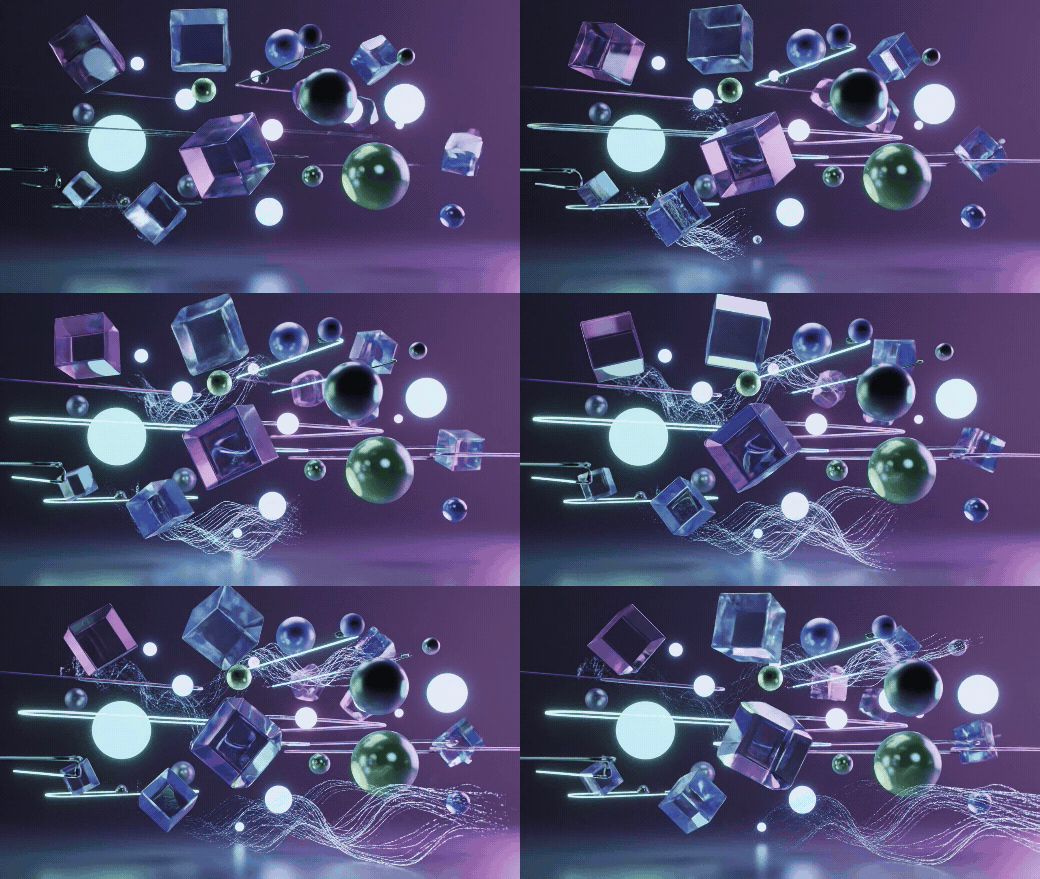 Turn any still image into eye-catching motion
Create seamless animations between two images
Optimized for fast loading in all email clients
***
## How It Works
Use any image from your project, upload a new one, or let Migma generate one for you
Describe the animation you want:
* "Animate this product with a slow rotation"
* "Add a subtle zoom effect"
* "Create a smooth transition to this other image"
Migma generates a smooth, compressed animation ready to drop into your email
***
## What You Can Do
Turn any image into motion:
* Product rotations and spins
* Subtle zoom or pan effects
* Pulsing and breathing motion
* Floating or bobbing elements
Just ask: *"Animate this with a gentle zoom"*
Create smooth animations between two images:
* Before/after reveals
* Product color variations
* Feature comparisons
* Step-by-step sequences
Just ask: *"Transition from image A to image B"*
Describe what you want and Migma creates it:
* Animated product showcases
* Motion backgrounds
* Attention-grabbing CTAs
Just ask: *"Create an animated banner showing our product rotating"*
***
## Use Cases
Show your product from every angle with a smooth 360° rotation
Make your email header stand out with subtle, elegant motion
Show transformations with a seamless transition between two images
Draw eyes to your call-to-action with subtle animation
***
## Example Prompts
Here's how to ask Migma for animations:
| What You Want | How to Ask |
| ---------------- | --------------------------------------------------------- |
| Product spin | *"Animate this product with a slow 360° rotation"* |
| Zoom effect | *"Create a subtle zoom-in on this hero image"* |
| Color transition | *"Transition smoothly between the blue and red versions"* |
| Floating motion | *"Add a gentle floating effect to this icon"* |
| Before/after | *"Animate from the before image to the after image"* |
***
## Email Optimized
Every animation Migma creates is ready for email:
**Compressed** for fast loading
**Works everywhere** in all major email clients
**Smooth playback** at the right frame rate
**Right dimensions** for email layouts
***
## Next Steps
Generate the images you want to animate
Add animations to your emails
***
## Need Help?
Share your animated creations
Turn any still image into eye-catching motion
Create seamless animations between two images
Optimized for fast loading in all email clients
***
## How It Works
Use any image from your project, upload a new one, or let Migma generate one for you
Describe the animation you want:
* "Animate this product with a slow rotation"
* "Add a subtle zoom effect"
* "Create a smooth transition to this other image"
Migma generates a smooth, compressed animation ready to drop into your email
***
## What You Can Do
Turn any image into motion:
* Product rotations and spins
* Subtle zoom or pan effects
* Pulsing and breathing motion
* Floating or bobbing elements
Just ask: *"Animate this with a gentle zoom"*
Create smooth animations between two images:
* Before/after reveals
* Product color variations
* Feature comparisons
* Step-by-step sequences
Just ask: *"Transition from image A to image B"*
Describe what you want and Migma creates it:
* Animated product showcases
* Motion backgrounds
* Attention-grabbing CTAs
Just ask: *"Create an animated banner showing our product rotating"*
***
## Use Cases
Show your product from every angle with a smooth 360° rotation
Make your email header stand out with subtle, elegant motion
Show transformations with a seamless transition between two images
Draw eyes to your call-to-action with subtle animation
***
## Example Prompts
Here's how to ask Migma for animations:
| What You Want | How to Ask |
| ---------------- | --------------------------------------------------------- |
| Product spin | *"Animate this product with a slow 360° rotation"* |
| Zoom effect | *"Create a subtle zoom-in on this hero image"* |
| Color transition | *"Transition smoothly between the blue and red versions"* |
| Floating motion | *"Add a gentle floating effect to this icon"* |
| Before/after | *"Animate from the before image to the after image"* |
***
## Email Optimized
Every animation Migma creates is ready for email:
**Compressed** for fast loading
**Works everywhere** in all major email clients
**Smooth playback** at the right frame rate
**Right dimensions** for email layouts
***
## Next Steps
Generate the images you want to animate
Add animations to your emails
***
## Need Help?
Share your animated creations