> ## Documentation Index
> Fetch the complete documentation index at: https://docs.migma.ai/llms.txt
> Use this file to discover all available pages before exploring further.
# Team Access
> Invite teammates to a brand with manager, editor, commenter, or viewer roles.
Migma is built for teams. Invite a teammate to a **brand**, pick a role, and the server enforces that role on generate, send, comment, and settings actions.
Workspaces control billing and shared credits; see [Workspaces](/collaboration/workspaces). Paid **editor seats** on Business are in [Seats](/collaboration/seats).
If you own or admin the account, you already have **manager** access to every brand — you don't need to invite yourself. The owner is treated as a manager everywhere.
## The four roles
When you invite someone, you pick one role for the brand. Each role is a fixed set of permissions.
| What they can do | Manager | Editor | Commenter | Viewer |
| ---------------------------- | :-----: | :----: | :-------: | :----: |
| View emails and brand assets | ✓ | ✓ | ✓ | ✓ |
| Comment and leave feedback | ✓ | ✓ | ✓ | — |
| Generate and edit emails | ✓ | ✓ | — | — |
| Upload images | ✓ | ✓ | — | — |
| Send campaigns | ✓ | ✓ | — | — |
| Manage brand settings | ✓ | — | — | — |
| Invite and manage members | ✓ | — | — | — |
In short:
* **Manager** — runs everything, including members and sending. Same access as the owner.
* **Editor** — generates, edits, and sends emails, but can't manage members or brand settings.
* **Commenter** — can view and leave feedback, but can't change or send anything.
* **Viewer** — read-only.
On **Visual Canvas**, commenters can place anchored comments, mention active teammates, reply to threads, move comment markers, and resolve or reopen feedback. They cannot change email content, generate, publish, or send.
Pick the lowest role that lets someone do their job. You can give a stakeholder **viewer** or **commenter** access for review without risking an accidental send, and bump them up later.
Inviting an **Editor** or **Manager** normally uses a paid seat. Workspace owners and admins can instead check **Free collaborator** on the invite: they edit and collaborate without a seat, and their AI generation runs on their own plan's credits. See [Free collaborators](/collaboration/seats#free-collaborators).
***
## Invite a teammate to a brand
The quickest way to add someone to a single brand is the **Share** panel, right where you're working.
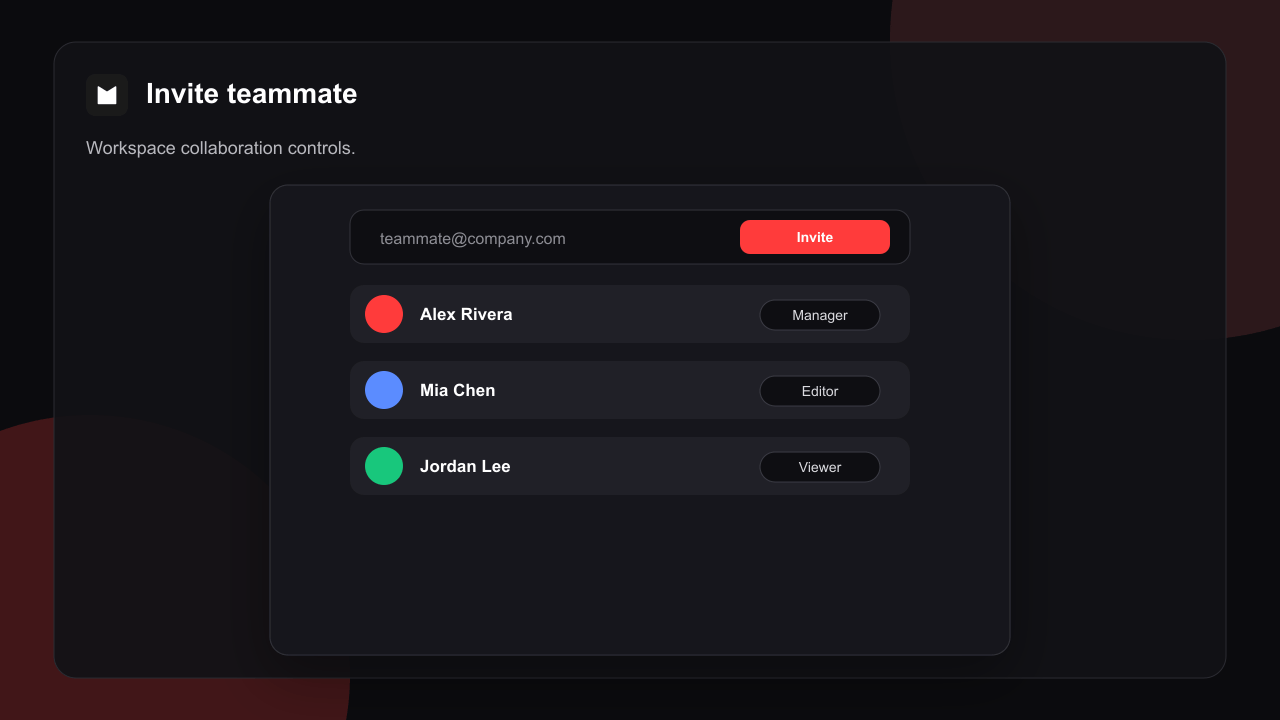
Inside the brand, open the **Share** panel from the collaboration controls.
Type the teammate's email address.
Choose **Manager**, **Editor**, **Commenter**, or **Viewer**. Editor is the default.
Send it. They get an email invitation and appear under pending invites until they accept.
 Only **managers** (and the account owner) can invite or remove members. If you don't see the invite controls, you don't have manager access on that brand.
***
## Invite across all your brands at once
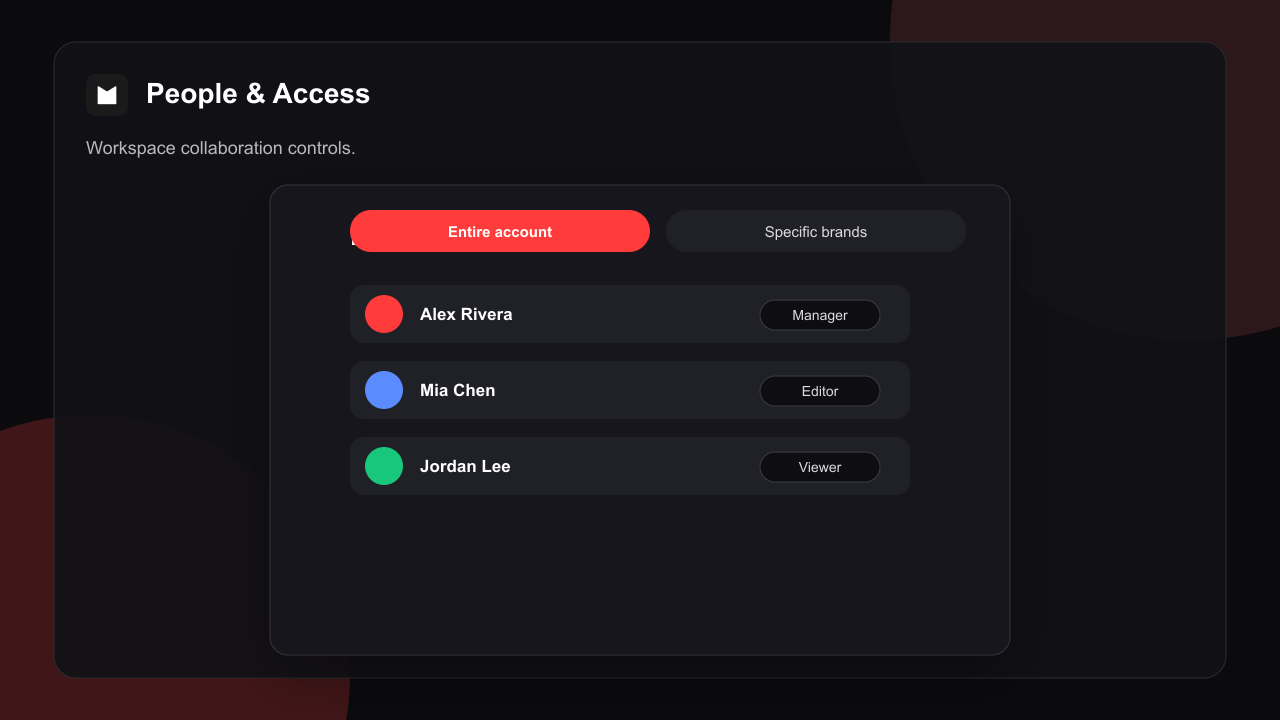
If a teammate should work across everything, you can invite them at the account level instead of brand by brand. Go to **Settings → People & Access**, switch the invite scope to **Entire account**, enter their email, and pick a role.
When they accept, they get that role on **every** brand you own — current and future — so you don't have to re-invite them each time you create a new brand. You can also switch the scope to **Specific brands** to invite one person to several brands in a single step.
Only **managers** (and the account owner) can invite or remove members. If you don't see the invite controls, you don't have manager access on that brand.
***
## Invite across all your brands at once
If a teammate should work across everything, you can invite them at the account level instead of brand by brand. Go to **Settings → People & Access**, switch the invite scope to **Entire account**, enter their email, and pick a role.
When they accept, they get that role on **every** brand you own — current and future — so you don't have to re-invite them each time you create a new brand. You can also switch the scope to **Specific brands** to invite one person to several brands in a single step.
 ***
## Manage members and pending invites
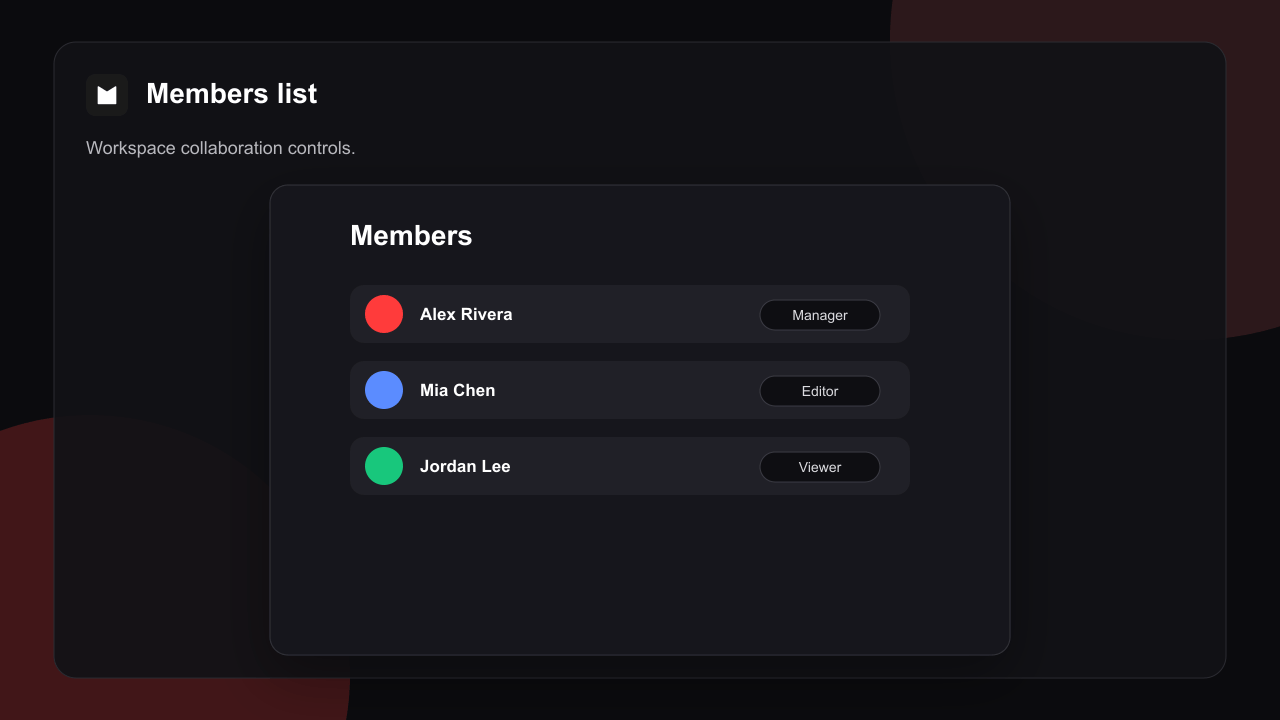
From **People & Access** you can see everyone with access and how far each person reaches, plus all invitations you've sent.
* **People** — everyone who can reach your brands, with their role and reach (all brands, a count of specific brands, or owner).
* **Pending invitations** — invites that haven't been accepted yet. **Resend** the email or **revoke** the invite. Expired invites are flagged.
* **Change a role** — for someone with all-brands access, switch them between viewer, commenter, and editor inline.
***
## Manage members and pending invites
From **People & Access** you can see everyone with access and how far each person reaches, plus all invitations you've sent.
* **People** — everyone who can reach your brands, with their role and reach (all brands, a count of specific brands, or owner).
* **Pending invitations** — invites that haven't been accepted yet. **Resend** the email or **revoke** the invite. Expired invites are flagged.
* **Change a role** — for someone with all-brands access, switch them between viewer, commenter, and editor inline.
 Per-brand members and their pending invites can also be managed from that brand's **Share** panel.
***
## How access is enforced
Roles aren't just a UI hint. Every sensitive action — generating an email, sending a campaign, leaving a comment, managing members — is checked against the user's role on the server before it runs.
A commenter can't generate or send even if they reach the right screen — the server denies the action. Members get exactly their role's permissions, nothing extra.
The account owner (and org admins) automatically have manager access to every brand in the account, without an explicit invite.
Access is granted per brand. Account-wide invites apply the same role across all of your brands at once.
***
## Related
Hub for workspaces, seats, and live editing.
Switch team workspace and shared credits.
Presence and live canvas on a shared brand.
The shared canvas where your team plans and builds emails together.
Run client work, and bring clients in to review without a seat.
Per-brand members and their pending invites can also be managed from that brand's **Share** panel.
***
## How access is enforced
Roles aren't just a UI hint. Every sensitive action — generating an email, sending a campaign, leaving a comment, managing members — is checked against the user's role on the server before it runs.
A commenter can't generate or send even if they reach the right screen — the server denies the action. Members get exactly their role's permissions, nothing extra.
The account owner (and org admins) automatically have manager access to every brand in the account, without an explicit invite.
Access is granted per brand. Account-wide invites apply the same role across all of your brands at once.
***
## Related
Hub for workspaces, seats, and live editing.
Switch team workspace and shared credits.
Presence and live canvas on a shared brand.
The shared canvas where your team plans and builds emails together.
Run client work, and bring clients in to review without a seat.