> ## Documentation Index
> Fetch the complete documentation index at: https://docs.migma.ai/llms.txt
> Use this file to discover all available pages before exploring further.
# Real-Time Collaboration
> See teammates' presence, cursors, and live canvas changes as they happen on a project.
When two or more people open the same project, Migma turns it into a live room. You see who else is here, watch their cursors move across shared project surfaces, and see edits appear as they make them. Nothing to switch on, nothing to refresh.
Real-time presence and cursors are **ephemeral**. They show who's active right now and where they're pointing; they are never written to your project. The durable work — your emails, canvas, and project data — is saved the same way it always is.
***
## What you get
See everyone currently in the project as a stack of avatars.
Watch teammates' pointers move across shared project surfaces in real time.
See which series slot a collaborator has open and is editing.
A live "X is generating…" indicator so two people don't run the AI on the same email at once.
Leave anchored feedback, mention teammates, reply in place, and resolve or reopen each thread.
***
## Live presence
The avatar stack in the project header shows who else is in the room right now. As people join and leave, the stack updates instantly — no reload. Each collaborator gets a stable color so you can tell their cursor and focus apart from everyone else's.
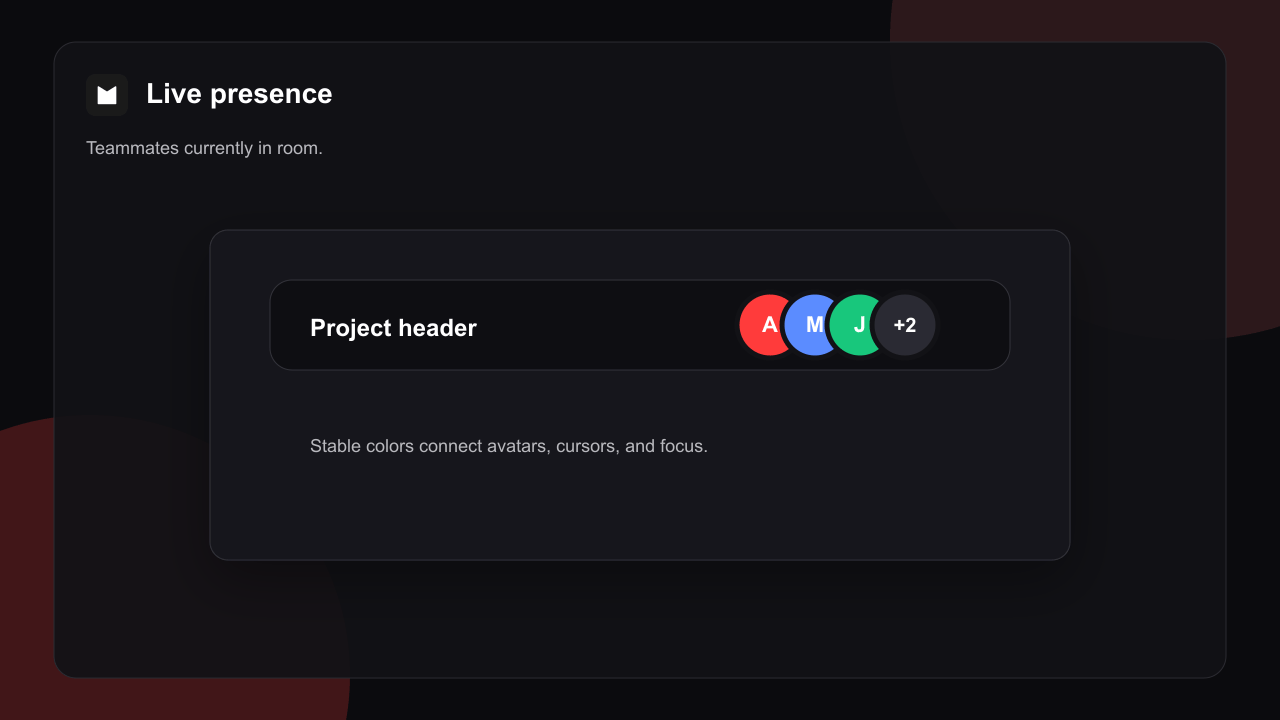 When more people are present than fit, the stack collapses the extras into a `+N` bubble. Presence only ever shows signed-in collaborators with access — anonymous public-link viewers never appear and never leak into the room.
***
## Live cursors and slot focus
Move your pointer in chat or over a shared project surface and everyone else in the room sees it, labelled with your name and color. In canvas views, cursors travel in canvas coordinates, so they stay anchored to the right spot even as people pan and zoom independently.
When more people are present than fit, the stack collapses the extras into a `+N` bubble. Presence only ever shows signed-in collaborators with access — anonymous public-link viewers never appear and never leak into the room.
***
## Live cursors and slot focus
Move your pointer in chat or over a shared project surface and everyone else in the room sees it, labelled with your name and color. In canvas views, cursors travel in canvas coordinates, so they stay anchored to the right spot even as people pan and zoom independently.
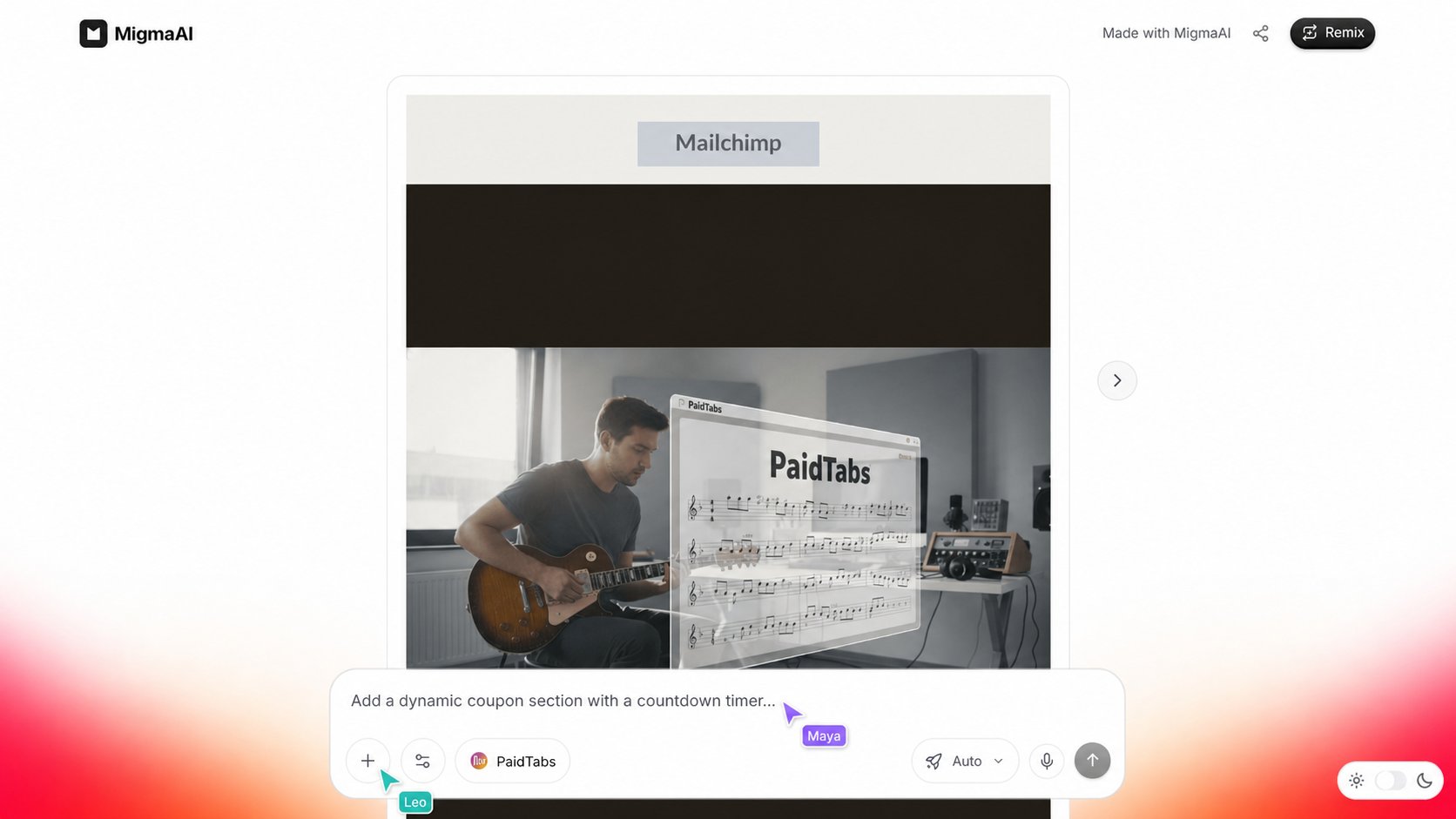 For series emails, Migma also broadcasts **slot focus** — which slot in a multi-email series each person currently has open. That makes it obvious when a teammate is already working on slot 3 while you're in slot 1.
Cursors and focus are best-effort and fire-and-forget. If the network hiccups, a few frames may drop and then catch back up — they're never queued or replayed, so you always see the latest position rather than a stale backlog.
***
## Live canvas sync
When a collaborator changes the canvas, pins a competitor email, adds a comment, or moves a node, everyone else's canvas shows the change within a moment. Migma coalesces rapid bursts such as dragging into one refresh, so the canvas stays smooth instead of flickering.
This is a refresh-on-change model: peers receive a small "the canvas changed" ping and re-pull the latest state. There's no character-by-character merging on the underlying email in this version — the most recent change to a given area wins.
***
## Comment threads
Select the comment tool on **Visual Canvas**, then choose a point beside the email or canvas area you want to discuss. The thread opens at that point. Type `@` or use the `@` button to find a teammate by name or email in new comments and replies. The selected teammate gets an in-app alert that returns them to the exact thread, even if they were away when you tagged them.
Comment markers show the original author and reply count without covering the work. Commenters can use threads without gaining permission to edit emails or send campaigns. Viewers can read existing threads.
Unresolved thread text is available to Migma on the next design turn. Resolving a thread keeps it visible for your team but removes it from later design context.
***
## Generation awareness
Running the AI agent is the one action where two people genuinely collide. To prevent that, Migma shows a live indicator when someone is generating.
For series emails, Migma also broadcasts **slot focus** — which slot in a multi-email series each person currently has open. That makes it obvious when a teammate is already working on slot 3 while you're in slot 1.
Cursors and focus are best-effort and fire-and-forget. If the network hiccups, a few frames may drop and then catch back up — they're never queued or replayed, so you always see the latest position rather than a stale backlog.
***
## Live canvas sync
When a collaborator changes the canvas, pins a competitor email, adds a comment, or moves a node, everyone else's canvas shows the change within a moment. Migma coalesces rapid bursts such as dragging into one refresh, so the canvas stays smooth instead of flickering.
This is a refresh-on-change model: peers receive a small "the canvas changed" ping and re-pull the latest state. There's no character-by-character merging on the underlying email in this version — the most recent change to a given area wins.
***
## Comment threads
Select the comment tool on **Visual Canvas**, then choose a point beside the email or canvas area you want to discuss. The thread opens at that point. Type `@` or use the `@` button to find a teammate by name or email in new comments and replies. The selected teammate gets an in-app alert that returns them to the exact thread, even if they were away when you tagged them.
Comment markers show the original author and reply count without covering the work. Commenters can use threads without gaining permission to edit emails or send campaigns. Viewers can read existing threads.
Unresolved thread text is available to Migma on the next design turn. Resolving a thread keeps it visible for your team but removes it from later design context.
***
## Generation awareness
Running the AI agent is the one action where two people genuinely collide. To prevent that, Migma shows a live indicator when someone is generating.
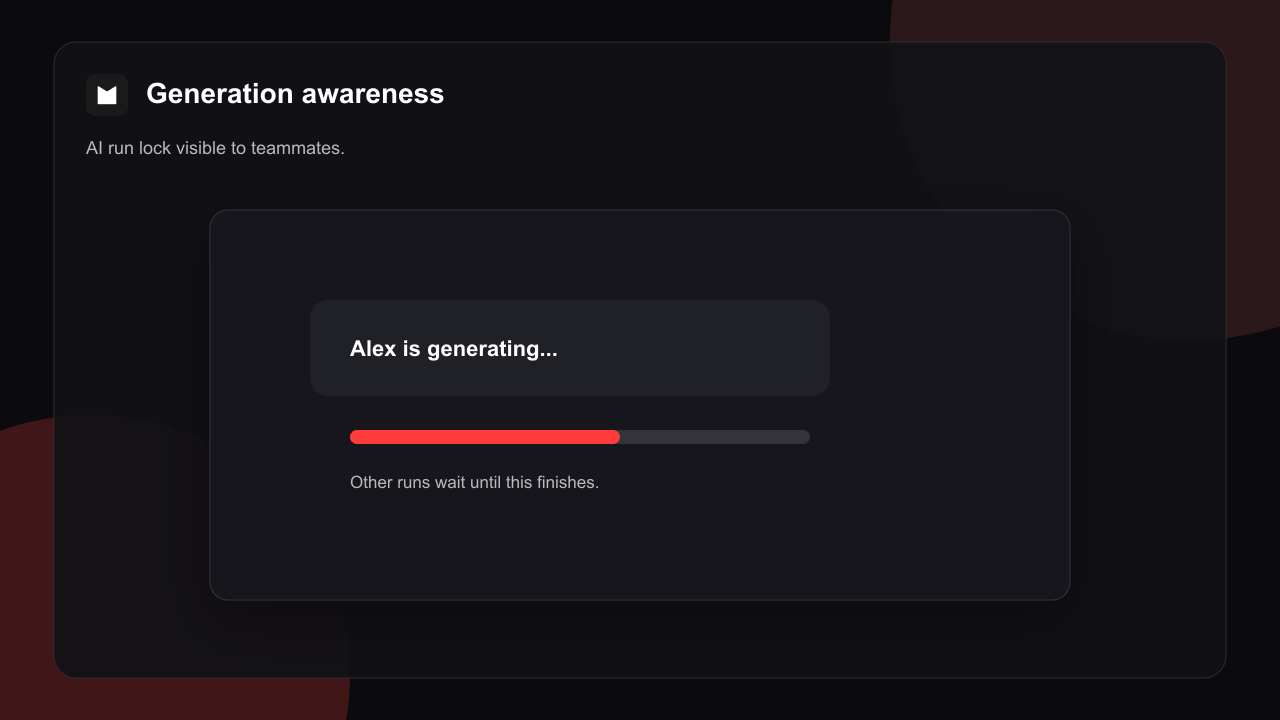 While a generation is in flight, you can see who's running it. If you try to start your own run on a locked email, Migma holds you off and shows who currently holds the turn, rather than letting two AI runs stomp on the same email.
***
## How it turns on
Real-time is automatic. The moment a project has collaborators with access, the live room is available.
When someone else opens the same project, you both appear in each other's presence stack.
Cursors, slot focus, canvas changes, and generation status all flow live for as long as you're both there.
There's no setting to enable and nothing to install. If you don't see anyone else, it just means you're the only person in the project right now.
***
## What real-time does and doesn't do
No — and it doesn't need to be. Presence and cursors are ephemeral signals about who's active. Your actual emails and canvas are saved through the normal project flow, independent of the live room.
Your cursor and presence simply stop broadcasting until you reconnect. On reconnect, you re-pull the current project state — you never replay a backlog of missed cursor frames.
No. Anonymous viewers get the read-only render path with no real-time room, so presence and cursors never leak to people without access.
Not in this version. Canvas sync is refresh-on-change and manual text edits to the same area resolve last-write-wins. There's no operational-transform merge on the email content yet.
Comment replies and resolution changes use the same canvas sync as other durable nodes. Teammates see the saved thread update within a moment.
***
## Related pages
Team workspace switcher and shared credits.
Invite collaborators and control who can view or edit a brand.
The shared canvas where presence, cursors, and live sync come together.
While a generation is in flight, you can see who's running it. If you try to start your own run on a locked email, Migma holds you off and shows who currently holds the turn, rather than letting two AI runs stomp on the same email.
***
## How it turns on
Real-time is automatic. The moment a project has collaborators with access, the live room is available.
When someone else opens the same project, you both appear in each other's presence stack.
Cursors, slot focus, canvas changes, and generation status all flow live for as long as you're both there.
There's no setting to enable and nothing to install. If you don't see anyone else, it just means you're the only person in the project right now.
***
## What real-time does and doesn't do
No — and it doesn't need to be. Presence and cursors are ephemeral signals about who's active. Your actual emails and canvas are saved through the normal project flow, independent of the live room.
Your cursor and presence simply stop broadcasting until you reconnect. On reconnect, you re-pull the current project state — you never replay a backlog of missed cursor frames.
No. Anonymous viewers get the read-only render path with no real-time room, so presence and cursors never leak to people without access.
Not in this version. Canvas sync is refresh-on-change and manual text edits to the same area resolve last-write-wins. There's no operational-transform merge on the email content yet.
Comment replies and resolution changes use the same canvas sync as other durable nodes. Teammates see the saved thread update within a moment.
***
## Related pages
Team workspace switcher and shared credits.
Invite collaborators and control who can view or edit a brand.
The shared canvas where presence, cursors, and live sync come together.