> ## Documentation Index
> Fetch the complete documentation index at: https://docs.migma.ai/llms.txt
> Use this file to discover all available pages before exploring further.
# Marketing Calendar
> Campaign suggestions tailored to your brand, ready for review.
## Overview
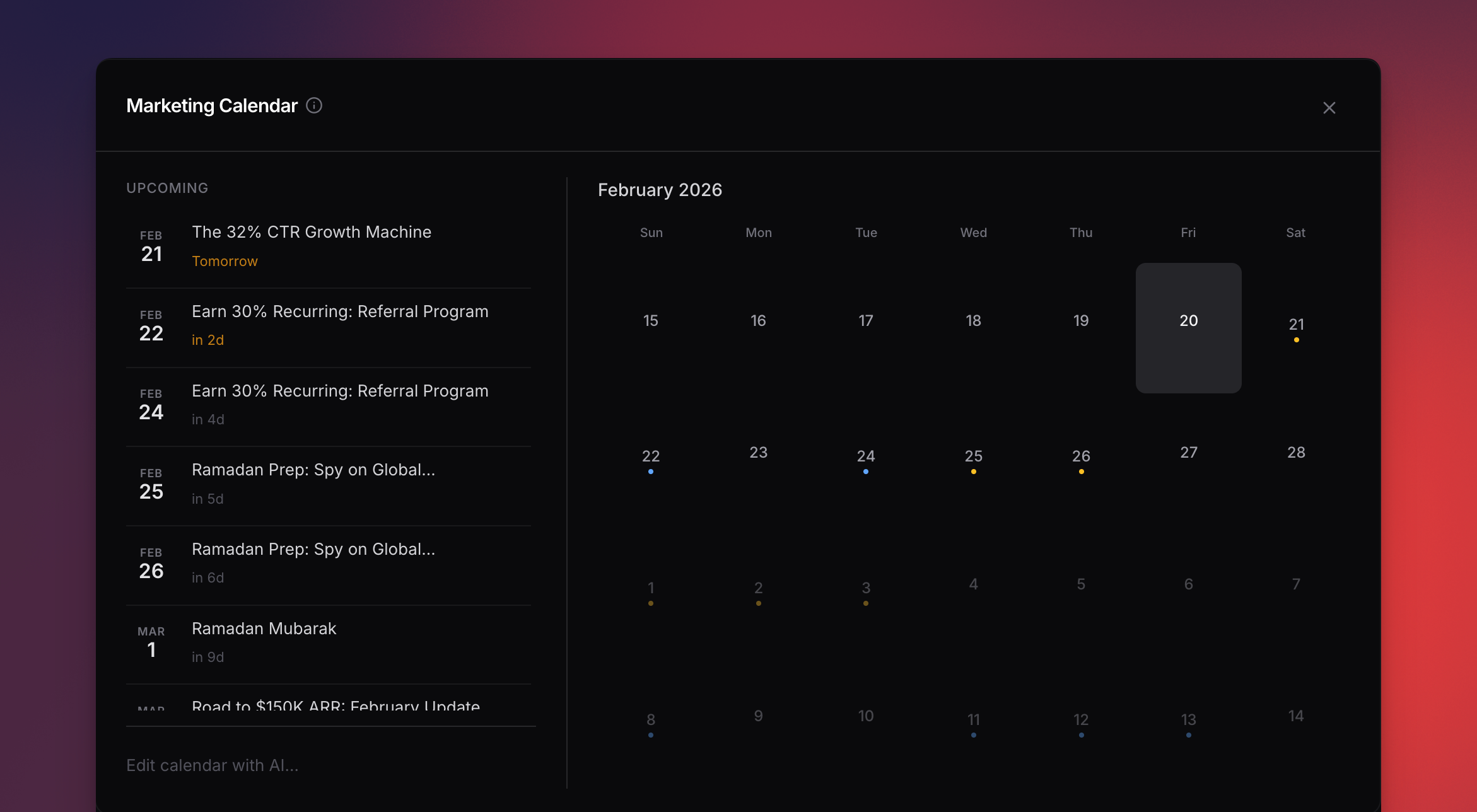
A 12-week view of campaign ideas based on your brand, your industry, and what's happening in the world. Pick one and create the email in one click.
 ***
## How It Works
Go to your project and open the calendar tab. Suggestions generate automatically on first visit.
Scroll the 28-day grid. Dots are color-coded by priority — amber for time-sensitive, blue for recommended, gray for nice-to-have.
Click any suggestion to see the idea, why it matters, and a ready-to-use prompt.
Hit **Create email** — the editor opens with the prompt pre-filled.
***
## What Migma Considers
Suggestions match your industry, audience, and goals.
Country-aware holidays in your language.
Never suggests something you just sent.
Detects your rhythm and suggests the next send at the right time.
Suggests timely responses when competitors send campaigns.
Surfaces what's relevant in your space right now.
***
## Managing Your Calendar
### Add your own events
Click any empty date to add a custom campaign idea — product launches, sales, announcements.
### Edit with AI
Type **"Add a back-to-school campaign in August"** and the calendar updates automatically.
### Remove suggestions
Click a suggestion and hit **Delete** to remove it.
### Mark as completed
Suggestions auto-mark as completed once you create the email.
***
## Refreshing
Click **Refresh** to regenerate with the latest data. Future-dated items you haven't acted on are preserved.
Auto-refreshes after 24 hours. Force refresh anytime.
***
## Daily Reminders
Get a morning email with upcoming campaigns for the next few days. Each includes a direct link to create the email.
***
## Next Steps
Turn a suggestion into a live campaign
See how your campaigns perform
Feed competitor data into your suggestions
Set up contacts you'll be sending to
***
## How It Works
Go to your project and open the calendar tab. Suggestions generate automatically on first visit.
Scroll the 28-day grid. Dots are color-coded by priority — amber for time-sensitive, blue for recommended, gray for nice-to-have.
Click any suggestion to see the idea, why it matters, and a ready-to-use prompt.
Hit **Create email** — the editor opens with the prompt pre-filled.
***
## What Migma Considers
Suggestions match your industry, audience, and goals.
Country-aware holidays in your language.
Never suggests something you just sent.
Detects your rhythm and suggests the next send at the right time.
Suggests timely responses when competitors send campaigns.
Surfaces what's relevant in your space right now.
***
## Managing Your Calendar
### Add your own events
Click any empty date to add a custom campaign idea — product launches, sales, announcements.
### Edit with AI
Type **"Add a back-to-school campaign in August"** and the calendar updates automatically.
### Remove suggestions
Click a suggestion and hit **Delete** to remove it.
### Mark as completed
Suggestions auto-mark as completed once you create the email.
***
## Refreshing
Click **Refresh** to regenerate with the latest data. Future-dated items you haven't acted on are preserved.
Auto-refreshes after 24 hours. Force refresh anytime.
***
## Daily Reminders
Get a morning email with upcoming campaigns for the next few days. Each includes a direct link to create the email.
***
## Next Steps
Turn a suggestion into a live campaign
See how your campaigns perform
Feed competitor data into your suggestions
Set up contacts you'll be sending to