> ## Documentation Index
> Fetch the complete documentation index at: https://docs.migma.ai/llms.txt
> Use this file to discover all available pages before exploring further.
# Lists and Segments
> Group contacts with fixed lists and dynamic segments.
Before you send a campaign, decide who should receive it. Lists and segments are the two main ways to group contacts in Migma.
***
## Lists
A list is a fixed group you manage. Use lists for contacts from a signup source, plan, event, or manual import.
**To create a list:**
1. Go to **Audience** in the left sidebar
2. Click **Lists**
3. Click **Create List**
4. Name the list and add contacts
When you send a campaign, you can target a list directly.
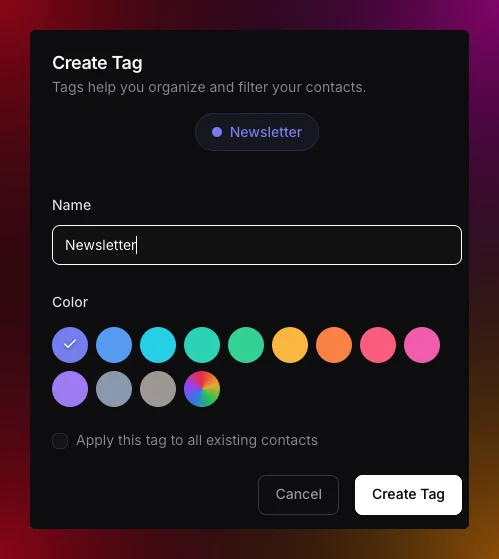 Keep list names short and specific. Names like `Newsletter`, `VIP customers`, and `Trial users` are easier to reuse later.
***
## Segments
A segment is a smart group that updates automatically based on rules you set. Instead of manually tagging people, you define a filter and Migma keeps the segment up to date as contacts change.
For example: everyone who signed up in the last 30 days, or everyone in your VIP list who has not opened an email in 60 days.
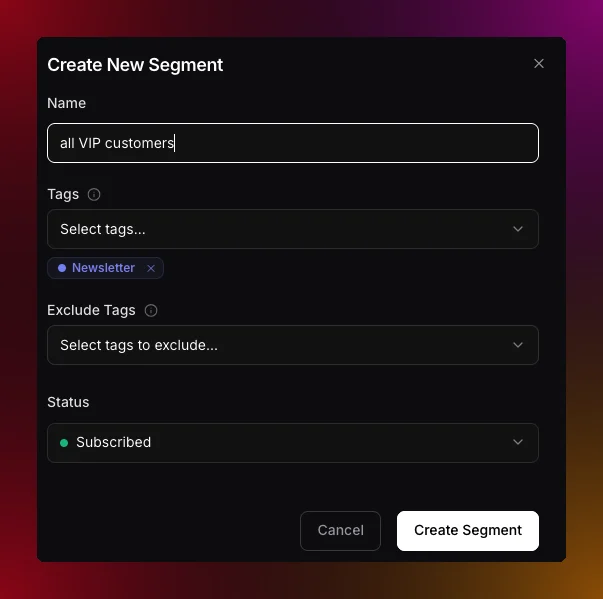
**To create a segment:**
1. Go to **Audience** in the left sidebar
2. Click the **Segments** tab
3. Hit **Create Segment**
4. Give it a name
5. Set your filters or leave it open to include everyone
6. Click **Create Segment**
Keep list names short and specific. Names like `Newsletter`, `VIP customers`, and `Trial users` are easier to reuse later.
***
## Segments
A segment is a smart group that updates automatically based on rules you set. Instead of manually tagging people, you define a filter and Migma keeps the segment up to date as contacts change.
For example: everyone who signed up in the last 30 days, or everyone in your VIP list who has not opened an email in 60 days.
**To create a segment:**
1. Go to **Audience** in the left sidebar
2. Click the **Segments** tab
3. Hit **Create Segment**
4. Give it a name
5. Set your filters or leave it open to include everyone
6. Click **Create Segment**
 Just getting started? Create one segment that includes all your contacts. You can get more specific once you have a few campaigns under your belt.
***
## Describe a segment in plain words
You do not have to build filters by hand. The search box at the top of the **Create Segment** dialog also drafts segments from plain language. Type what you want and Migma turns it into filters, shows the matching contact count, and leaves the draft for you to review before you save.
It understands the same things you can build manually:
* **By attribute** — "pro plan contacts in France", "everyone whose language is Spanish"
* **By engagement** — "opened in the last thirty days", "subscribed but never clicked"
* **By example** — "contacts like [alex@acme.com](mailto:alex@acme.com)" or "subscribers similar to my best customer"
* **By value group** — "investors" when their emails end in ".vc", "everyone on a gmail address"
With **by example**, Migma looks up the contact you name and builds the segment from their *distinctive* attributes, the traits that are rare across your audience, while skipping near-universal values that would just select everyone. It never filters on identity fields like email or name, so you get a lookalike group, not a copy of one person.
With **by value group**, Migma looks at the real values in a field to spot a pattern, then writes one rule for it instead of listing every value. Ask for "investors" and it can notice that many emails end in ".vc" and build the segment as "email ends with .vc". Because it is a rule, the segment stays accurate as new matching contacts arrive. When you build filters by hand, the same power is in the field condition's operator: pick **is** or **is not** for exact values, or **starts with**, **ends with**, **contains**, and **does not contain** to match by pattern.
Not sure how to phrase it? Open the dialog and use the **Try** chips under the box to prefill a starting point, then edit it. For "by example", name a real contact after "contacts like".
This drafting lives in the dashboard. Through the API you build the same result by setting the segment's `filters` object directly, described in the filter types below.
***
## Segment filter types
A segment can combine any of these filters. They behave the same whether you build the segment in the dashboard or through the API, where they live on the segment's `filters` object.
| Filter | What it matches |
| ---------------- | ----------------------------------------------------------------------------------------------------------------------------- |
| Lists | Contacts that belong to any of the chosen lists |
| Exclude lists | Contacts that do **not** belong to the chosen lists, so you can carve out groups like everyone in a region except staff |
| Status | Subscription state: subscribed, unsubscribed, non-subscribed, or bounced |
| Email validation | Whether the address checked out as valid, invalid, risky, or unknown |
| Custom fields | Any custom field you store, such as `plan` or `source`, matched against the values you choose |
| Contact fields | Built-in attributes like country, language, phone, name, or inbox provider, matched with "is" or "is not" |
| Engagement | Whether a contact received, opened, or clicked within a time window. See [Engagement Segments](/audience/engagement-segments) |
Stack as many filters as you need. A contact has to satisfy all of them to land in the segment, so each filter you add narrows the group.
***
## Lists vs segments
Not sure which one to use? Here is a simple way to think about it.
| | Lists | Segments |
| -------------------- | ------------------------------------ | ---------------------------------------- |
| **Updated by** | You, manually | Migma, automatically |
| **Best for** | Fixed groups that do not change much | Dynamic groups based on behavior or data |
| **Example** | "VIP customers", "event attendees" | Everyone who signed up this month |
| **Use in campaigns** | Yes | Yes |
In practice, most teams use both. Lists are fixed groups. Segments update as contact data and engagement change.
***
## What do you want to do next?
Add contacts one by one or import a CSV list.
Use lists and segments to send to the right people.
Let contacts choose what they hear from you.
See how your campaigns perform after sending.
Just getting started? Create one segment that includes all your contacts. You can get more specific once you have a few campaigns under your belt.
***
## Describe a segment in plain words
You do not have to build filters by hand. The search box at the top of the **Create Segment** dialog also drafts segments from plain language. Type what you want and Migma turns it into filters, shows the matching contact count, and leaves the draft for you to review before you save.
It understands the same things you can build manually:
* **By attribute** — "pro plan contacts in France", "everyone whose language is Spanish"
* **By engagement** — "opened in the last thirty days", "subscribed but never clicked"
* **By example** — "contacts like [alex@acme.com](mailto:alex@acme.com)" or "subscribers similar to my best customer"
* **By value group** — "investors" when their emails end in ".vc", "everyone on a gmail address"
With **by example**, Migma looks up the contact you name and builds the segment from their *distinctive* attributes, the traits that are rare across your audience, while skipping near-universal values that would just select everyone. It never filters on identity fields like email or name, so you get a lookalike group, not a copy of one person.
With **by value group**, Migma looks at the real values in a field to spot a pattern, then writes one rule for it instead of listing every value. Ask for "investors" and it can notice that many emails end in ".vc" and build the segment as "email ends with .vc". Because it is a rule, the segment stays accurate as new matching contacts arrive. When you build filters by hand, the same power is in the field condition's operator: pick **is** or **is not** for exact values, or **starts with**, **ends with**, **contains**, and **does not contain** to match by pattern.
Not sure how to phrase it? Open the dialog and use the **Try** chips under the box to prefill a starting point, then edit it. For "by example", name a real contact after "contacts like".
This drafting lives in the dashboard. Through the API you build the same result by setting the segment's `filters` object directly, described in the filter types below.
***
## Segment filter types
A segment can combine any of these filters. They behave the same whether you build the segment in the dashboard or through the API, where they live on the segment's `filters` object.
| Filter | What it matches |
| ---------------- | ----------------------------------------------------------------------------------------------------------------------------- |
| Lists | Contacts that belong to any of the chosen lists |
| Exclude lists | Contacts that do **not** belong to the chosen lists, so you can carve out groups like everyone in a region except staff |
| Status | Subscription state: subscribed, unsubscribed, non-subscribed, or bounced |
| Email validation | Whether the address checked out as valid, invalid, risky, or unknown |
| Custom fields | Any custom field you store, such as `plan` or `source`, matched against the values you choose |
| Contact fields | Built-in attributes like country, language, phone, name, or inbox provider, matched with "is" or "is not" |
| Engagement | Whether a contact received, opened, or clicked within a time window. See [Engagement Segments](/audience/engagement-segments) |
Stack as many filters as you need. A contact has to satisfy all of them to land in the segment, so each filter you add narrows the group.
***
## Lists vs segments
Not sure which one to use? Here is a simple way to think about it.
| | Lists | Segments |
| -------------------- | ------------------------------------ | ---------------------------------------- |
| **Updated by** | You, manually | Migma, automatically |
| **Best for** | Fixed groups that do not change much | Dynamic groups based on behavior or data |
| **Example** | "VIP customers", "event attendees" | Everyone who signed up this month |
| **Use in campaigns** | Yes | Yes |
In practice, most teams use both. Lists are fixed groups. Segments update as contact data and engagement change.
***
## What do you want to do next?
Add contacts one by one or import a CSV list.
Use lists and segments to send to the right people.
Let contacts choose what they hear from you.
See how your campaigns perform after sending.