> ## Documentation Index
> Fetch the complete documentation index at: https://docs.migma.ai/llms.txt
> Use this file to discover all available pages before exploring further.
# Manage Contacts
> Add, edit, and organize your email subscribers.
Your contacts live in the **Audience** section. You can add people one at a time, import a spreadsheet, import from a connected integration, and organize everyone with lists, segments, and filters.
***
## Adding contacts
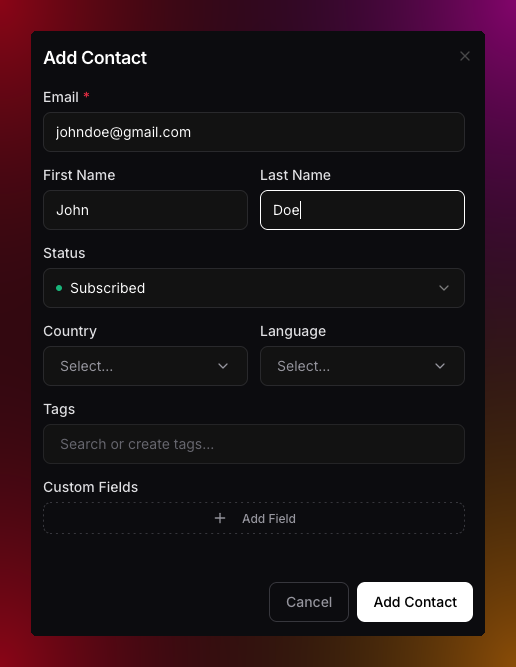
**One at a time:**
1. Go to **Audience** in the left sidebar
2. Click **Add Contact** then **Single Contact**
3. Enter their email address and name
4. Add any lists you want
5. Hit **Save**
 **Importing a list:**
1. Go to **Audience** in the left sidebar
2. Click **Add Contact** then **Bulk Import**
3. Upload your CSV file
4. Map the columns to the right fields
5. Optionally apply lists to everyone being imported
6. Hit **Import**
**Importing a list:**
1. Go to **Audience** in the left sidebar
2. Click **Add Contact** then **Bulk Import**
3. Upload your CSV file
4. Map the columns to the right fields
5. Optionally apply lists to everyone being imported
6. Hit **Import**
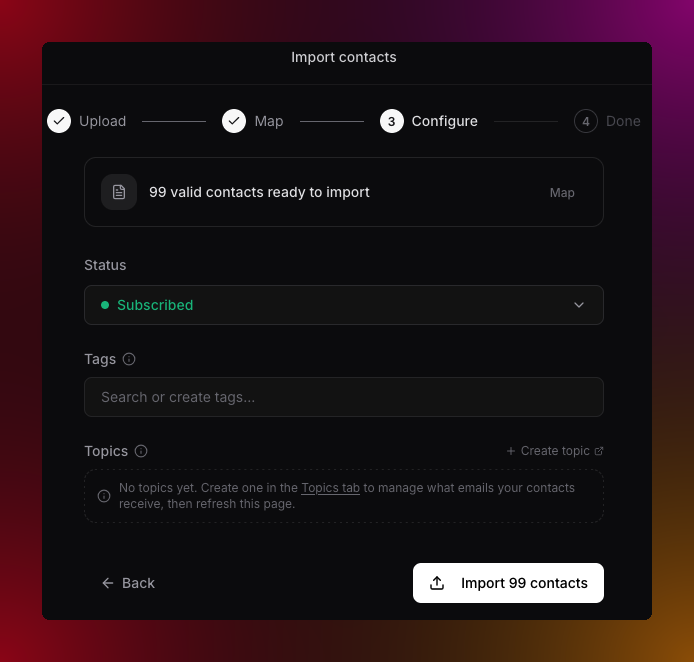 Large imports process in the background. Check **Import History** to see when it is done and if anything was skipped.
Full guide with column mapping and error handling
***
## Import contacts from a CSV file
You can import a CSV either from the dashboard or through the API. Both paths upload the file, map its columns to contact fields, and process the import as a background job — so a large file never blocks you.
### From the dashboard
In **Audience**, click **Add Contact** then **Bulk Import** and choose your file.
Match each CSV column to a contact field. Only **Email** is required — everything else (name, phone, country, language, custom fields) maps when a column is present.
Optionally apply lists to everyone in the file, then confirm. The import runs in the background.
Check **Import History** to see when the job finishes and how many contacts were created, updated, or skipped.
### Through the API
Upload the CSV to `POST /v1/contacts/imports` as `multipart/form-data`. The file is stored and processed in the background, so the response returns immediately with an import `id`. Poll `GET /v1/contacts/imports/{id}` for the status and counts.
The endpoint needs an API key with the `audience:write` permission (`audience:read` to poll). The `columnMap` is a JSON string mapping contact fields to your CSV header names — only `email` is required.
```typescript Node.js SDK theme={null}
import { readFileSync } from 'node:fs';
import Migma from 'migma';
const migma = new Migma('YOUR_API_KEY');
// Upload the CSV — processed in the background.
const { data: job } = await migma.contacts.imports.create({
file: readFileSync('./contacts.csv'),
projectId: 'PROJECT_ID',
columnMap: {
email: 'Email',
firstName: 'First Name',
customFields: { plan: 'Plan' },
},
onConflict: 'upsert',
tags: ['newsletter'],
});
// Poll until the import finishes.
const { data: status } = await migma.contacts.imports.get(job!.id);
// status.status → 'pending' | 'processing' | 'completed' | 'failed'
// status.counts → { total, created, updated, skipped, failed }
```
```bash cURL theme={null}
# Start the import
curl -X POST https://api.migma.ai/v1/contacts/imports \
-H "Authorization: Bearer $MIGMA_API_KEY" \
-F "file=@contacts.csv" \
-F "projectId=PROJECT_ID" \
-F 'columnMap={"email":"Email","firstName":"First Name"}' \
-F "onConflict=upsert" \
-F "tags=newsletter,launch"
# Poll for status + counts
curl https://api.migma.ai/v1/contacts/imports/IMPORT_ID \
-H "Authorization: Bearer $MIGMA_API_KEY"
```
A completed import returns counts you can reconcile against your file:
```json theme={null}
{
"object": "contact_import",
"id": "IMPORT_ID",
"status": "completed",
"counts": { "total": 1200, "created": 1150, "updated": 40, "skipped": 8, "failed": 2 },
"error": null,
"created_at": "2026-07-01T06:00:00.000Z",
"completed_at": "2026-07-01T06:00:12.000Z"
}
```
Set `onConflict` to `upsert` (the default) to update contacts whose email already exists, or `skip` to leave them untouched.
Full request and response schema for the import endpoints
***
## Import from an integration
If your contacts already live in Mailchimp, Klaviyo, or HubSpot, you can import them directly instead of exporting a CSV first. Click **Add Contact** then **Import from integration**, choose the provider, and pick the audience, list, segment, or tag to bring over. The import runs in the background and shows up in **Import History** with the provider, source, consent mode, and final counts.
Imports preserve consent: by default only subscribed contacts are imported, contacts without clear marketing permission stay non-sendable, and existing unsubscribed or bounced contacts are never resubscribed. Every import also creates a source list and a matching saved segment, so the imported audience is ready to target right away.
Import audiences, saved segments, and tags.
Import lists and segments.
Import contact lists with conservative consent handling.
***
## Finding and filtering contacts
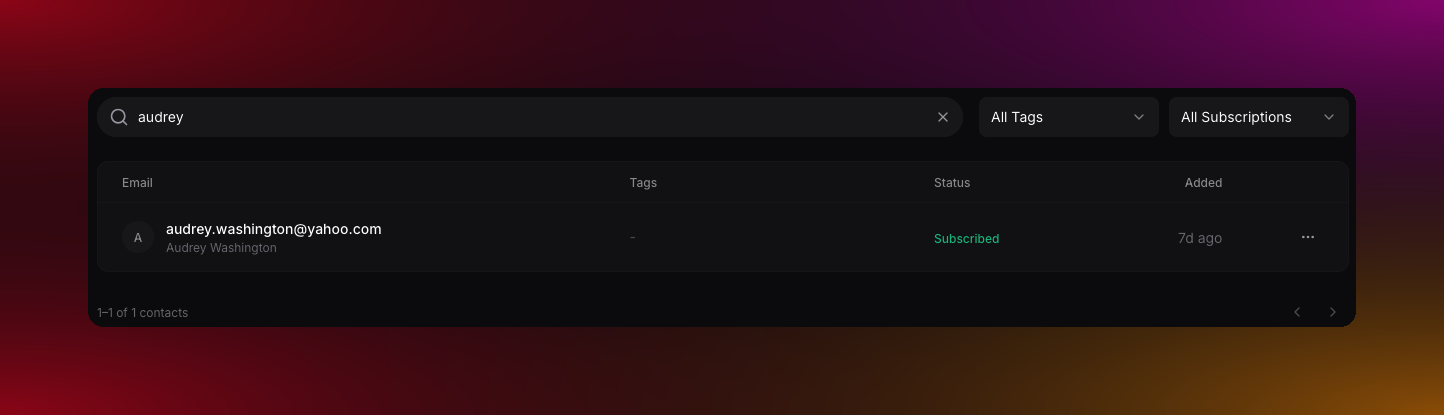
Use the search bar to find someone by name or email. Use the filters to narrow down by status or list.
* **Status filters:** subscribed, unsubscribed, non-subscribed, bounced
* **List filters:** pick one or more lists to show contacts that have any of them
Large imports process in the background. Check **Import History** to see when it is done and if anything was skipped.
Full guide with column mapping and error handling
***
## Import contacts from a CSV file
You can import a CSV either from the dashboard or through the API. Both paths upload the file, map its columns to contact fields, and process the import as a background job — so a large file never blocks you.
### From the dashboard
In **Audience**, click **Add Contact** then **Bulk Import** and choose your file.
Match each CSV column to a contact field. Only **Email** is required — everything else (name, phone, country, language, custom fields) maps when a column is present.
Optionally apply lists to everyone in the file, then confirm. The import runs in the background.
Check **Import History** to see when the job finishes and how many contacts were created, updated, or skipped.
### Through the API
Upload the CSV to `POST /v1/contacts/imports` as `multipart/form-data`. The file is stored and processed in the background, so the response returns immediately with an import `id`. Poll `GET /v1/contacts/imports/{id}` for the status and counts.
The endpoint needs an API key with the `audience:write` permission (`audience:read` to poll). The `columnMap` is a JSON string mapping contact fields to your CSV header names — only `email` is required.
```typescript Node.js SDK theme={null}
import { readFileSync } from 'node:fs';
import Migma from 'migma';
const migma = new Migma('YOUR_API_KEY');
// Upload the CSV — processed in the background.
const { data: job } = await migma.contacts.imports.create({
file: readFileSync('./contacts.csv'),
projectId: 'PROJECT_ID',
columnMap: {
email: 'Email',
firstName: 'First Name',
customFields: { plan: 'Plan' },
},
onConflict: 'upsert',
tags: ['newsletter'],
});
// Poll until the import finishes.
const { data: status } = await migma.contacts.imports.get(job!.id);
// status.status → 'pending' | 'processing' | 'completed' | 'failed'
// status.counts → { total, created, updated, skipped, failed }
```
```bash cURL theme={null}
# Start the import
curl -X POST https://api.migma.ai/v1/contacts/imports \
-H "Authorization: Bearer $MIGMA_API_KEY" \
-F "file=@contacts.csv" \
-F "projectId=PROJECT_ID" \
-F 'columnMap={"email":"Email","firstName":"First Name"}' \
-F "onConflict=upsert" \
-F "tags=newsletter,launch"
# Poll for status + counts
curl https://api.migma.ai/v1/contacts/imports/IMPORT_ID \
-H "Authorization: Bearer $MIGMA_API_KEY"
```
A completed import returns counts you can reconcile against your file:
```json theme={null}
{
"object": "contact_import",
"id": "IMPORT_ID",
"status": "completed",
"counts": { "total": 1200, "created": 1150, "updated": 40, "skipped": 8, "failed": 2 },
"error": null,
"created_at": "2026-07-01T06:00:00.000Z",
"completed_at": "2026-07-01T06:00:12.000Z"
}
```
Set `onConflict` to `upsert` (the default) to update contacts whose email already exists, or `skip` to leave them untouched.
Full request and response schema for the import endpoints
***
## Import from an integration
If your contacts already live in Mailchimp, Klaviyo, or HubSpot, you can import them directly instead of exporting a CSV first. Click **Add Contact** then **Import from integration**, choose the provider, and pick the audience, list, segment, or tag to bring over. The import runs in the background and shows up in **Import History** with the provider, source, consent mode, and final counts.
Imports preserve consent: by default only subscribed contacts are imported, contacts without clear marketing permission stay non-sendable, and existing unsubscribed or bounced contacts are never resubscribed. Every import also creates a source list and a matching saved segment, so the imported audience is ready to target right away.
Import audiences, saved segments, and tags.
Import lists and segments.
Import contact lists with conservative consent handling.
***
## Finding and filtering contacts
Use the search bar to find someone by name or email. Use the filters to narrow down by status or list.
* **Status filters:** subscribed, unsubscribed, non-subscribed, bounced
* **List filters:** pick one or more lists to show contacts that have any of them
 ***
## Editing a contact
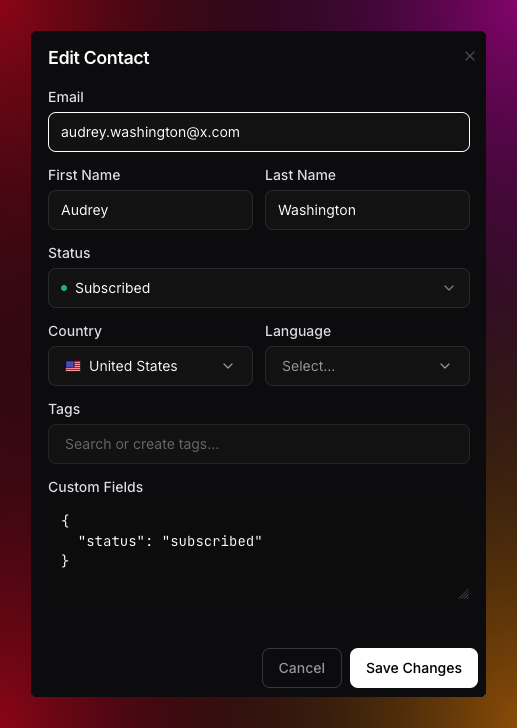
Click any contact row to open their detail view. From there you can update their name, email, lists, subscription status, and any custom fields you have set up.
Custom fields are great for storing extra data like company name, plan type, or account ID. You can use them in segments to build targeted groups and reference them in email templates as dynamic variables.
***
## Editing a contact
Click any contact row to open their detail view. From there you can update their name, email, lists, subscription status, and any custom fields you have set up.
Custom fields are great for storing extra data like company name, plan type, or account ID. You can use them in segments to build targeted groups and reference them in email templates as dynamic variables.
 ***
## Bulk actions
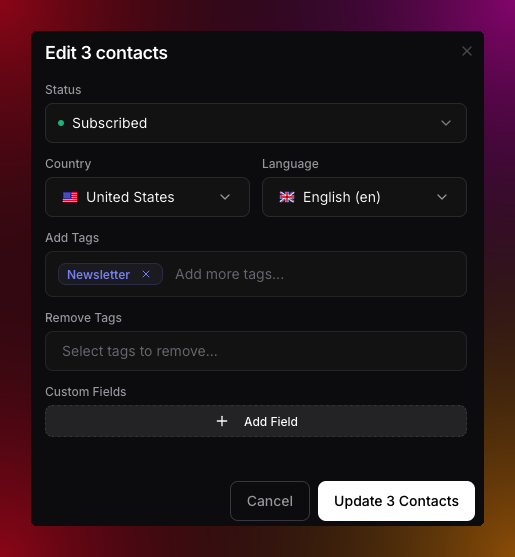
Select multiple contacts using the checkboxes, then use the bulk action bar to update them all at once.
You can bulk update status, add or remove lists, change country or language, and update custom fields. You can also bulk delete contacts permanently.
***
## Bulk actions
Select multiple contacts using the checkboxes, then use the bulk action bar to update them all at once.
You can bulk update status, add or remove lists, change country or language, and update custom fields. You can also bulk delete contacts permanently.
 Use **Select all matching** to apply changes to every contact that matches your current filters, not just the ones visible on screen.
Deleting contacts is permanent and cannot be undone.
***
## What do you want to do next?
Group your contacts to target the right people.
Full guide to importing contacts from a spreadsheet.
Send an email to your contacts.
Let subscribers choose what they hear from you.
Use **Select all matching** to apply changes to every contact that matches your current filters, not just the ones visible on screen.
Deleting contacts is permanent and cannot be undone.
***
## What do you want to do next?
Group your contacts to target the right people.
Full guide to importing contacts from a spreadsheet.
Send an email to your contacts.
Let subscribers choose what they hear from you.